

Forgot Password
Forgot Password
If you have forgotten your password and can no longer access your HeartLab account, you can reset it from the login page or ask an administrator to trigger a password reset on your behalf.
Reset Your Password
To reset your password:
- Navigate to the HeartLab login page.
- Enter the email address you use to login to HeartLab.
- Select Forgot password?

- A confirmation message will appear prompting you to check your email.
- Open the password reset email and select Reset Password.
- Follow the on-screen instructions to create a new password.
Your new password must meet the displayed password policy requirements.
Once the reset is complete, you can sign in using your new password.
Administrator Password Reset
If a user is unable to reset their password themselves, an administrator can manually trigger a password reset email.
To do this:
- Navigate to Settings → Users & Roles → Users.
- Select the affected user account.
- Under Account Setup, select Reset Password.
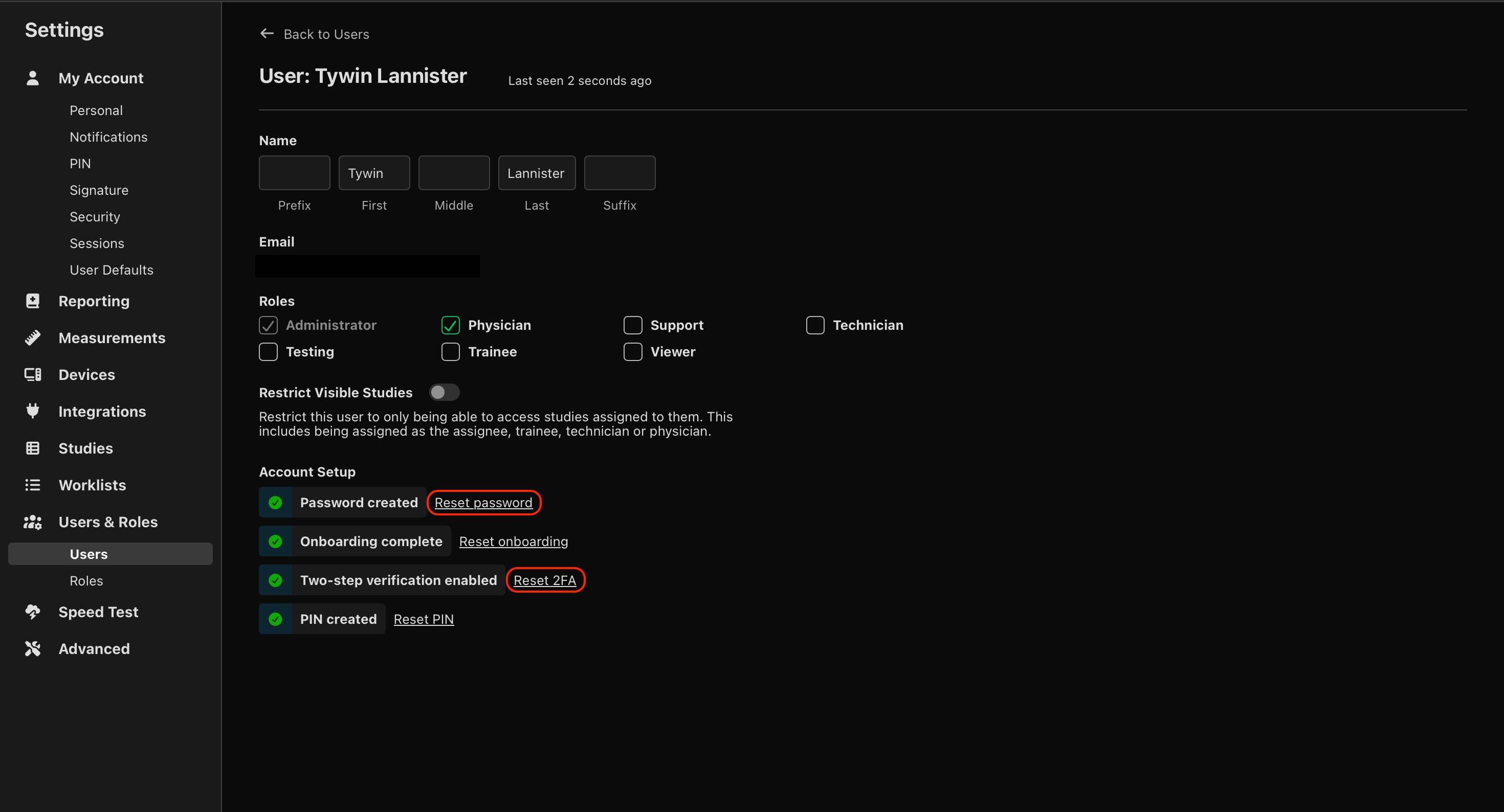
The user will receive an email containing a password reset link.
Administrator Two-Step Verification (2FA) Reset
If a user no longer has access to their authenticator application, an administrator can disable two-step verification for that user.
To do this:
- Navigate to Settings → Users & Roles → Users.
- Select the affected user account.
- Under Account Setup, select Disable 2FA.
The user will be able to sign in without entering a two-step verification code until two-step verification is configured again.
Related Articles
Performance Issues
Steps to diagnose slow loading, lag, or unresponsive behaviour in HeartLab.
September 2026
This release adds 12-lead ECGs on reports, sentence library autocomplete, enhances CT and MR image viewing, and offers HealthLink report distributions in Australia, alongside a range of other improvements.
 MFR
MFR