Personal Settings
Personal Settings
HeartLab allows users to customise aspects of their personal experience, including study viewing behaviour, reporting workflows, and notifications.
These settings only affect your own account and can be changed at any time.
To access your personal settings, navigate to Settings → My Account → Personal.
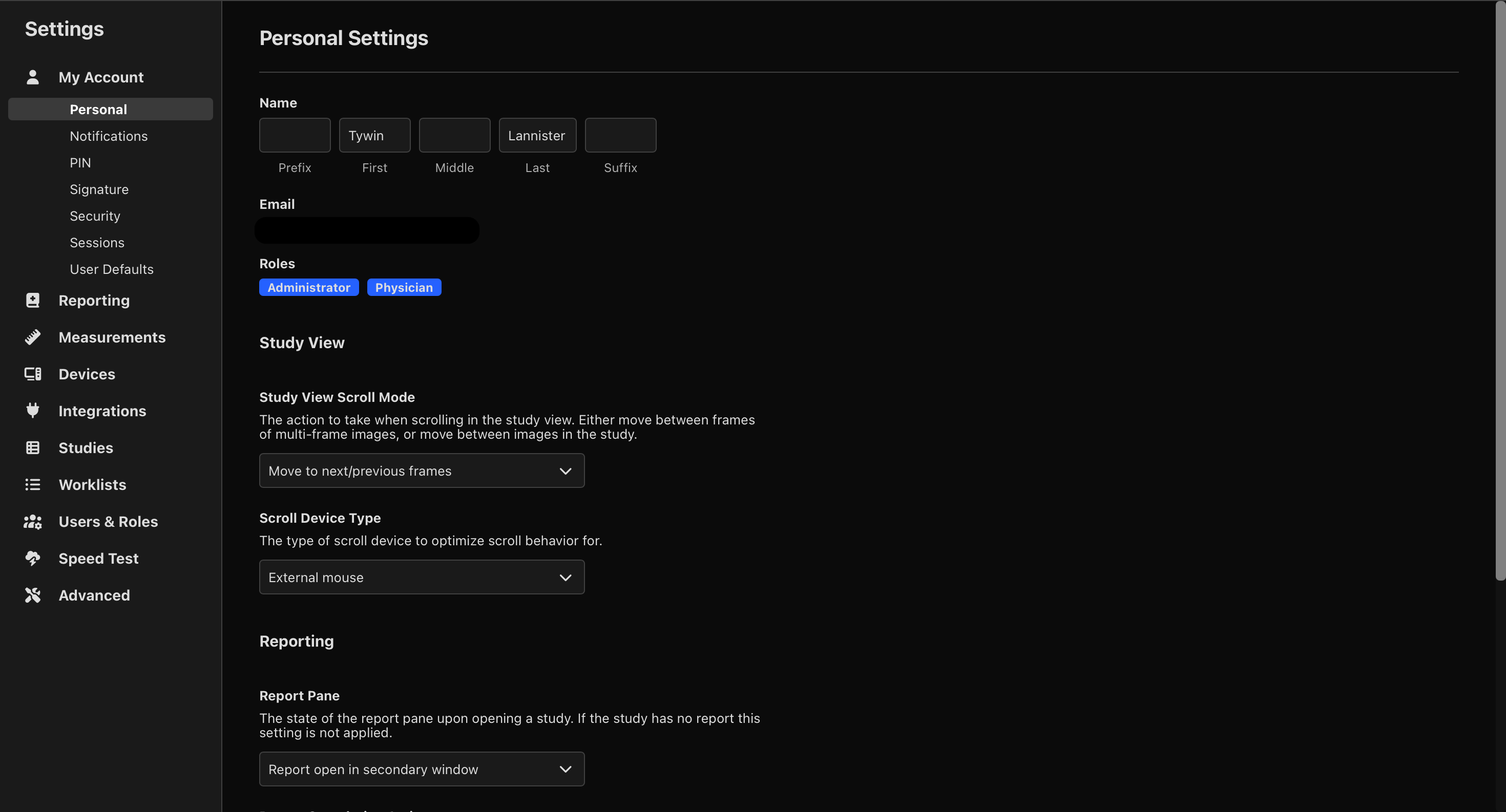
Study Viewer
Scroll Mode
HeartLab allows you to choose what happens when scrolling within the Study Viewer.
To configure the scroll mode:
- Locate Study View Scroll Mode.
- Select one of the following options:
- Move to next/previous frames
- Move to next/previous image
Reporting
Report Pane
HeartLab allows you to choose the initial state of the report pane when opening a study. To configure this:
- Locate Report Pane.
- Select one of the following options:
- Report Closed. Opening a study does not automatically display the report.
- Report Open. Opening a study automatically opens the report pane.
- Report Open in Secondary Window. Opening a study automatically opens the report in a separate browser window.
Report Completion Action
HeartLab allows you to choose what happens after completing a report.
To configure report completion behaviour:
- Locate Report Completion Action.
- Select one of the following options:
- Return to Study List
- Stay in Current Study
- Open Most Recent Unreported Study
- Open Oldest Unreported Study
When Return to Study List is selected, HeartLab automatically returns you to the Study List after:
- Approving a preliminary report
- Finalising a report
- Approving a report amendment
This option is useful when working through multiple studies from a reporting worklist.
When Stay in Current Study is selected, HeartLab keeps the current study open after report completion.
When Open Most Recent Unreported Study is selected, HeartLab automatically opens the most recently taken study without a final report scoped to your active study list filters.
When Open Oldest Unreported Study is selected, HeartLab automatically opens the oldest study without a final report scoped to your active study list filters. This is useful for working through a reporting backlog in the order studies were taken.
Notifications
HeartLab can send email notifications when studies are assigned to you, as well as reminder emails for studies assigned to you that do not yet have a finalised report.
These notifications help users stay informed about new assignments without continuously monitoring the Study List.
To access notification settings, navigate to Settings → My Account → Notifications.
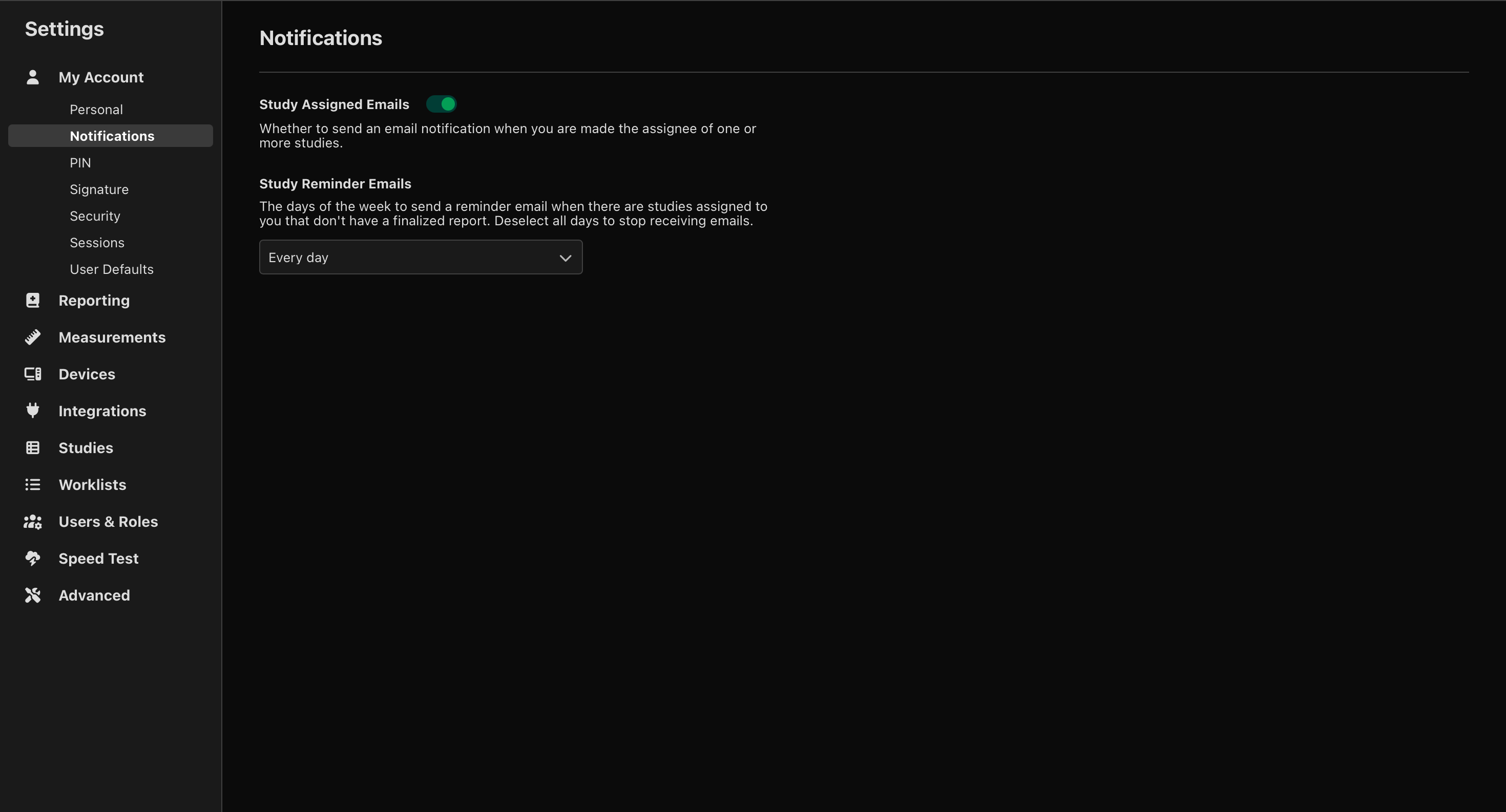
Study Assigned Emails
To configure assignment notification emails:
- Toggle Study Assigned Emails:
- On to receive assignment notifications
- Off to disable assignment notifications
Study Reminder Emails
To configure reminder emails:
- Locate Study Reminder Emails.
- Select the days of the week on which reminder emails should be sent.
Reminder emails are sent Monday to Friday by default, early in the morning.
If no days are selected, reminder emails are not sent.
 MFR
MFR