PDF Upload
PDF Import
The HeartLab Agent can automatically import PDF files from a local directory and create studies containing those PDFs in HeartLab. The details used to create studies are extracted from the PDF filename using a configurable filename template.
Configure PDF Import
Within the HeartLab Agent:
- Navigate to the PDF Import tab.
- Enable PDF Import.
- Select the folder to monitor.
- Save the configuration.
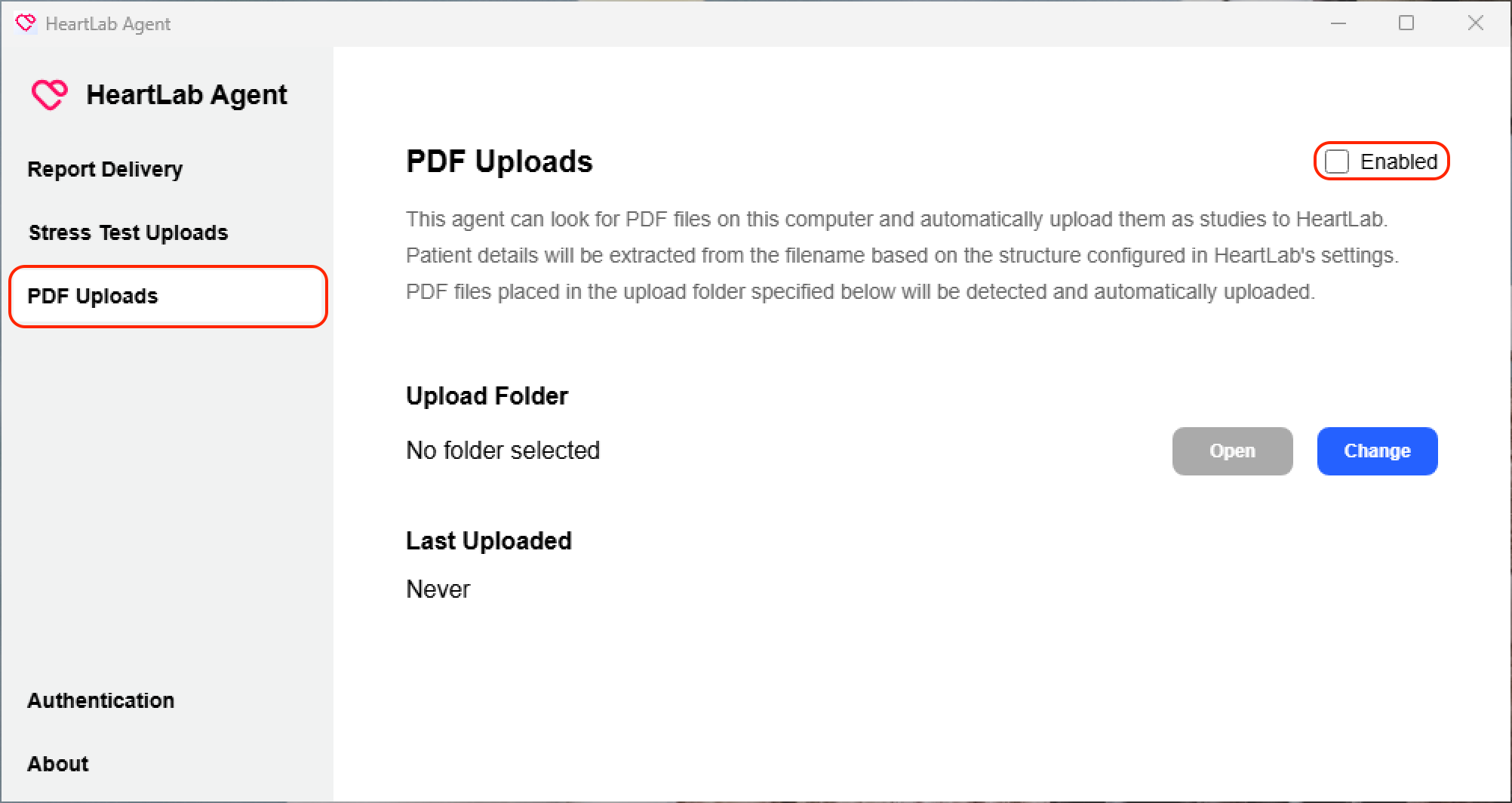
The HeartLab Agent will scan the configured folder every five seconds looking for PDF files.
Importing PDFs
Place PDF files into the configured import folder.
- The PDF is uploaded to HeartLab.
- Configured patient and study details are extracted from the filename.
- A corresponding study is created in HeartLab containing the PDF.
Configure Filename Template
When PDF files can be imported, HeartLab can extract structure patient and study details from the filename when creating the corresponding study. Without this, the PDF filename will appear unchanged in the patient name field.
To setup a filename template:
- Navigate to Settings → Integrations → Agent.
- Select the desired Agent integration.
- Open PDF Import.
- Select Edit Filename Template.
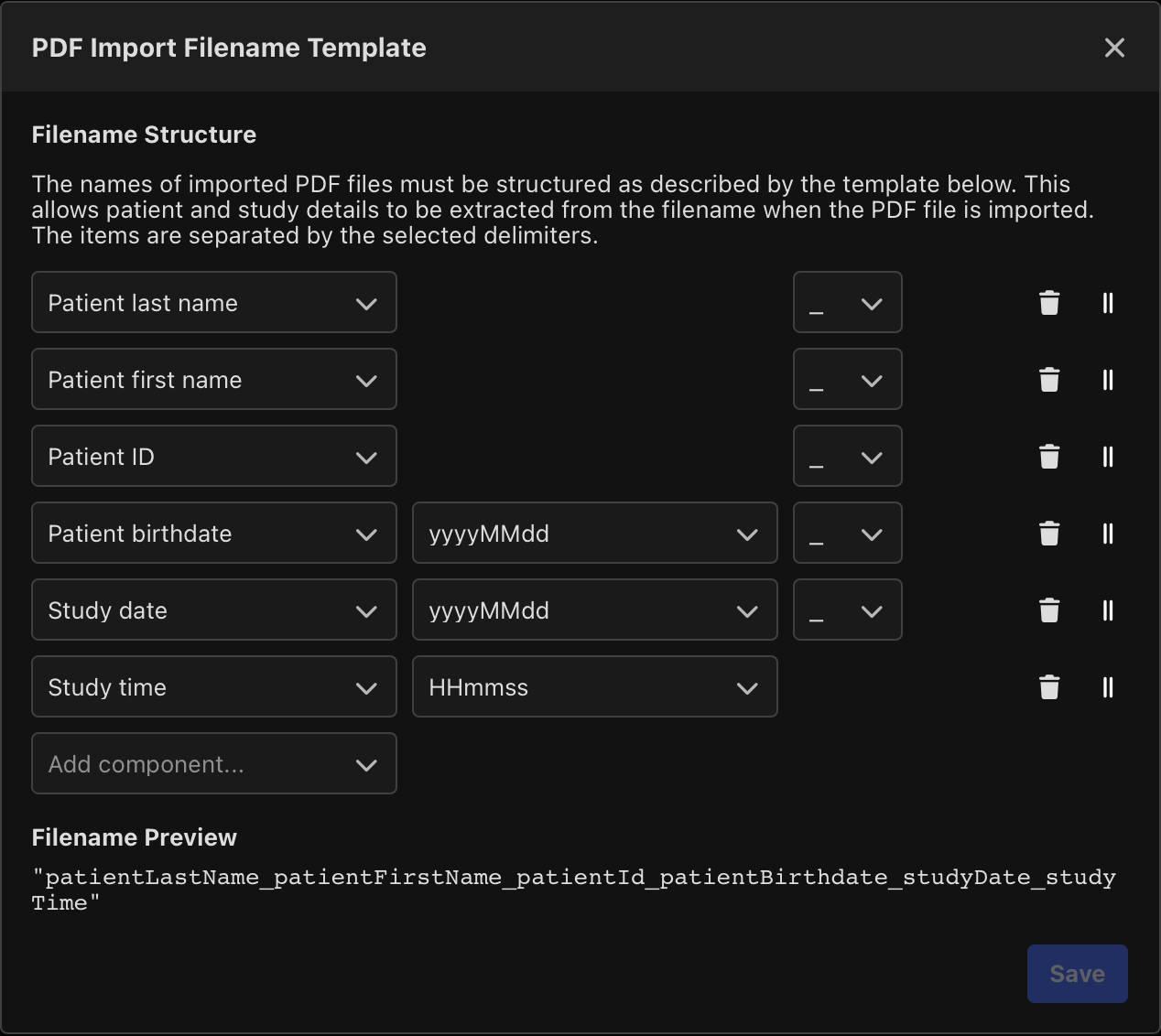
The filename template defines how values are extracted from PDF filenames. To configure the filename template:
- Drag and drop components into the required order.
- Select the delimiter used between components.
- Save the template.
Troubleshooting
If PDF files are not being imported:
- Check that the Agent version is 2.2.0 or later.
- Confirm PDF Import is enabled.
- Check that the monitored folder path is correct.
- Review Agent logs for additional details.
 MFR
MFR