

Adding Images to Reports
Adding Images to Reports
HeartLab allows selected study images to be included directly within report PDFs.
Common uses include:
- Highlighting important findings
- Providing visual reference alongside report conclusions
- Sharing representative images with referring clinicians
Images are added through a dedicated Images section within the report template.
Add an Images Section to a Template
Before images can be added to reports, one or more 'Images' sections must be included in the report template.
To add an Images section:
- Navigate to Settings → Reporting → Templates.
- Select the desired report template.
- Click Edit.
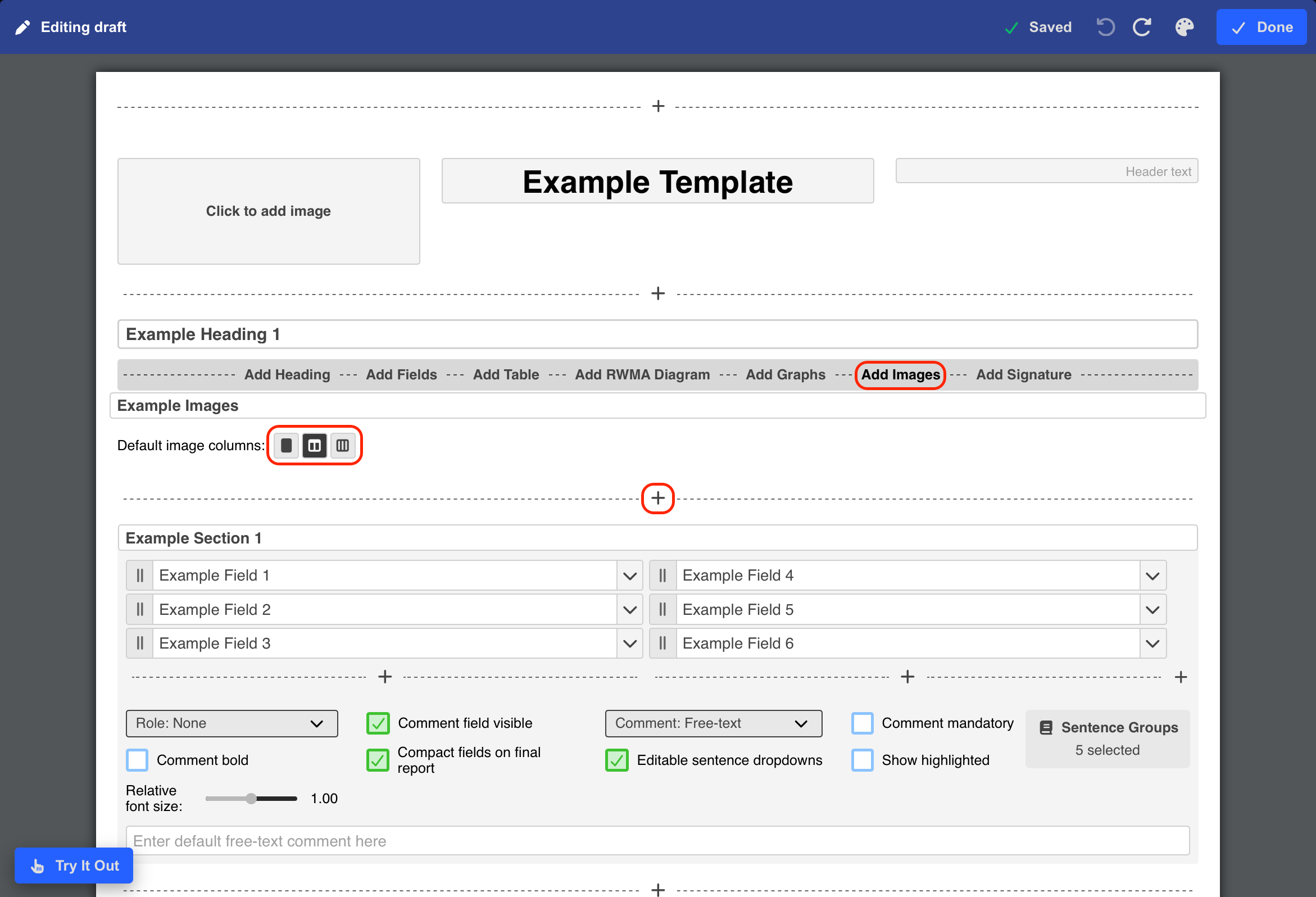
- Hover over the + icon where the Images section should be added.
- Click Add Images.
- Configure the default number of columns:
- 1 column
- 2 columns
- 3 columns
- Publish the template.
The configured layout acts as the default for new reports and can be changed by users while reporting.
The Images section will now be available when reporting.
Add Images to a Report
When completing a report:
- Open the report.
- Navigate to the Images section.
- Select the Images section.
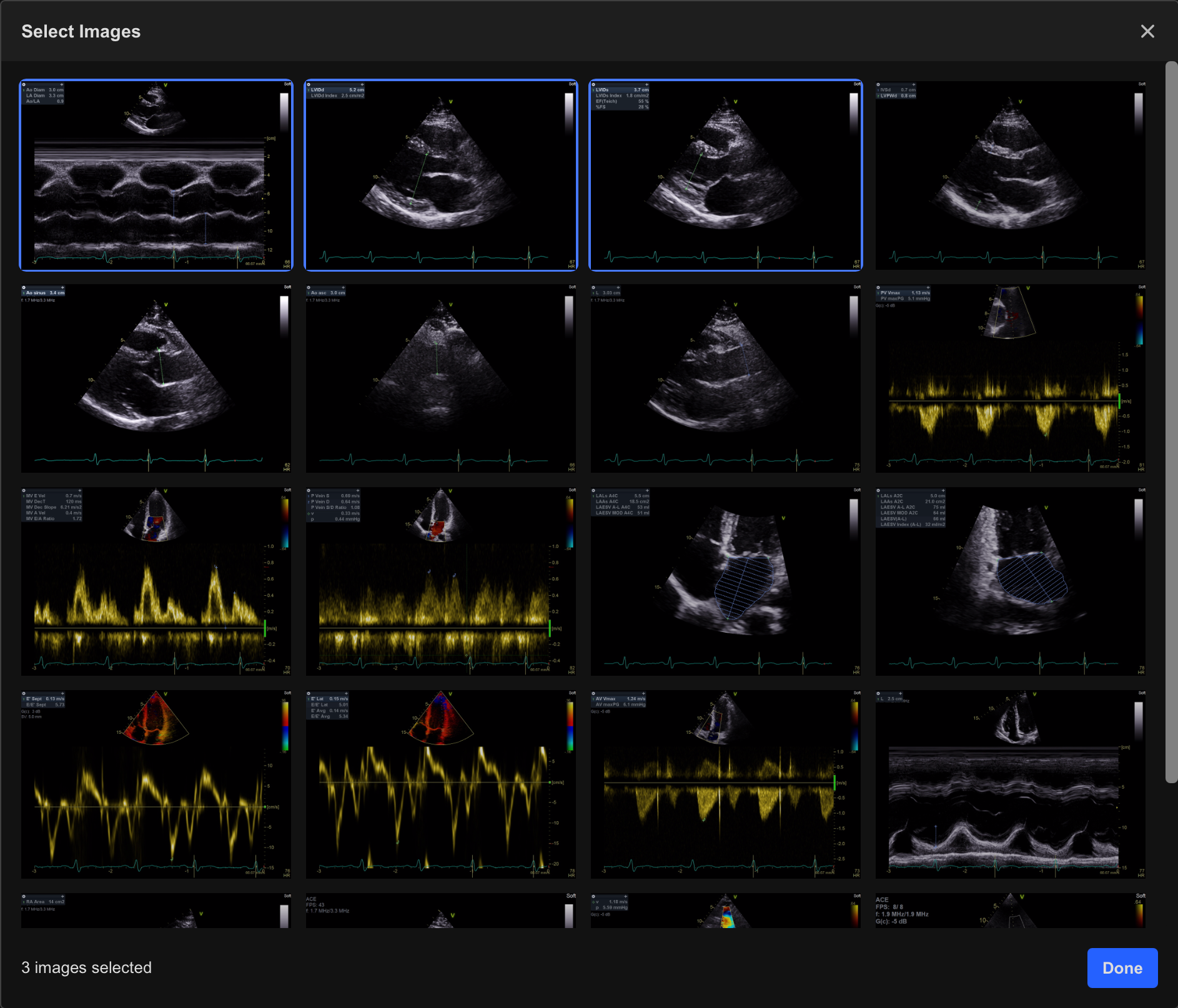
A selection window will appear displaying available images from the study.
- Select the images you wish to include.
- Confirm your selection.
Selected images are highlighted and added to the report once confirmed.
Manage Images
After images have been added to a report, they can be customised or removed as required.
Add Captions
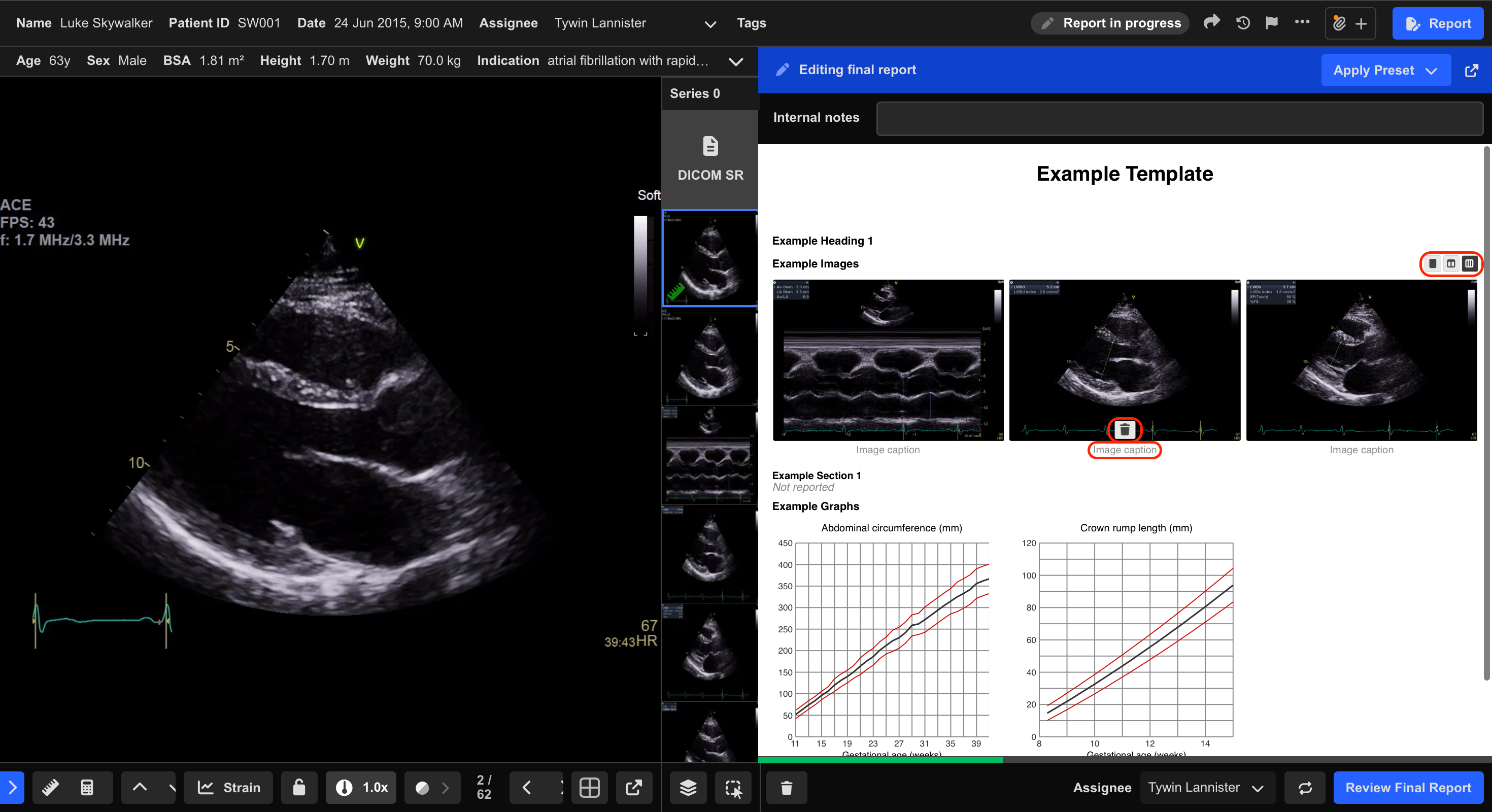
Each image can include an optional caption.
- Locate the image within the Images section.
- Select the caption field beneath the image.
- Enter the desired text.
Captions appear beneath the image in the final report PDF.
Change the Layout
The Images section supports multiple layout options.
- Navigate to the Images section.
- Select the desired column layout:
- 1 column
- 2 columns
- 3 columns
The report preview updates automatically.
Remove Images
- Hover over the image within the Images section.
- Select the Delete (Bin) icon beneath the image.
The image is immediately removed from the report.
Report Output
If no images are selected:
- The Images section is automatically omitted from the final PDF.
If images are selected:
- Images and captions are included in the final PDF.
- Reports can be distributed using the standard HeartLab distribution methods.
This includes:
- PDF downloads
- Email distributions
- Agent distributions
- Other configured distribution workflows
 MFR
MFR