DICOM Forwarding
DICOM Forwarding
The HeartLab Agent can securely forward DICOM traffic from modalities on your local network to HeartLab.
DICOM Forwarding is useful for modalities that do not support DICOM TLS. Instead of connecting directly to HeartLab, the modality sends DICOM traffic to the computer running the HeartLab Agent. The Agent then securely forwards the traffic to HeartLab.
Supported DICOM Requests
DICOM Forwarding supports all DICOM requests to HeartLab, subject to permissions assigned to the specific DICOM device in use.
Configure DICOM Forwarding
Before enabling DICOM Forwarding, ensure the HeartLab Agent has been installed and authenticated, and a corresponding DICOM device has been configured in HeartLab for the modality.
For installation instructions, see HeartLab Agent: Installation.
For information about creating and configuring DICOM devices, see DICOM Devices.
Configure the DICOM Device
- Navigate to Settings → Devices → DICOM.
- Open the DICOM device corresponding to the modality.
- Confirm that its AE Title exactly matches the AE Title configured on the modality.
- Confirm that the DICOM requests the modality needs, such as C-STORE, are permitted for the device.
Enable DICOM Forwarding
- Open the HeartLab Agent.
- Navigate to DICOM Forwarding.
- Enable DICOM Forwarding.
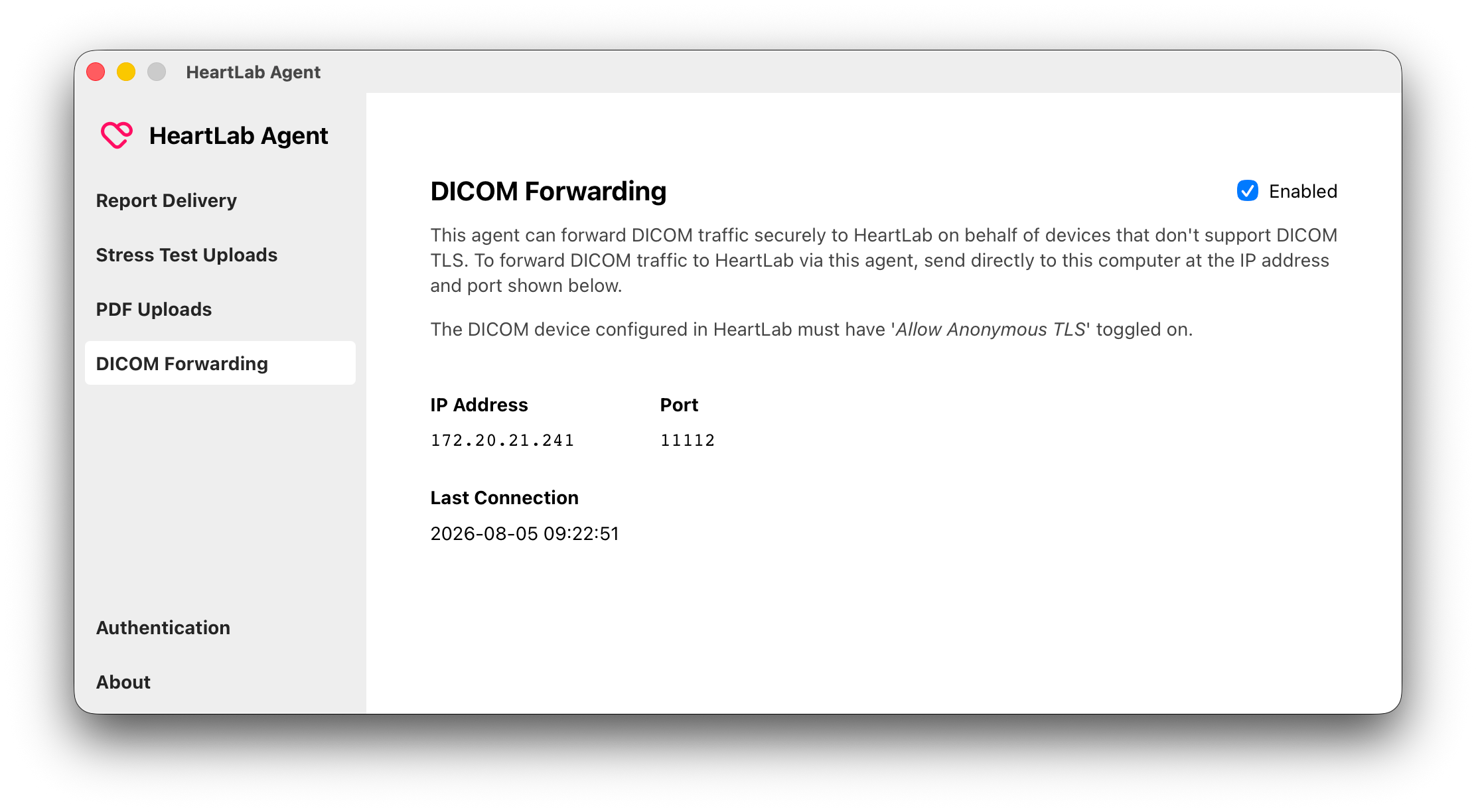
Once enabled, the HeartLab Agent displays the local:
- IP address
- Port
These connection details are used to configure the modality. The Agent warns if it can't listen on the port, for example because another program on the computer is already using it.
The Agent also shows when a modality last connected and whether that connection was forwarded to HeartLab successfully. If it failed, the reason is shown.
The same connection details are shown in HeartLab by opening the DICOM device, selecting Connect Device and then the HeartLab Agent connection method. This window also confirms when the device last connected via an agent. See DICOM Devices.
Configure the Modality
Configure the modality to send DICOM traffic directly to the computer running the HeartLab Agent.
Use the IP address and port displayed under DICOM Forwarding in the HeartLab Agent.
The modality sends DICOM traffic to the Agent over the local network. The Agent then securely forwards the traffic to HeartLab over an authenticated, encrypted connection.
Troubleshooting
If DICOM data is not being forwarded to HeartLab, verify:
- DICOM Forwarding is enabled in the HeartLab Agent.
- The modality is sending to the IP address and port displayed by the Agent.
- The modality can communicate with the computer running the Agent over the local network.
- The modality's AE Title exactly matches the DICOM device configured in HeartLab.
- The DICOM device is enabled in HeartLab, and the requests the modality sends are permitted for it.
- The HeartLab Agent is authenticated and connected to HeartLab.
- Local firewall or security software is not blocking communication on the configured port.
- The Last Connection Result shown by the Agent does not report an error.
 MFR
MFR