

Automated Reporting
Automated Reporting
Automated Reporting allows report fields to populate dynamically based on study information and configured reporting rules.
Study Functions define the conditions used by Automated Reporting. These conditions can use:
- Study measurements
- Patient information
- Configured value ranges
- Custom equations
When a rule's conditions are met, HeartLab automatically selects the corresponding dropdown option within the Report Template.
This helps:
- Reduce manual data entry
- Improve reporting consistency
- Standardise interpretation workflows
- Accelerate report completion
Configure Study Functions
To create or edit a Study Function:
- Navigate to Settings → Studies → Functions.
- Select an existing Study Function, or select Create Function.
- Configure the Inputs and Rules for the function.
Configure Inputs
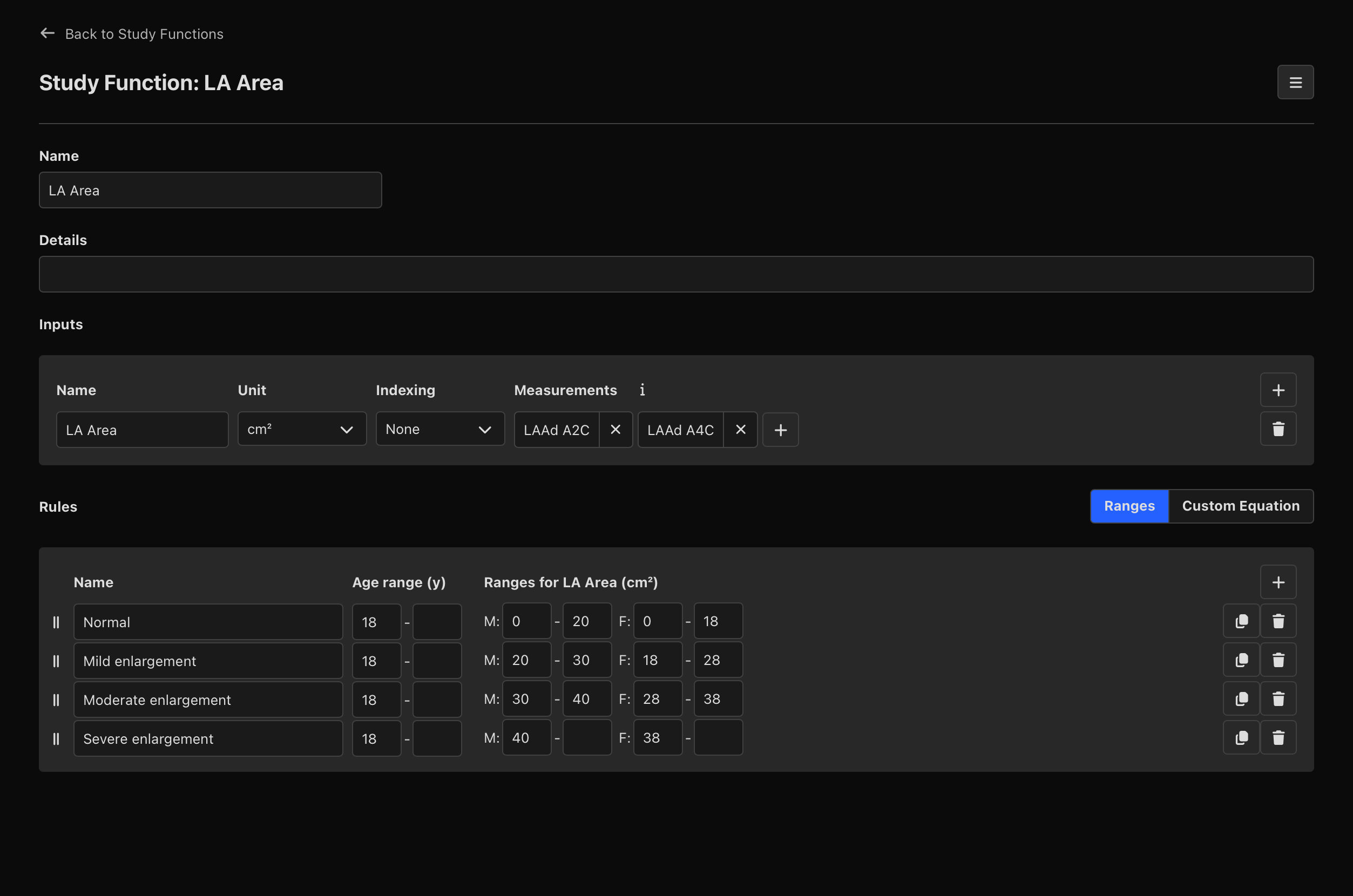
Inputs define the measurements that can be used by the Study Function.
For each input, configure:
- Name – identifies the input (and determines how it is referenced within a Custom Equation using
input.name). - Units – defines the unit used for the input.
- Indexing – determines whether the measurement is indexed.
- Measurements – defines one or more study measurements that can provide the input value.
When multiple measurements are configured for an input, HeartLab uses them in order of priority.
If the first measurement is not available within the study, HeartLab checks the next measurement in the list, continuing until an available measurement is found.
Configure Rules
Rules define the conditions that determine when a rule should be active.
Rules typically represent clinical classifications such as:
- Normal
- Mild
- Moderate
- Severe
For each rule, configure:
- Name – identifies the condition or classification.
- Age range – defines the patient age range to which the rule applies.
- Rule logic – determines when the rule becomes active.
Study Functions support two rule modes:
- Ranges
- Custom Equation
Ranges
Ranges is the default rule mode and allows rules to be defined using value ranges for the configured inputs.
Configure the required minimum and maximum values for each input to determine when the rule should become active.
-Infinityfor minimum valuesInfinityfor maximum values
The dropdown beside the rule mode controls how a rule's ranges are combined across inputs:
- Match All Inputs – the default. A rule becomes active when every input with a defined range is within that range.
- First Matching Input – inputs are checked in the order they are listed. The first input whose value is within a defined range on any rule determines which rules become active, and later inputs are ignored. If an input has no value, or its value isn't within a defined range on any rule, the next input is checked.
Custom Equation
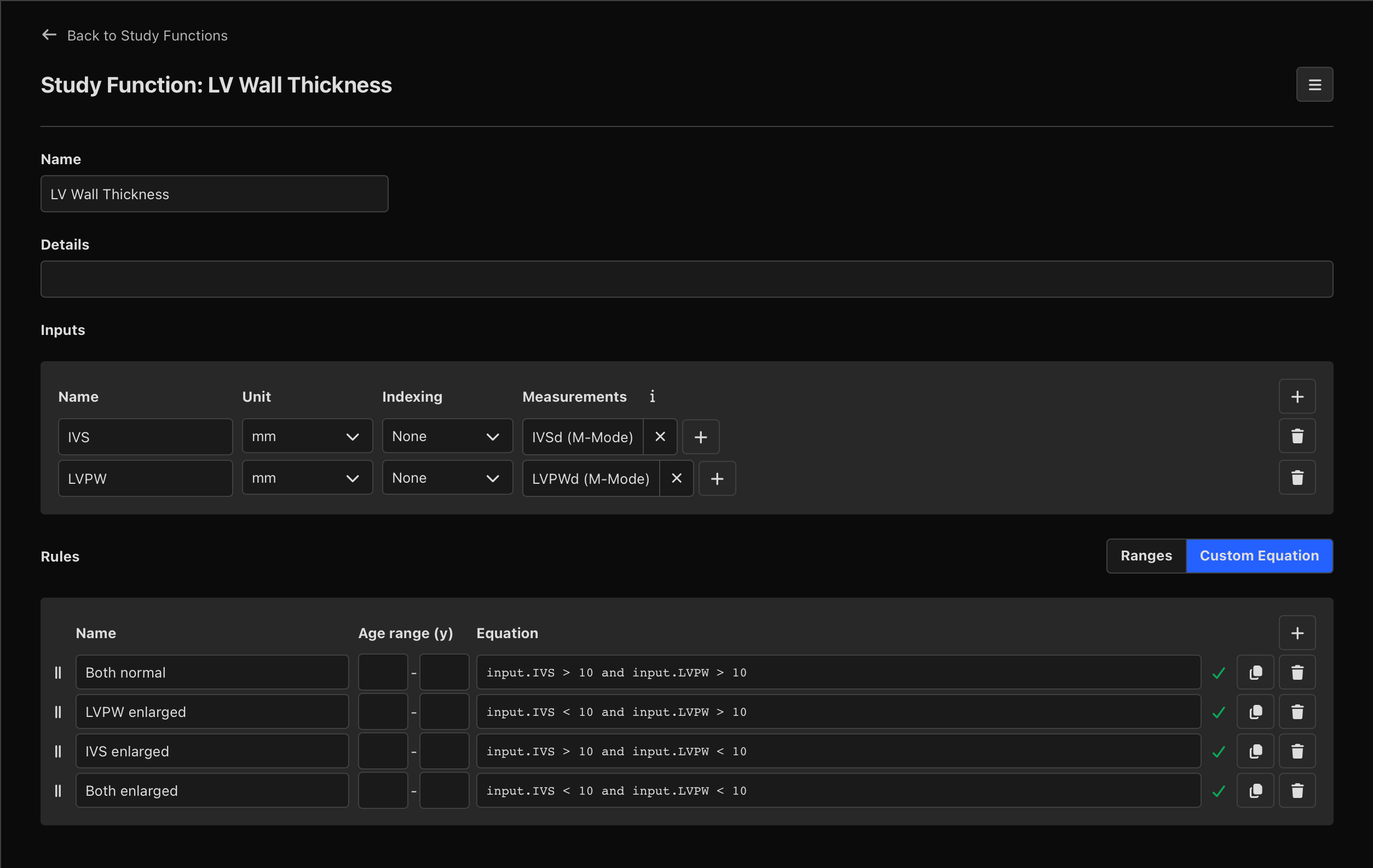
Custom Equation allows more complex conditions to be defined using an equation.
Inputs configured within the Study Function can be referenced using:
input.name
Replace name with the name assigned to the input. For example, an input named IVS can be referenced as:
input.IVS
A rule could then use the following condition:
input.IVS > 10
For the rule to become active, the equation must evaluate to true.
Custom Equations also support AND and OR logic, allowing multiple conditions to be evaluated within the same rule.
For example, to require both conditions to be true:
input.IVS > 10 and input.LVPW > 10
To require either condition to be true:
input.IVS > 10 or input.LVPW > 10
Custom Equations can also reference other values available to report calculations, such as patient height and weight. This allows more complex reporting conditions to be created when simple measurement ranges are not sufficient.
Validate Custom Equations
HeartLab automatically validates Custom Equations as they are configured.
An indicator beside the equation displays whether it is valid:
- A tick indicates that the equation is valid.
- A cross indicates that the equation contains an error.
If an equation is invalid, hover over the cross to view more information about the error.
Rules can also be duplicated or deleted using the corresponding controls.
Link Study Functions to Report Templates
Once Study Functions have been configured, their rules can be linked to dropdown options within Report Templates.
To enable automation within a Report Template:
- Navigate to Settings → Reporting → Templates.
- Select the desired Report Template.
- Select Edit Template.
- Open the desired dropdown field.
- Enable Use automation.
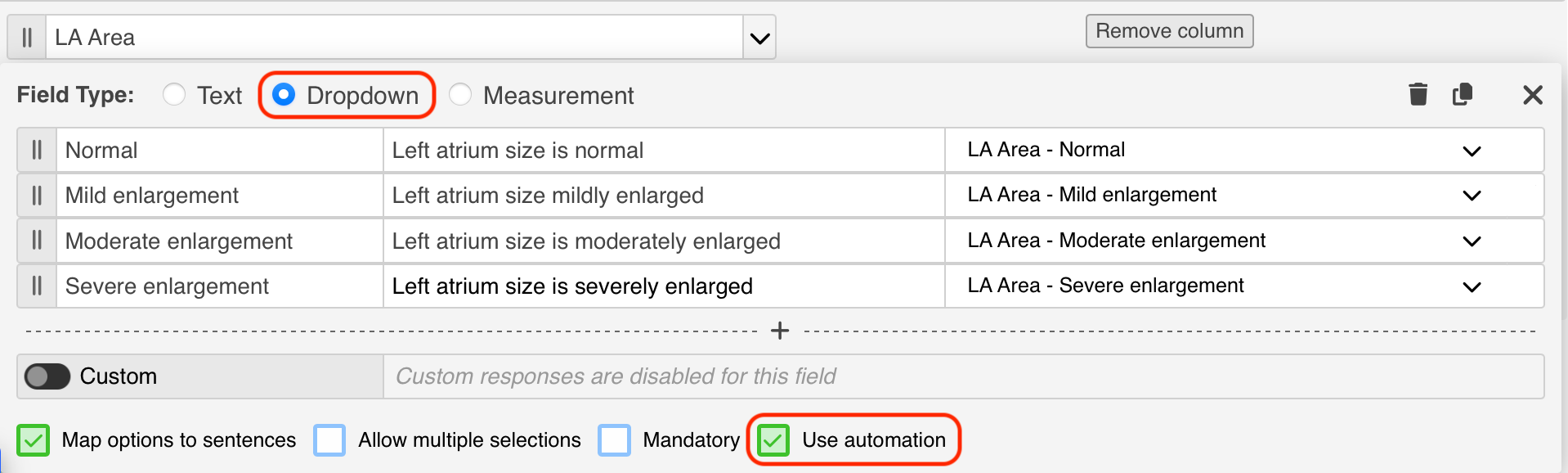
- For each dropdown option:
- Select the desired Study Function.
- Select the corresponding rule.
- Select Done.
- Publish the template.
Use Automated Reporting
When reporting with a template containing automation rules:
- Matching dropdown fields populate automatically.
- Automated fields are highlighted in purple.
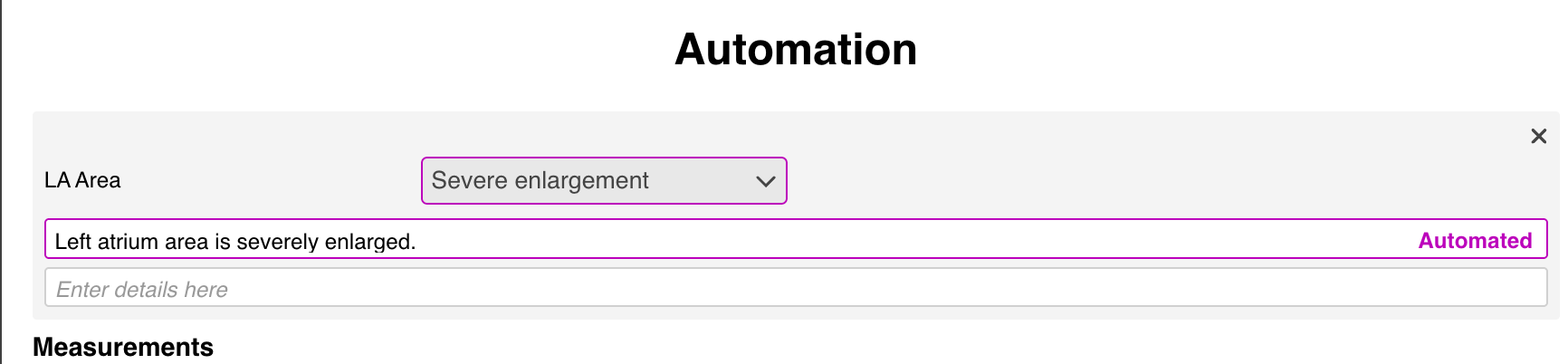
Automated fields update dynamically when information used by the associated Study Function changes.
Depending on how the Study Function is configured, this may include changes to:
- Measurements
- Patient age
- Other values referenced by the rule
Override Automated Fields
Users can manually override automated selections when clinically required.
To override automation:
- Select a different dropdown option, or
- Enter custom text directly into the sentence field.
Manual overrides temporarily disable automation for that field.
Re-Enable Automation
If automation has been overridden:
- Open the dropdown menu.
- Select Enable Automation.
The field resumes using the configured Study Function logic.
 MFR
MFR