

Measurements
Using the Measurement Pane
Review, edit, replace, and delete measurements safely in the Measurement Pane.
Measurement Pane
The Measurement Pane provides a central location for viewing, managing, and navigating measurements within a study. From the pane, users can review measurement values, jump to associated clips and frames, edit or delete measurements, and distinguish between manual, imported, calculated, and AI-generated measurements.
Users can also control which measurements are included in mean calculations directly from the Measurement Pane.
Using the Measurement Pane
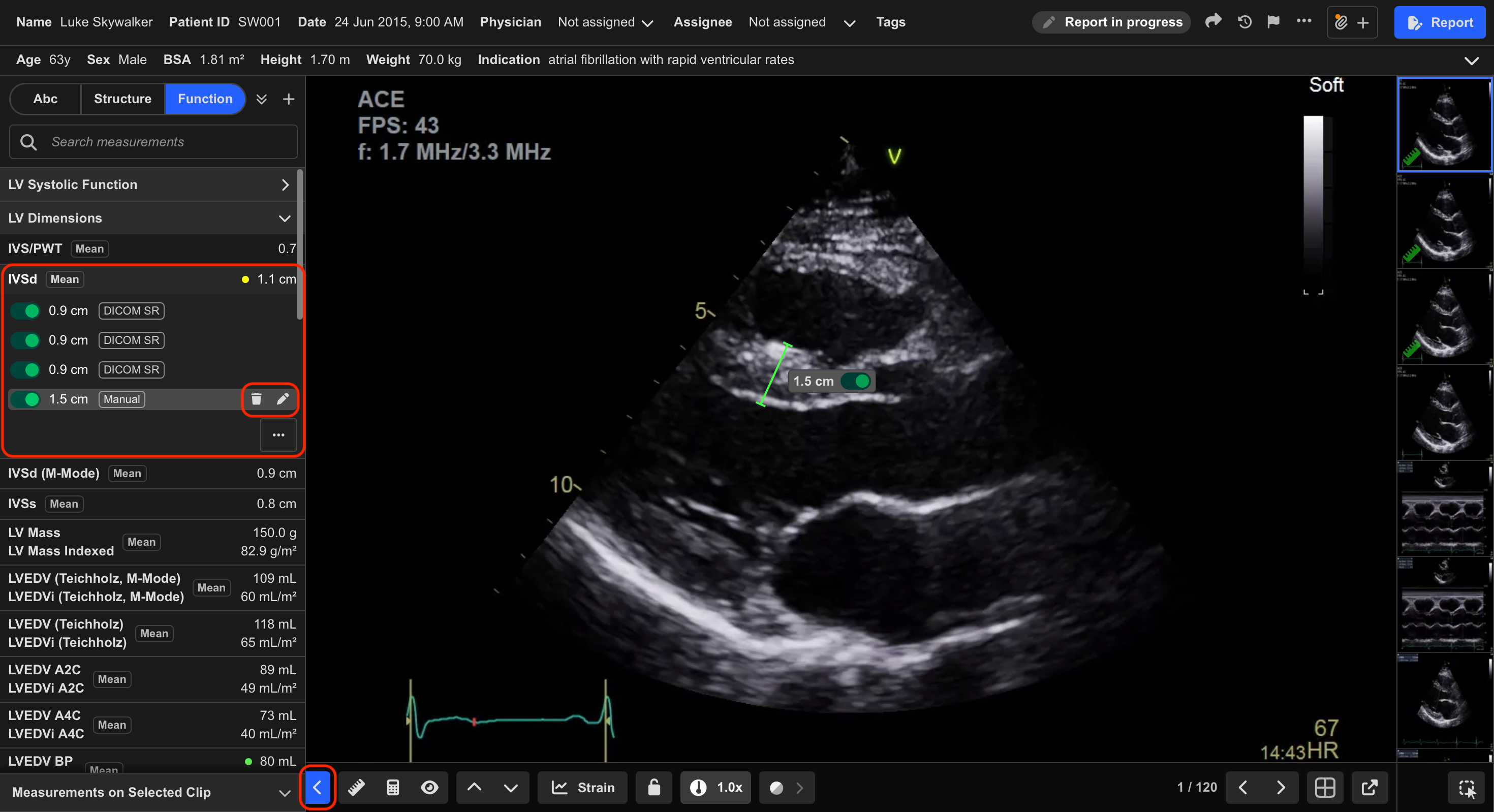
- Click the arrow in the bottom-left corner, or press M, to open the Measurement Pane.
- Select a metric to expand its measurement card.
The labels next to each measurement indicate the following:
- Manual — Measurements taken in HeartLab
- DICOM SR — Measurements received via a DICOM SR file (taken on another system)
- Calculated — Calculated measurements
- Mean — Average of the selected measurements currently included in the mean calculation
- AI — Measurements generated by an AI model (the model or company name may replace “AI”)
- Toggle individual measurements on or off to control whether they are included in the mean calculation.
HeartLab automatically recalculates the mean value whenever measurements are toggled.
- Select a measurement to jump to the corresponding clip and frame.
- Select the Pencil icon to edit an existing measurement.
- Select the Bin icon to delete a measurement.
Editing or deleting measurements is irreversible. Review all changes carefully before saving or confirming deletion.

- When saving a measurement using the in-app measurement tools, a dropdown arrow appears next to the Save button.
This menu allows you to choose between:
- Save & Replace — Saves the measurement and toggles off all other measurements on the measurement card
- Save — Saves the measurement and adds it to the existing list of measurements
The selected save option is remembered and persists across studies and measurement tools.
 MFR
MFR