

Study Tags
Study Tags
Study Tags allow users to organise studies using custom labels, making it easier to group, review, and locate studies with specific characteristics.
Common use cases include:
- Grouping studies by pathology or findings
- Building teaching case collections
- Preparing accreditation audit cases
- Categorising studies for workflow review
Using Study Tags throughout the year helps teams efficiently collect relevant studies instead of retrospectively searching for cases later.
Manage Study Tags
Study Tags are managed from the Settings menu.
- Navigate to Settings → Studies → Tags.
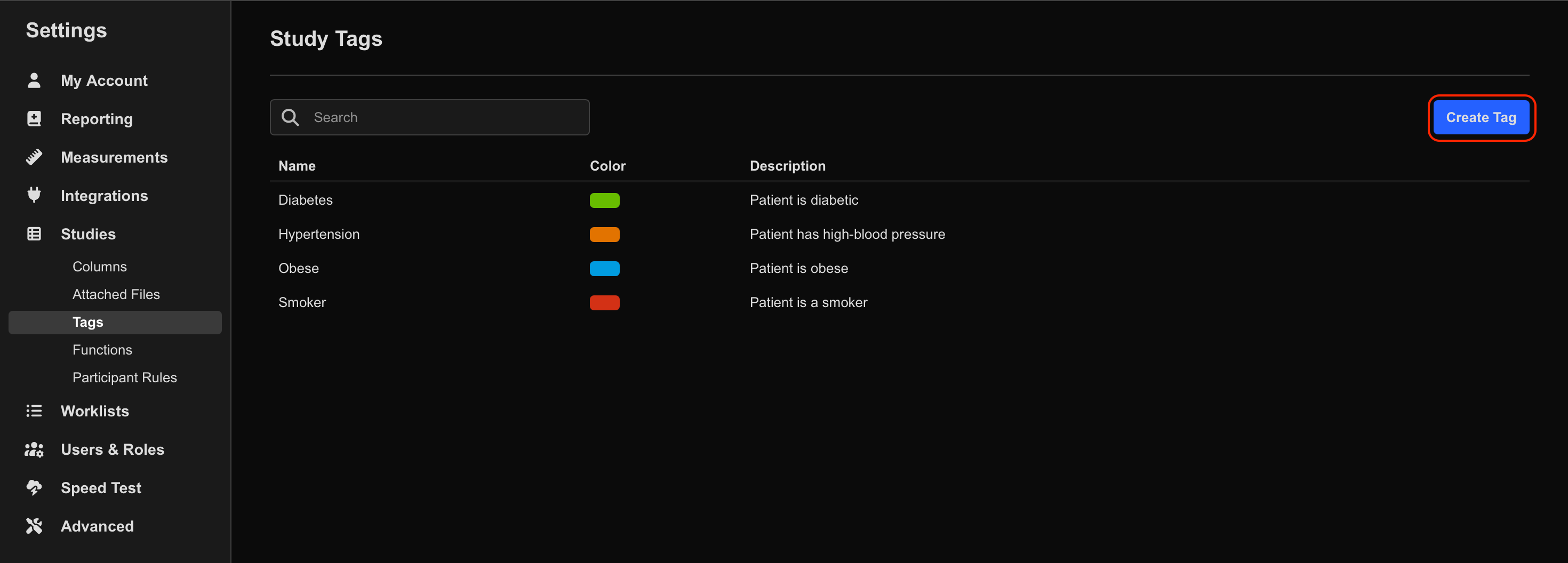
Create a Tag
To create a new Study Tag:
- Select Create Tag.
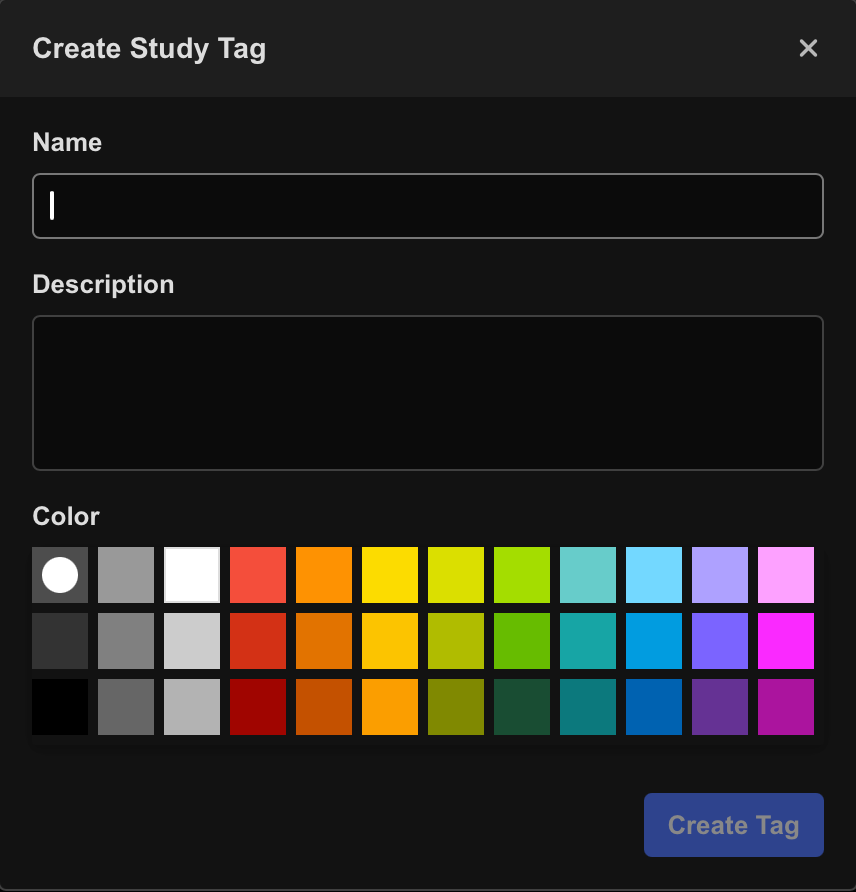
- Enter:
- Tag name
- Optional description
- Tag colour
- Select Create Tag again to save.
The new tag appears in the Study Tag list.
Edit or Delete a Tag
To edit or delete an existing tag:
- Select the target tag from the list.
- Update the name, description, or colour as required.
- To remove the tag, select Delete Tag from the top-right corner.
Changes update immediately across the system.
Enable the Study Tags Column
To display tags within the Study List, the Study Tags column must first be enabled.
- Navigate to Settings > Studies > Columns.
- Enable Study Tag Column.
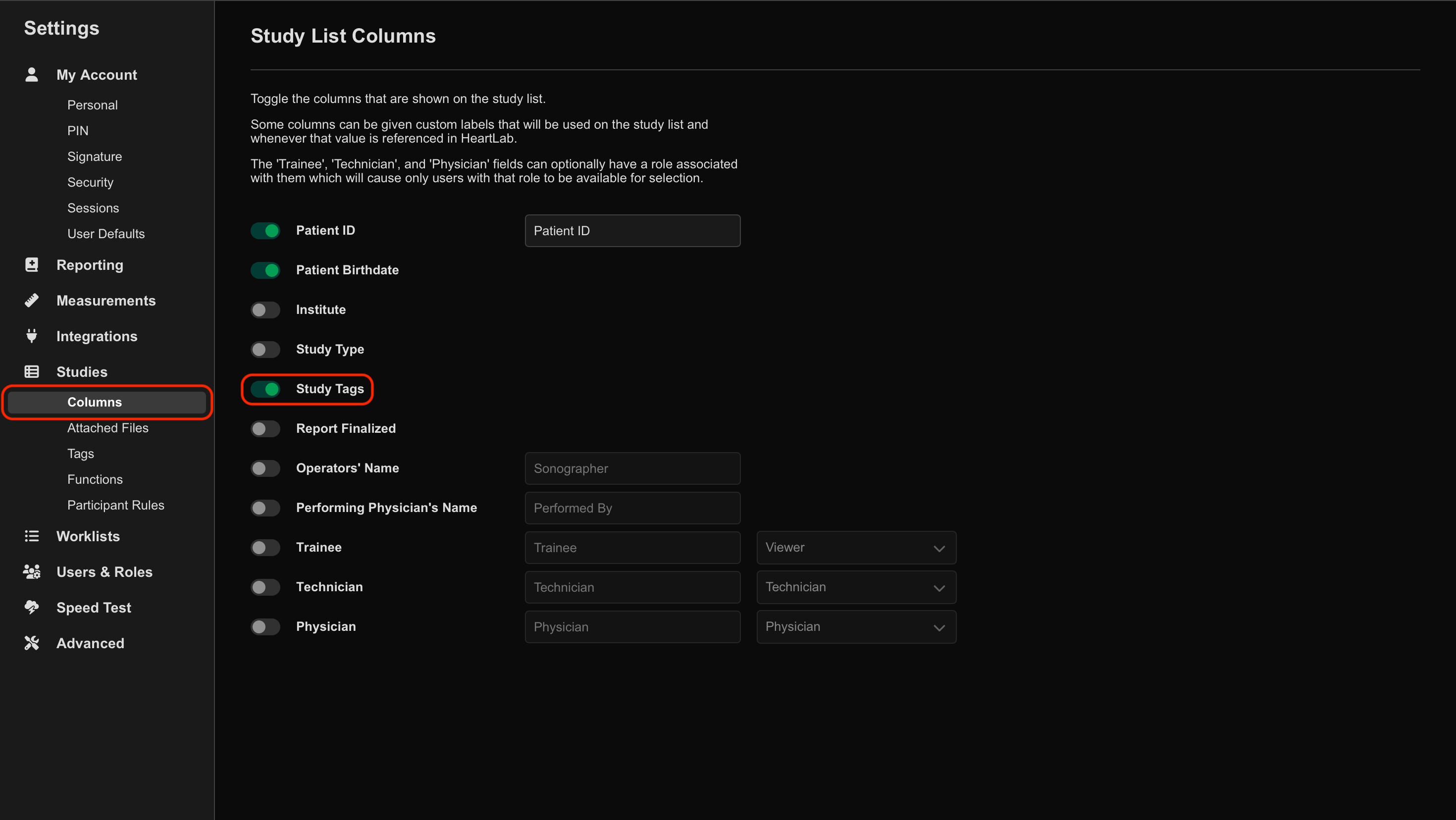
Once enabled, Study Tags appear for each study in the Study List.
Assign Tags to Studies
Study Tags can be applied from either the Study List or the Study Viewer.
Assign Tags from the Study List
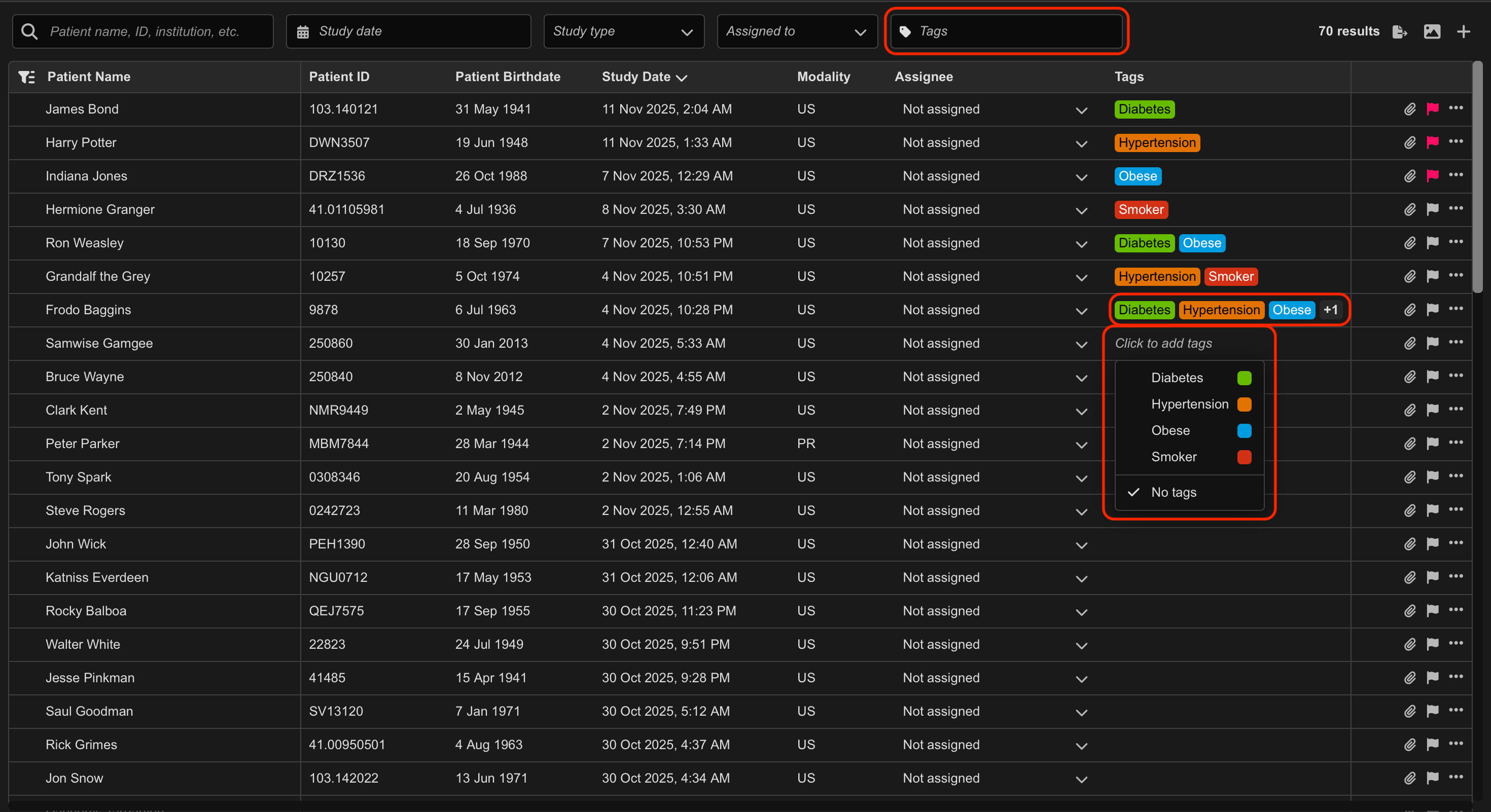
- Hover over the Tags column for the target study.
- Select Click to add Tag.
- Select one or more tags from the dropdown list.
To remove all tags:
- Select No Tags.
Assign Tags from the Study Viewer
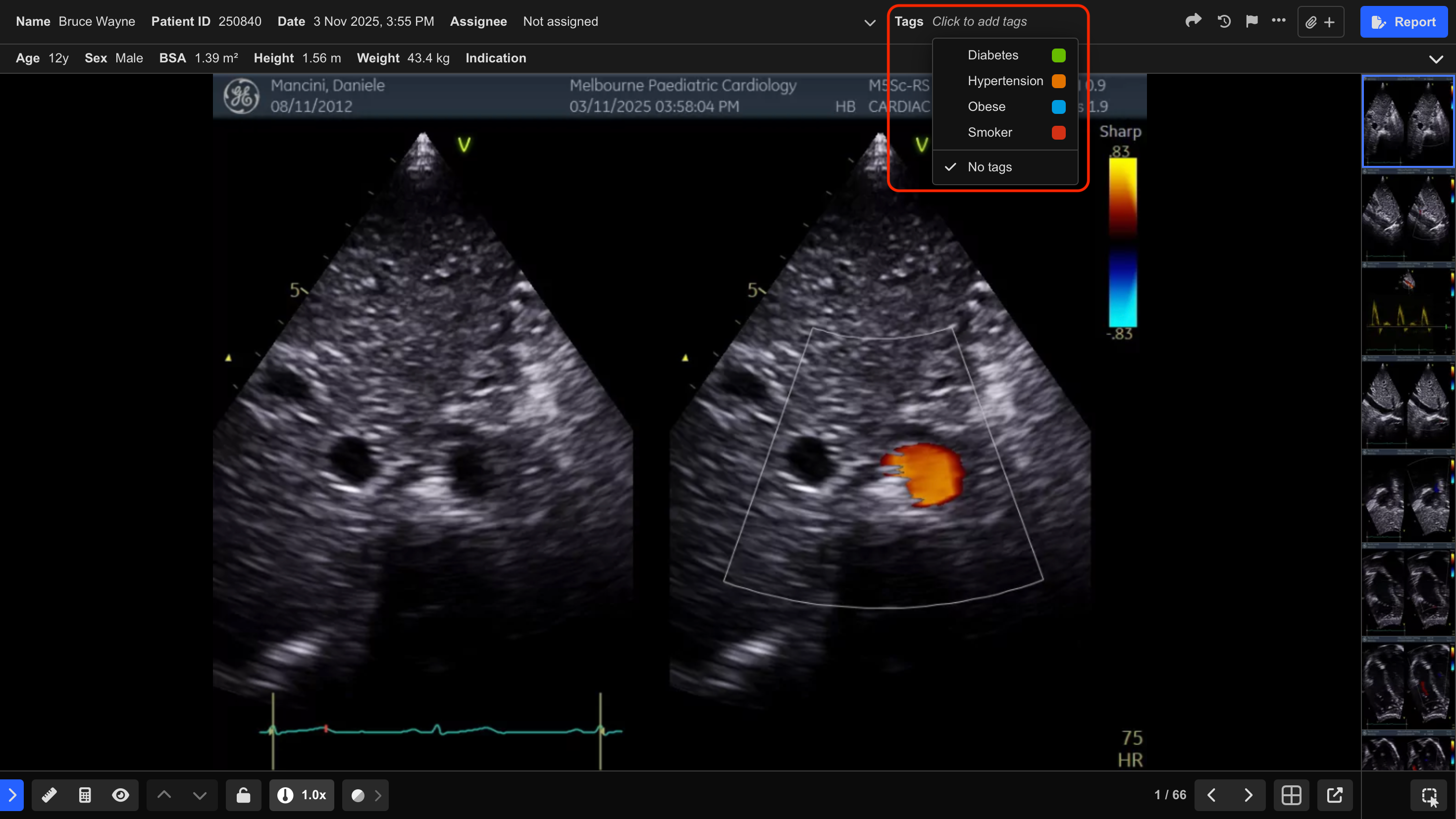
- Open the target study.
- Hover over the Tags section.
- Select Click to add Tag.
- Add or remove tags as required.
Changes made from either the Study List or Study Viewer update immediately across the system.
Filter Studies by Tags
When the Study Tags column is enabled, a Tags filter appears above the Study List.
To filter studies by tag:
- Select the Tags filter.
- Select one or more tags.
The Study List updates to display studies containing at least one selected tag.
 MFR
MFR