

Study Management
Share Studies
Generate secure external share links with passcodes and expiry controls.
Share Studies
HeartLab allows authorised users to securely share studies with external collaborators using temporary access links.
Share links simplify collaboration by allowing external users to securely access studies without requiring a full HeartLab account or internal organisational access.
Shared studies are protected using:
- Passcodes
- Expiry dates
- Recipient tracking
Generate a Share Link
To create a secure share link:
- Open the target study.
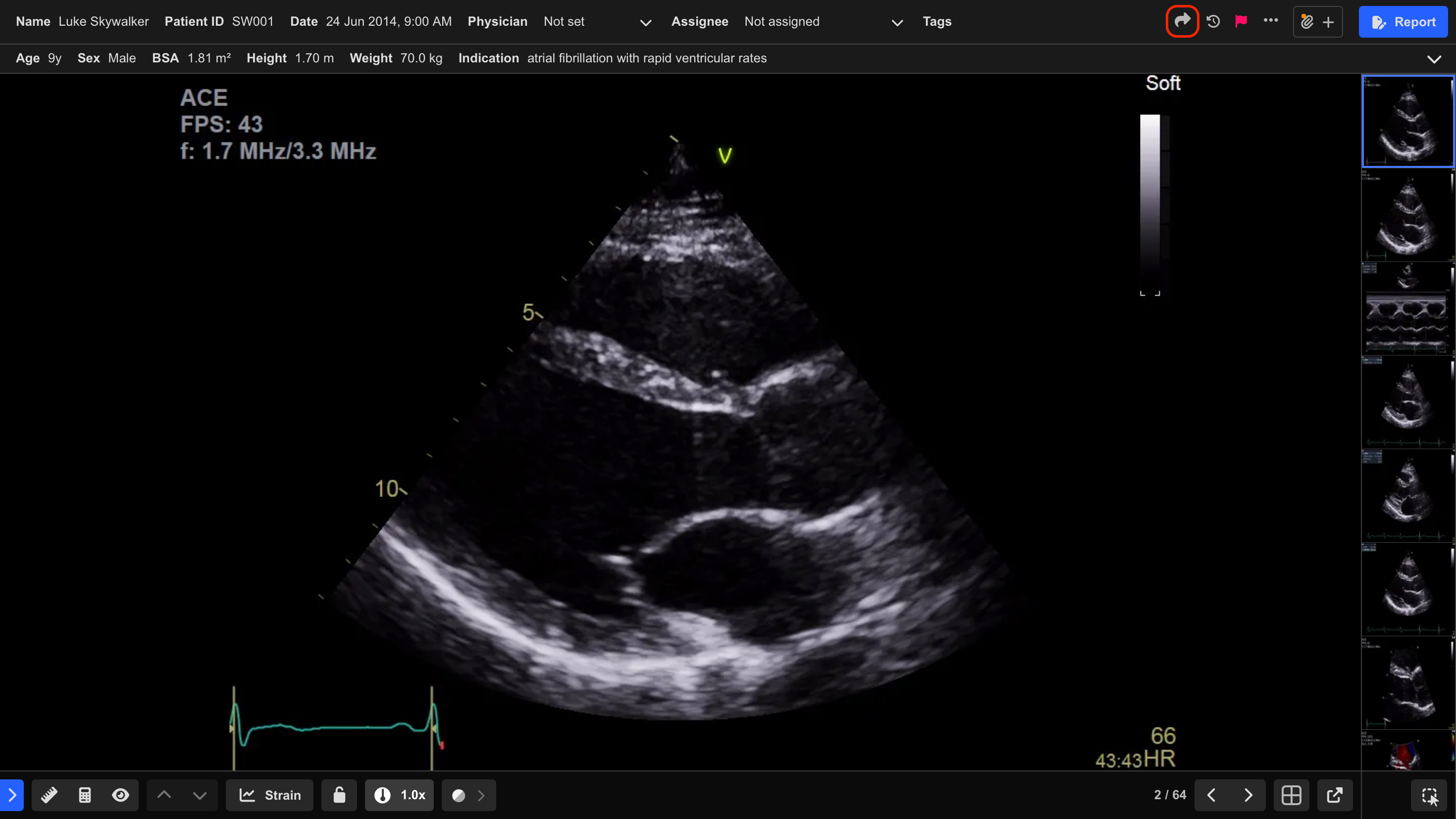
- Select the Share icon in the top-right corner of the Study Viewer.
- Enter the recipient’s name.
- Select the desired link duration.
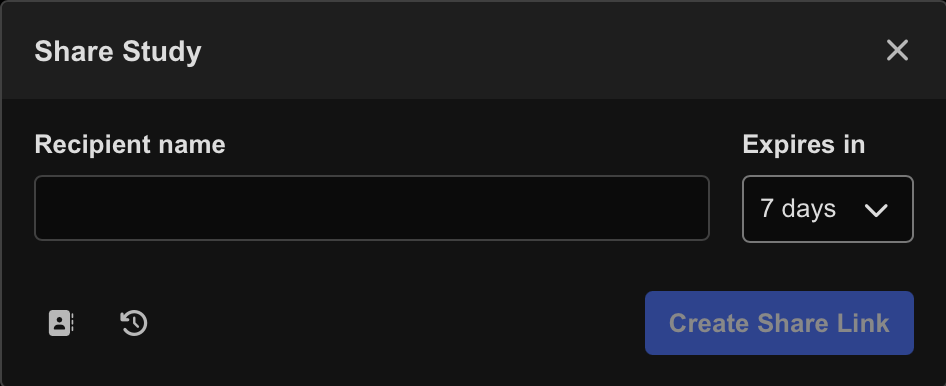
By default, share links expire after 7 days.
- Select Create Share Link.
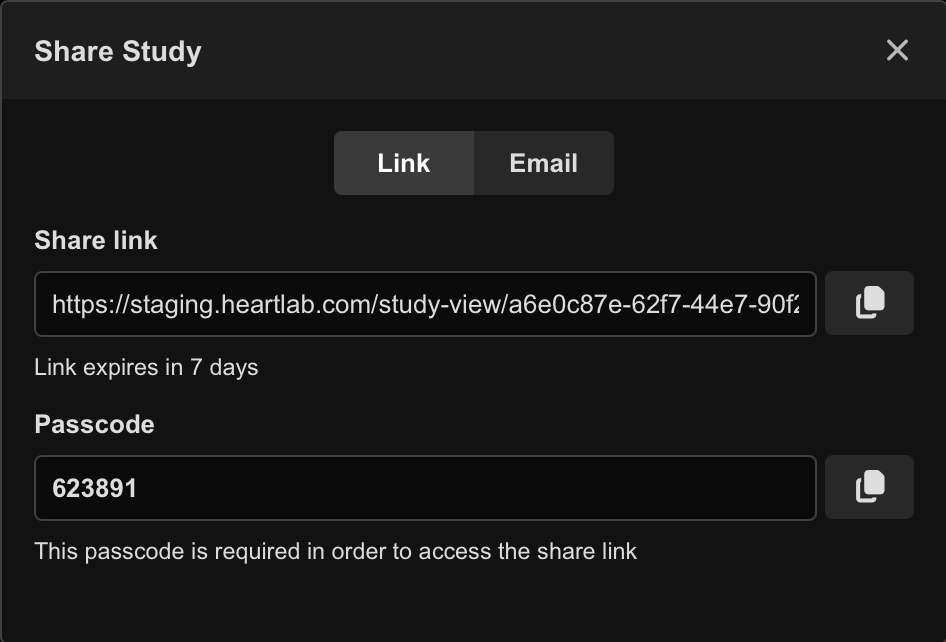
A secure study link and passcode are generated for sharing with the recipient.
Share the Link Manually
To manually share the study:
- Select the Copy icon beside the:
- Share link
- Passcode
- Paste the copied details into your preferred communication method.
Email a Share Link
Share links can also be emailed directly from HeartLab.
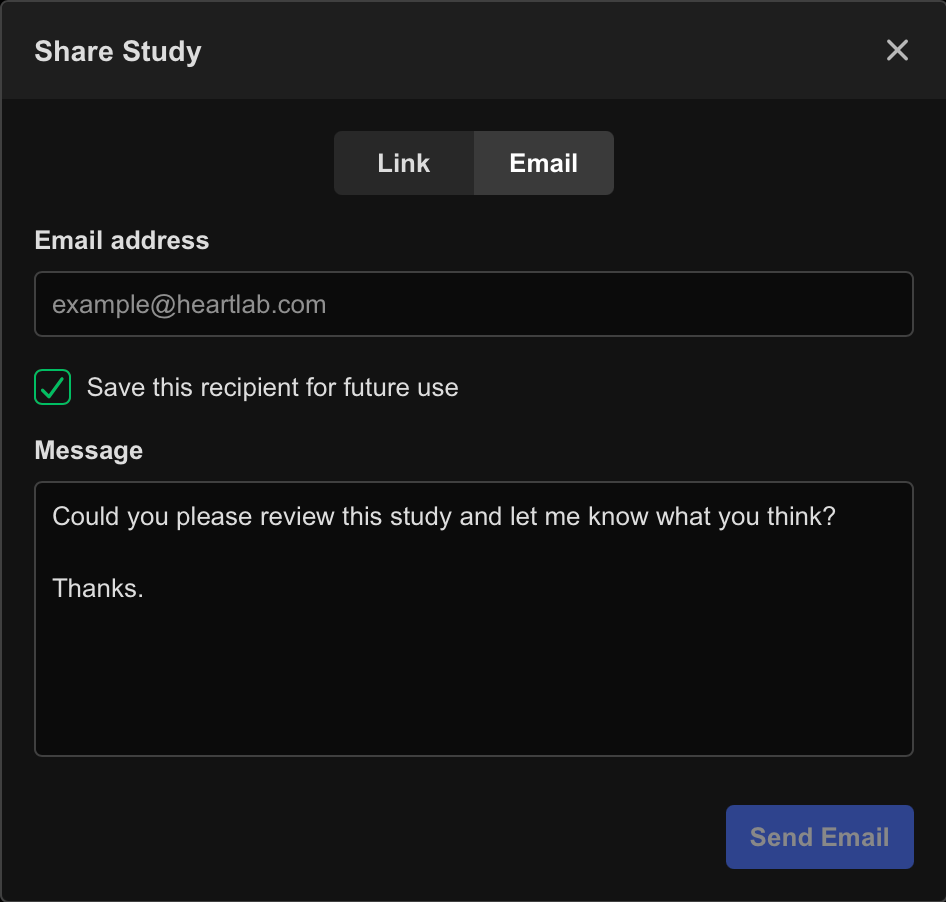
- Select Email from the Share Study dialog.
- Enter the recipient’s email address.
- Optionally enter a custom message.
- Optionally enable Save to remember the contact for future sharing.
- Select Send Email.
The study link and passcode are emailed directly to the recipient.
Manage Share Contacts and History
Select the Address Book icon to manage saved recipients.
Select the History icon to view previous sharing activity for the study.
Additional Notes
Shared links provide access to clinical study data. Ensure recipients are authorised to receive the information before sharing.
Use expiry dates wherever possible to minimise unnecessary long-term external access.
 MFR
MFR