

Upload Studies
Upload Studies
HeartLab typically receives studies automatically through configured DICOM integrations.
However, authorised users can also manually upload studies when:
- Automated integrations are unavailable
- External studies need to be imported
- Cardiac stress test data needs to be added manually
Supported uploads include:
- DICOM studies (including DICOM ECGs)
- Cardiac stress test data
Upload DICOM Studies
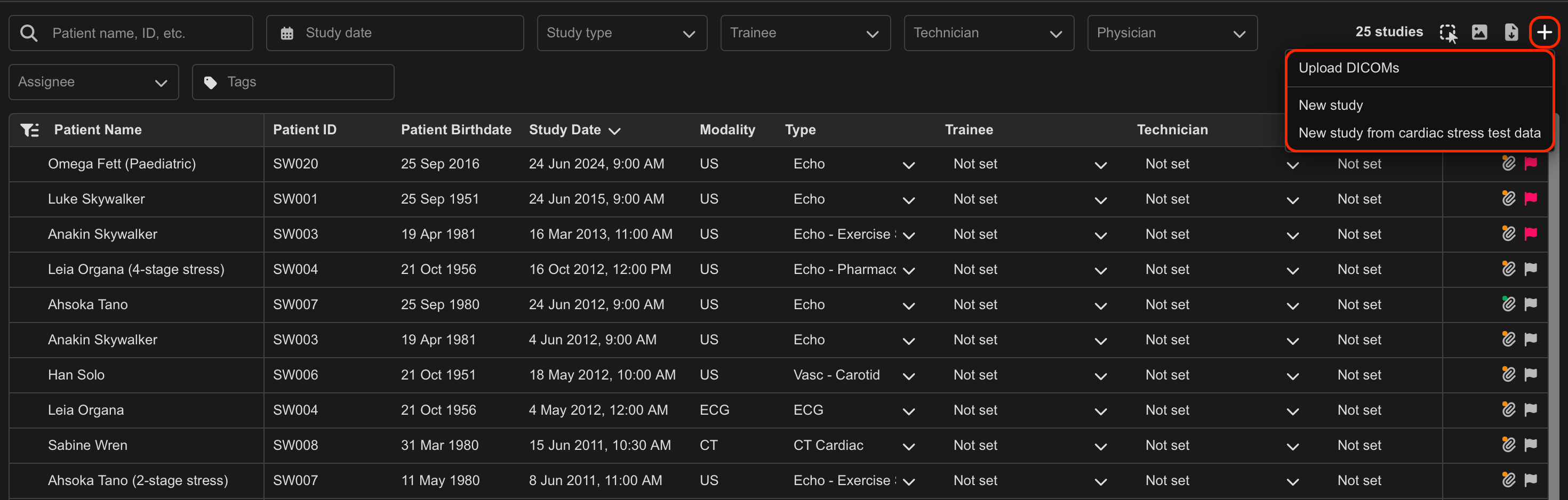
To upload DICOM files:
- Select the + icon in the top-right corner of the Study List.
- Select Upload DICOMs.
- Select one or more DICOM files from your device.
- Select Open or OK.
An Uploading... indicator appears in the top-right corner of the interface.
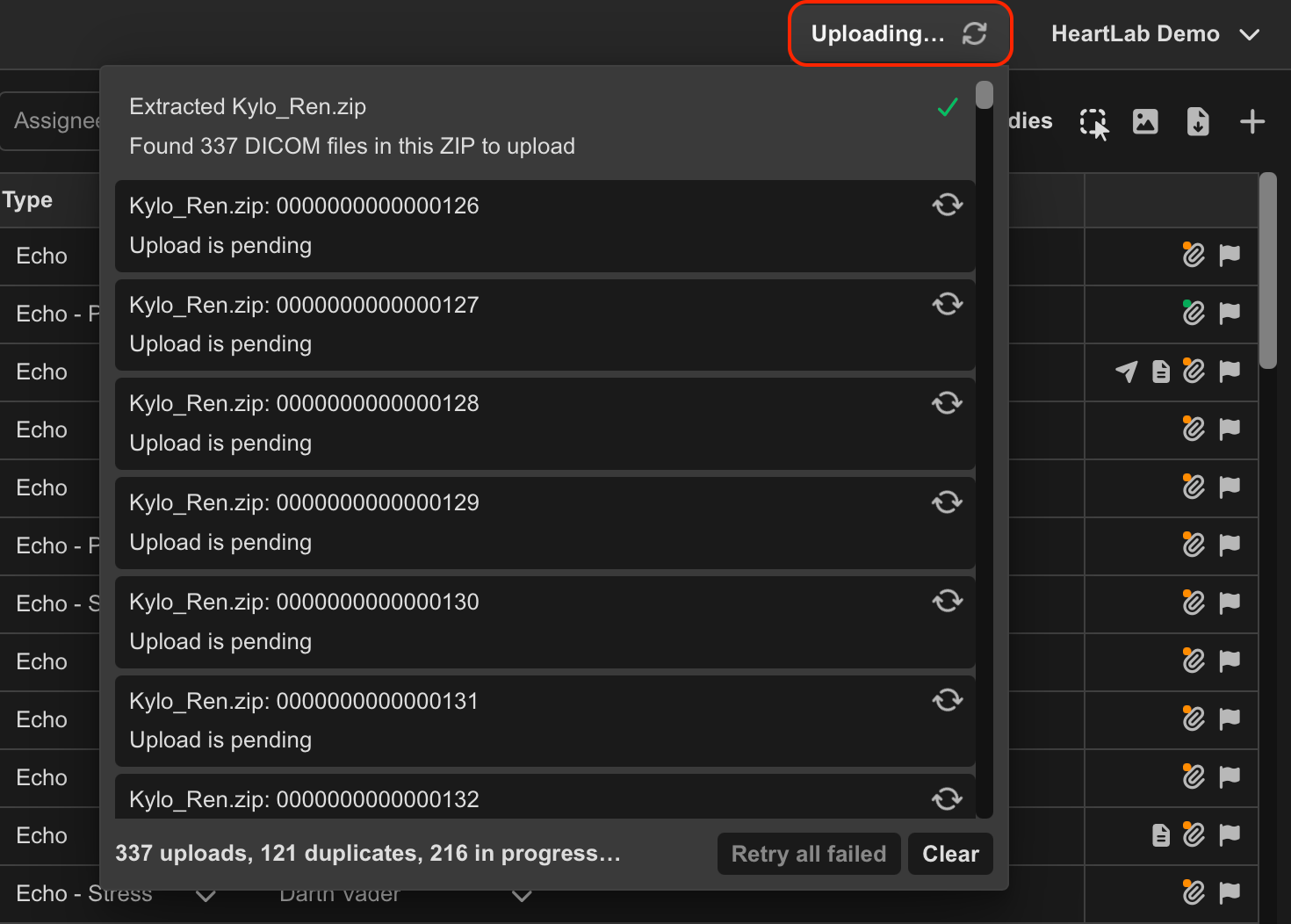
Select the upload indicator to:
- View overall upload progress
- Monitor the status of individual uploads
- Retry failed uploads
Once successfully uploaded, the study appears in the Study List.
Drag and Drop Uploads
Users can also upload DICOM files by dragging them directly onto the Study List.
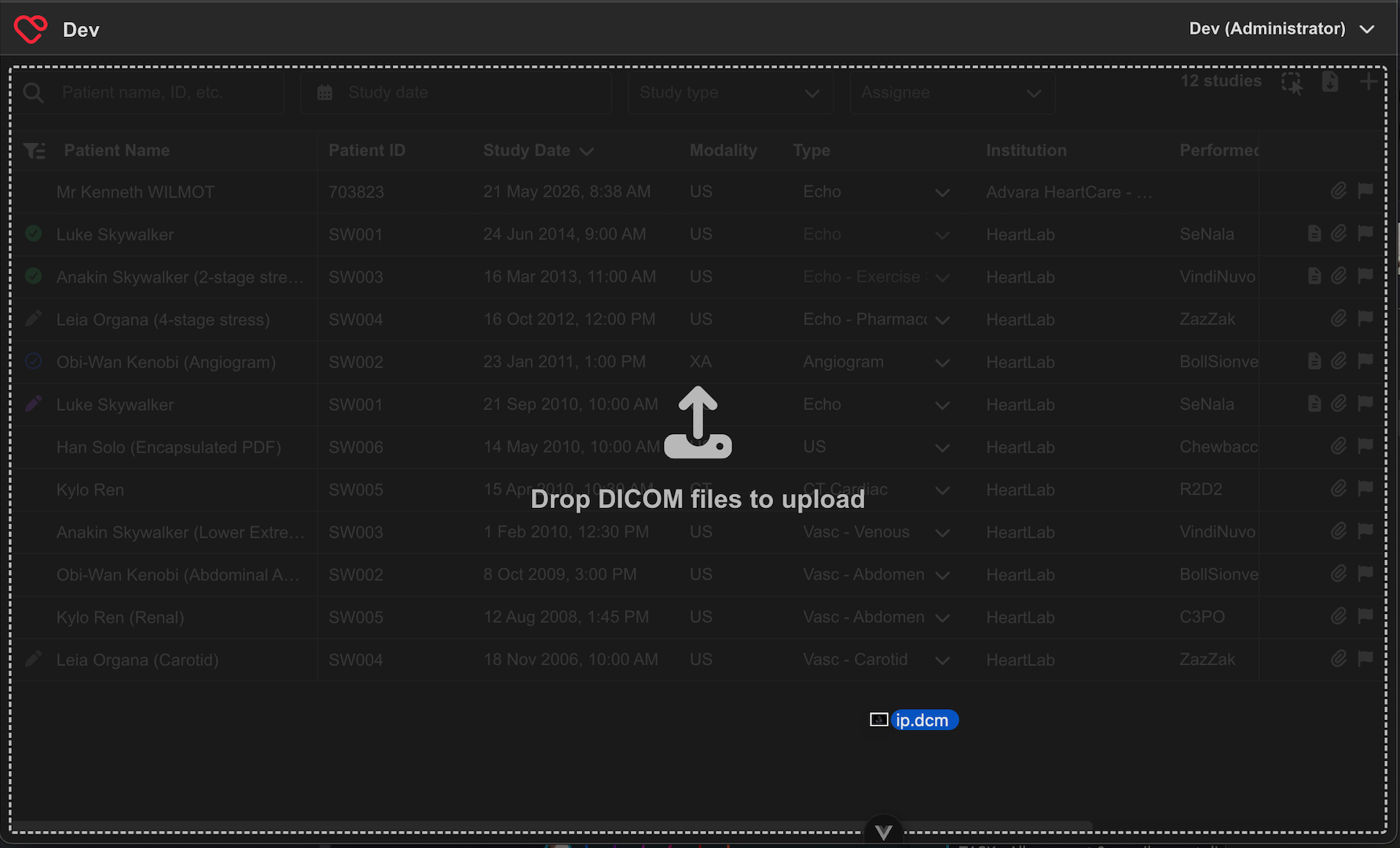
- Locate the DICOM file or ZIP archive on your device.
- Drag the file onto the HeartLab Study List.
- When the Drop DICOM files to upload message appears, release the file.
- HeartLab will automatically begin uploading the file.
The upload can then be monitored using the Uploading... indicator.
Duplicate File Detection
Upload Cardiac Stress Test Data
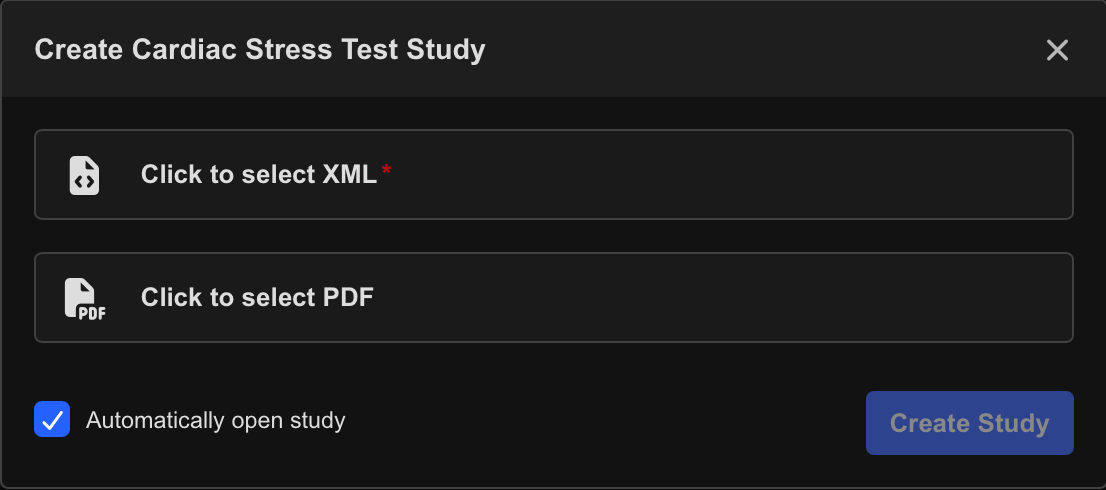
To upload cardiac stress test data:
- Select the + icon in the top-right corner of the Study List.
- Select Study from Cardiac Stress Test Data.
- Browse to and select the required XML file from your device.
- (Optional) Select a PDF file to include with the study.
- Select Create Study.
HeartLab imports the cardiac stress test data and creates a corresponding study.
If the imported data matches an existing stress echocardiogram study for the same patient, HeartLab automatically associates the cardiac stress test data with that study.
Additional Notes
- DICOM uploads are limited to a maximum file size of 2 GB.
- Upload times may vary depending on file size and network performance.
- Duplicate DICOM files are automatically detected and ignored.
 MFR
MFR