

Study Review
Quick Compare
Compare the current study with previous studies from the same patient using side-by-side review.
Quick Compare
The Quick Compare feature allows clinicians to quickly compare the current study with previous studies from the same patient.
By streamlining access to historical imaging data, Quick Compare supports:
- Longitudinal assessment
- Change detection over time
- More efficient clinical review workflows
- Faster comparison of prior imaging and reports
Open Quick Compare
To compare a study with prior studies:
- Open the current study from the Study List.
- Select the Patient History (Clock) icon in the top-right corner of the Study Viewer.
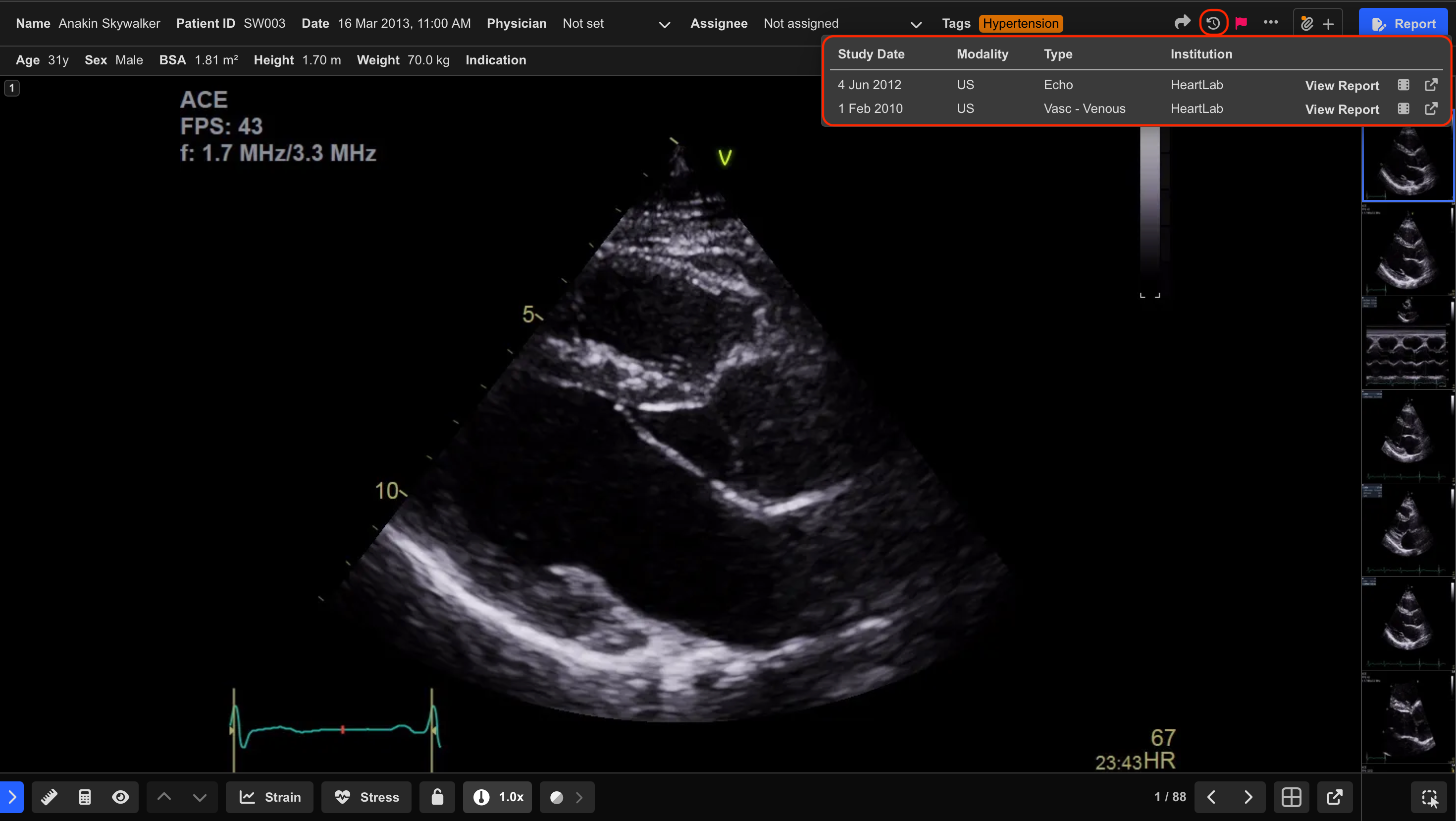
- Locate the desired previous study.
- Select the Film Roll icon beside the study.
The selected studies open in the Quick Compare dialog for side-by-side review.
Use Quick Compare
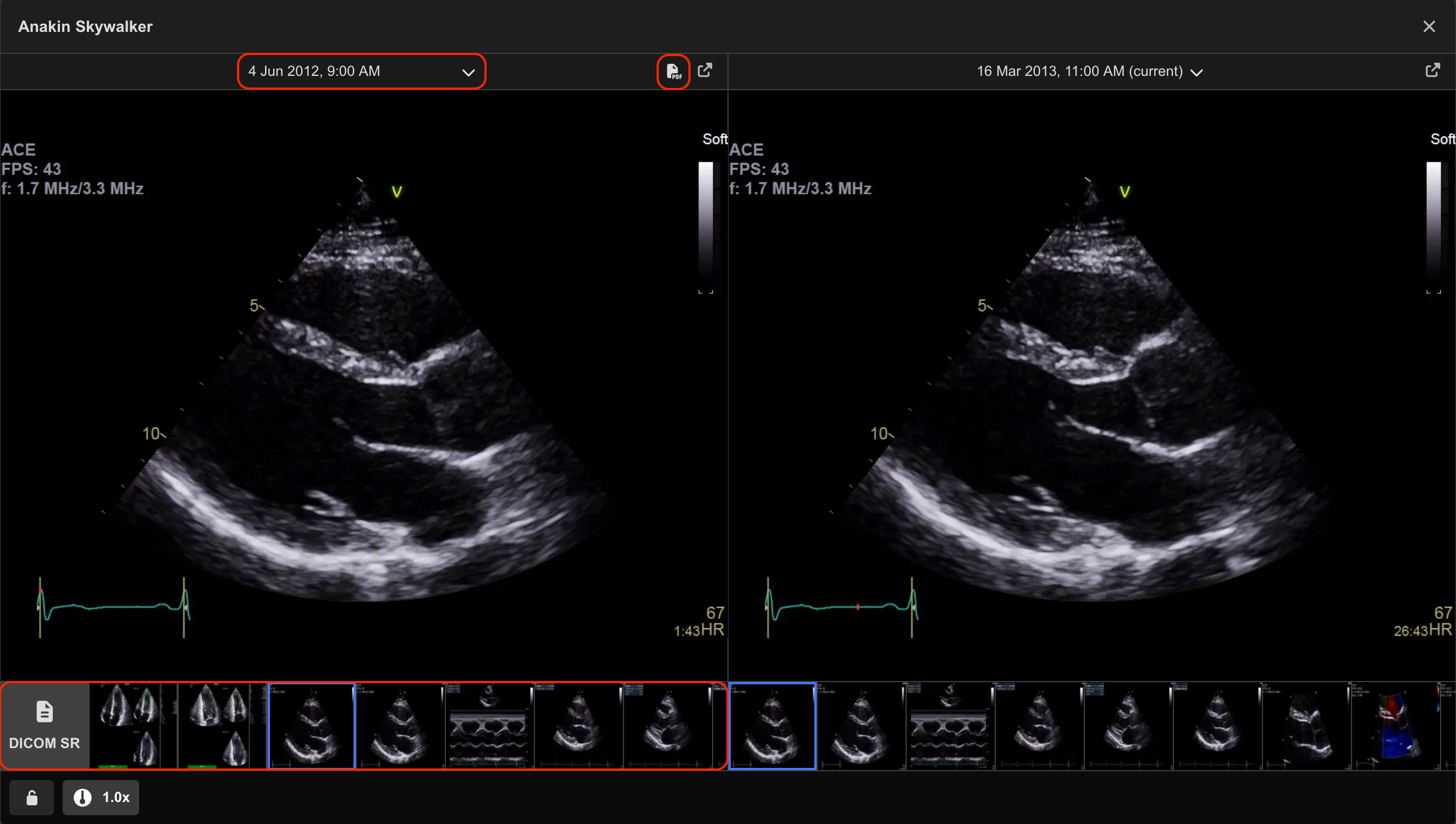
Within the Quick Compare dialog:
- Select clips from the Clip List at the bottom of the dialog to compare them side-by-side.
- Use the dropdown menu above each viewport to switch between available studies.
Changing the selected study automatically updates the comparison view.
View Previous Reports
If a report exists for a study:
- A Report icon appears within the comparison window.
Selecting the icon opens the associated report in context for comparison against the current study.
Additional Notes
Use Quick Compare when assessing interval changes between serial studies or reviewing progression over time.
Always ensure the correct studies are selected before interpreting interval changes or comparisons.
Only studies belonging to the same patient are available within Quick Compare.
 MFR
MFR