

Administration
Roles and Permissions
Review role types and permission behavior in HeartLab.
Roles and Permissions
HeartLab allows administrators to assign and customise user roles and permissions. Roles determine which actions users can perform and which areas of HeartLab they can access.
Role-based permissions help organisations:
- Restrict access to sensitive functionality
- Maintain security and accountability
- Support efficient clinical workflows
Key Principles
- Every user is assigned one or more roles.
- Permissions are cumulative — users receive the most permissive applicable access from all assigned roles.
View Your Assigned Roles
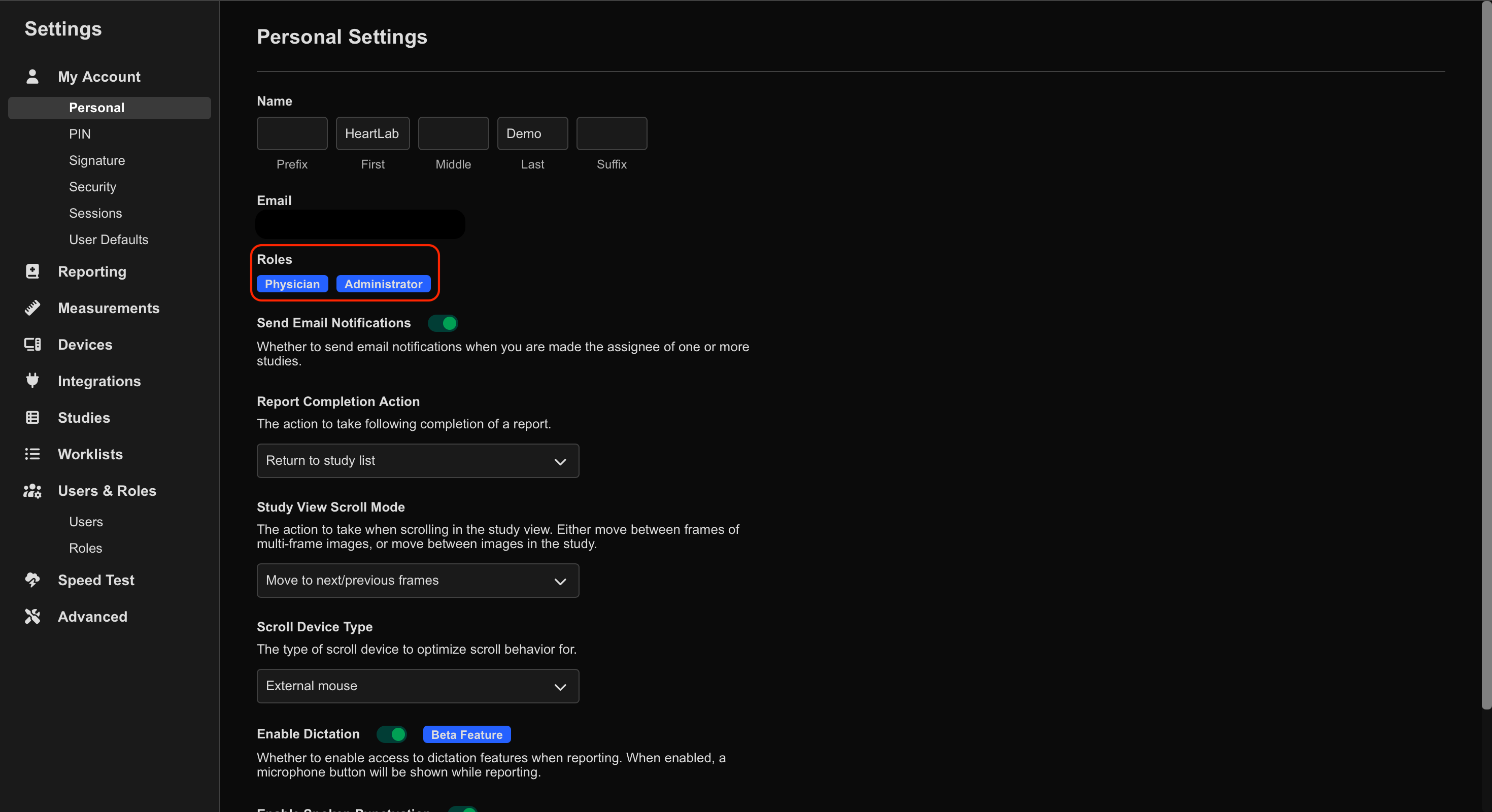
To view your assigned roles:
- Navigate to Settings → My Account → Personal.
- Review the Roles field.
Default User Roles
Default roles may have been modified by your organisation’s administrators.
Administrator
Administrators can:
- Manage organisation-wide settings
- Manage user access
- Configure tenant defaults
- Configure workflow settings
- Access advanced administrative settings
Administrators cannot sign off reports.
Physician
Physicians can:
- View studies
- Use all study viewer tools
- Sign final reports
- Update their own PIN, signature, and report branding
Support
Support users can:
- Configure tenant settings
- Manage integrations
- Assist with user role configuration
This role is commonly assigned to IT or support staff.
Technician (Sonographer)
Technicians can:
- View studies
- Use all study viewer tools
- Save study changes
- Edit and approve preliminary reports
Trainee
Trainees can:
- View studies
- Use all study viewer tools
- Save study changes
- Edit reports
Trainees cannot approve preliminary reports.
Viewer
Viewers can:
- View studies
- Create measurements
Viewers cannot modify or save study changes.
Manage Role Permissions
If you cannot access these settings, your role may not include User Roles permissions. Contact your HeartLab administrator for assistance.
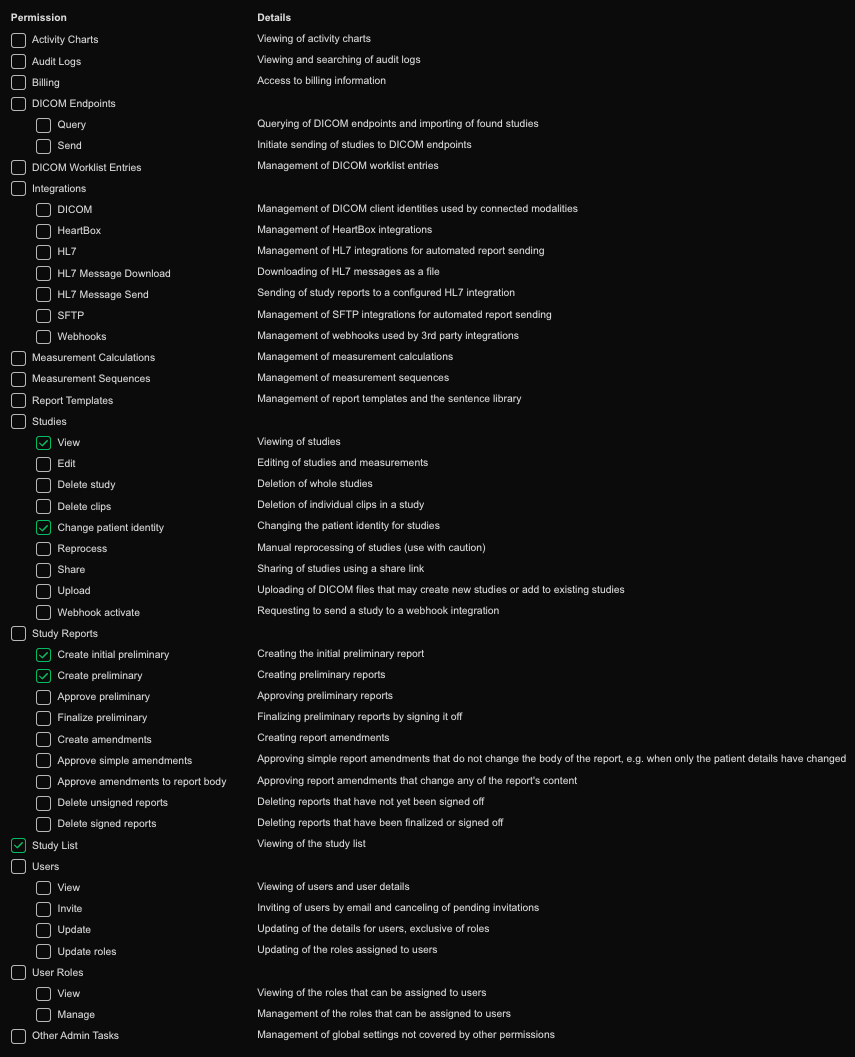
Administrators can create new roles or modify existing roles with granular permission control.
To manage roles:
- Navigate to Settings > Users & Roles > Roles.
- Select an existing role or create a new role.
Create a New Role
To create a custom role:
- Select New Role.
- Enter a role name.
- Enable the required permissions.
The permissions granted by each setting are explained within the role configuration screen.
 MFR
MFR