

Append PDFs to Reports
Append PDFs to Reports
HeartLab allows attached PDF files to be appended to the end of a report PDF.
This can be useful for:
- Including supporting documentation
- Providing additional clinical information
- Combining related documents into a single report package
Appended PDFs become part of the generated report PDF and are included when reports are distributed or downloaded.
Append PDFs to a Report
When previewing the PDF for a report:
- Select Append PDFs.
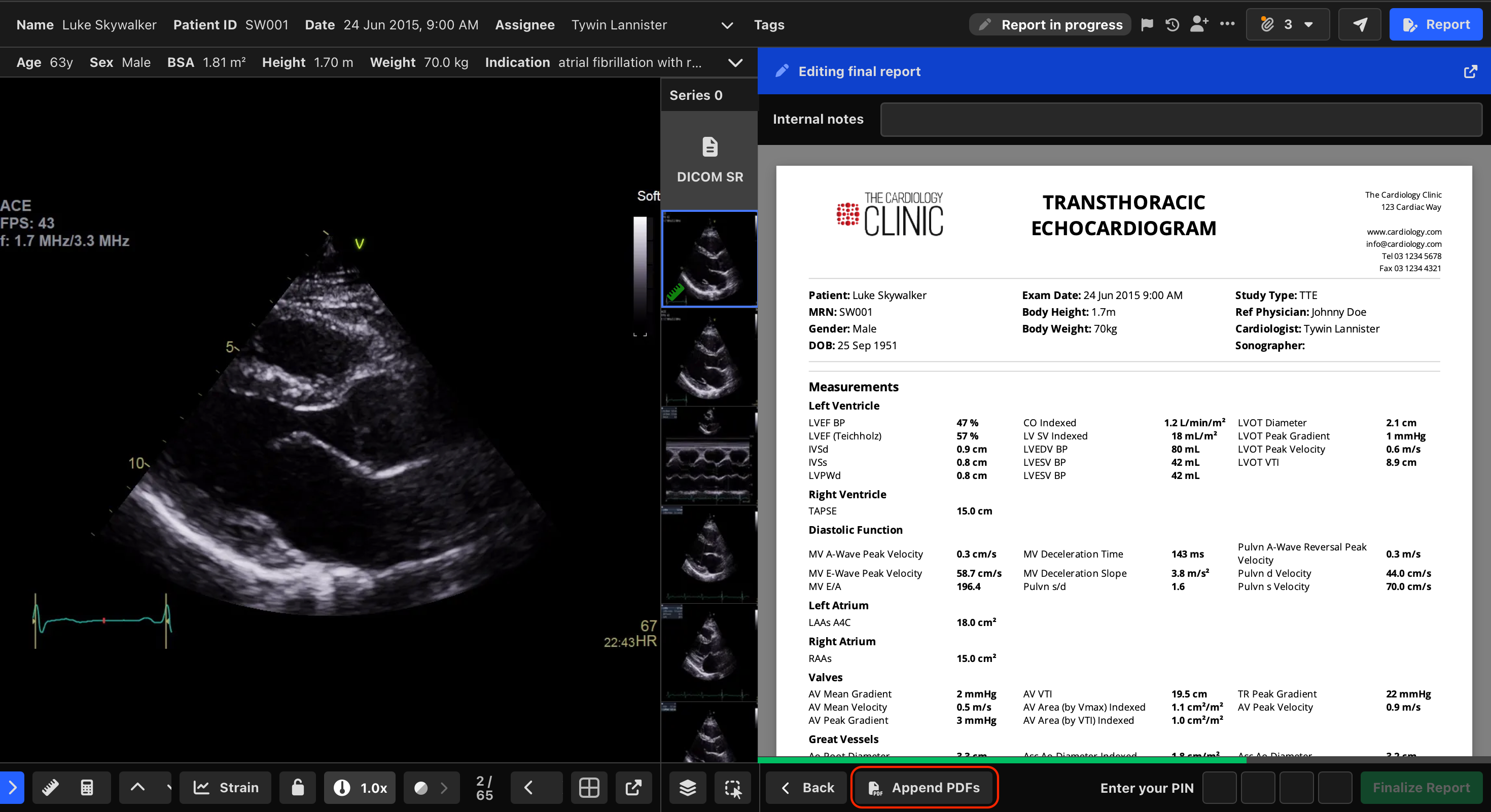
A list of eligible PDF attachments associated with the study will be displayed.
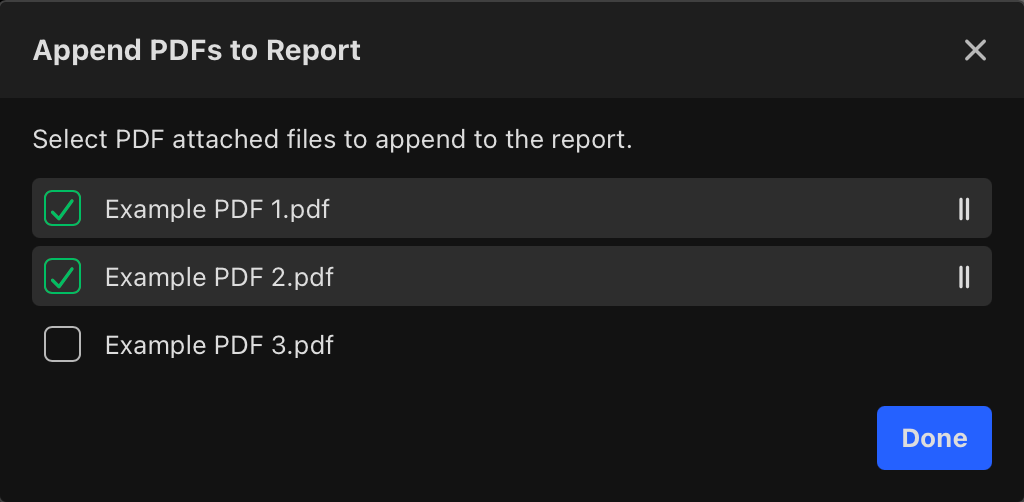
- Select one or more PDFs to append to the report.
- Arrange the PDFs in the desired order.
- Select Done.
The report preview will automatically regenerate and display the appended PDFs at the end of the report.
Reorder Appended PDFs
The order of appended PDFs determines how they appear in the final report.
To change the order:
- Open the Append PDFs dialog.
- Drag and reorder the selected PDFs.
- Select Done.
The report preview will update automatically.
Amending Reports
When amending a report that already contains appended PDFs:
- Previously selected PDFs remain attached.
- Appended PDFs can be added, removed, or reordered before completing the amendment.
This allows appended content to be updated as part of the amendment workflow.
Removing Appended PDFs
If an attached PDF is deleted from the study:
- It is automatically removed from the list of appended PDFs.
- It will no longer appear in future report generations.
Report Output
When a report is finalised:
- Selected PDFs are merged into the final report PDF.
- The appended PDFs become part of the generated report document.
- The combined PDF is used for all report distributions.
 MFR
MFR