

Measurements
Area
Trace and save 2D area measurements from still frames or clips.
Area Measurements
HeartLab allows users to perform post-processing area measurements directly within the study viewer. Area measurements can be created using either continuous click-and-drag tracing or point-by-point contour tracing.
This guide explains how to create, refine, and save area measurements.
Steps
Step 1: Select the Area Tool
- Open the study in the viewer.
- Select the Area tool from the Measurement Toolbar.
Step 2: Define the Area
You can define the measurement contour using either of the following methods.
Option A: Click-and-Drag Tracing
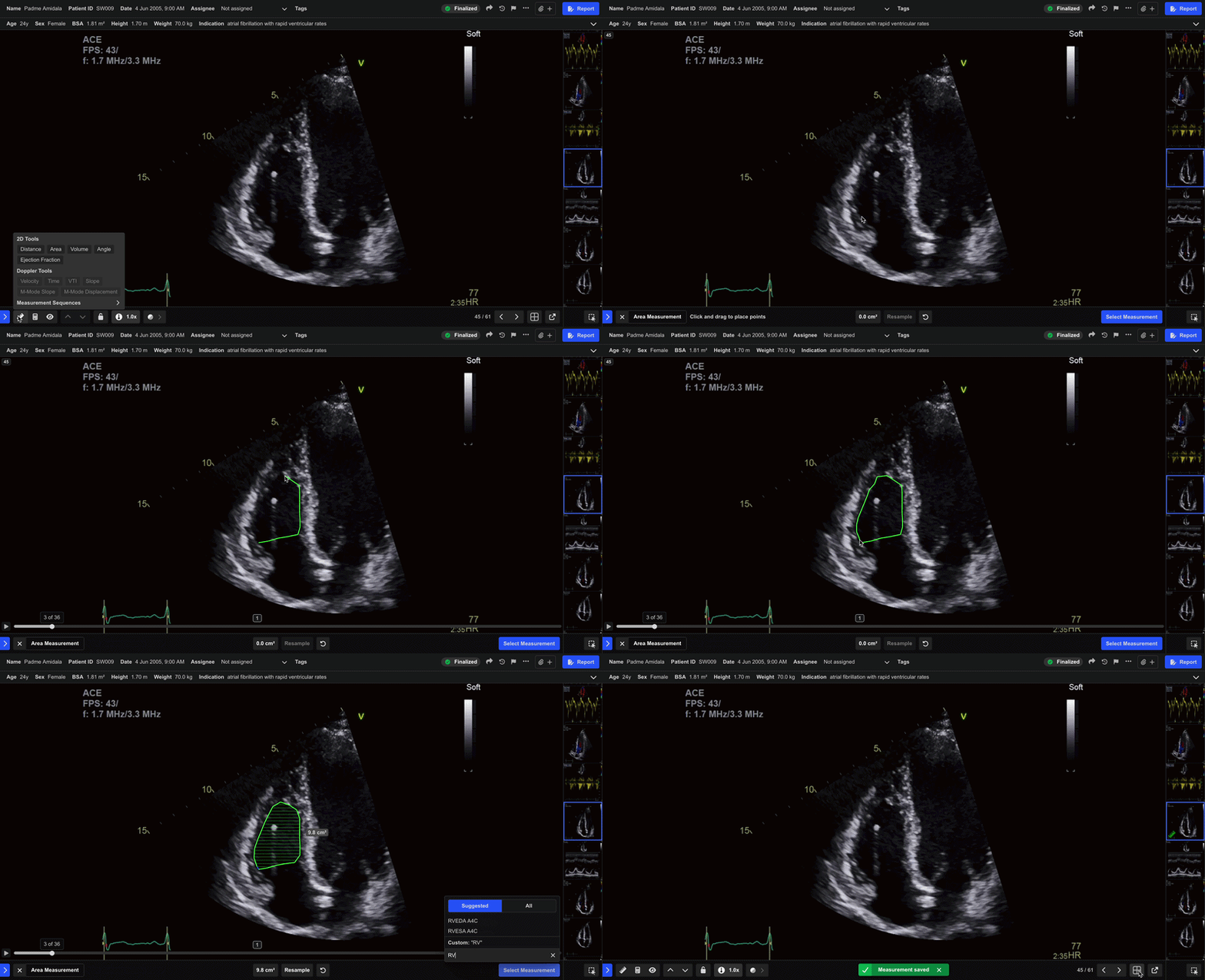
- Click and drag in one continuous motion to trace the desired contour.
- Release the mouse to complete the measurement.
If you release the mouse before completing the contour, or double-click during tracing, HeartLab automatically closes the contour by connecting the final point to the starting point.
Option B: Point-by-Point Tracing
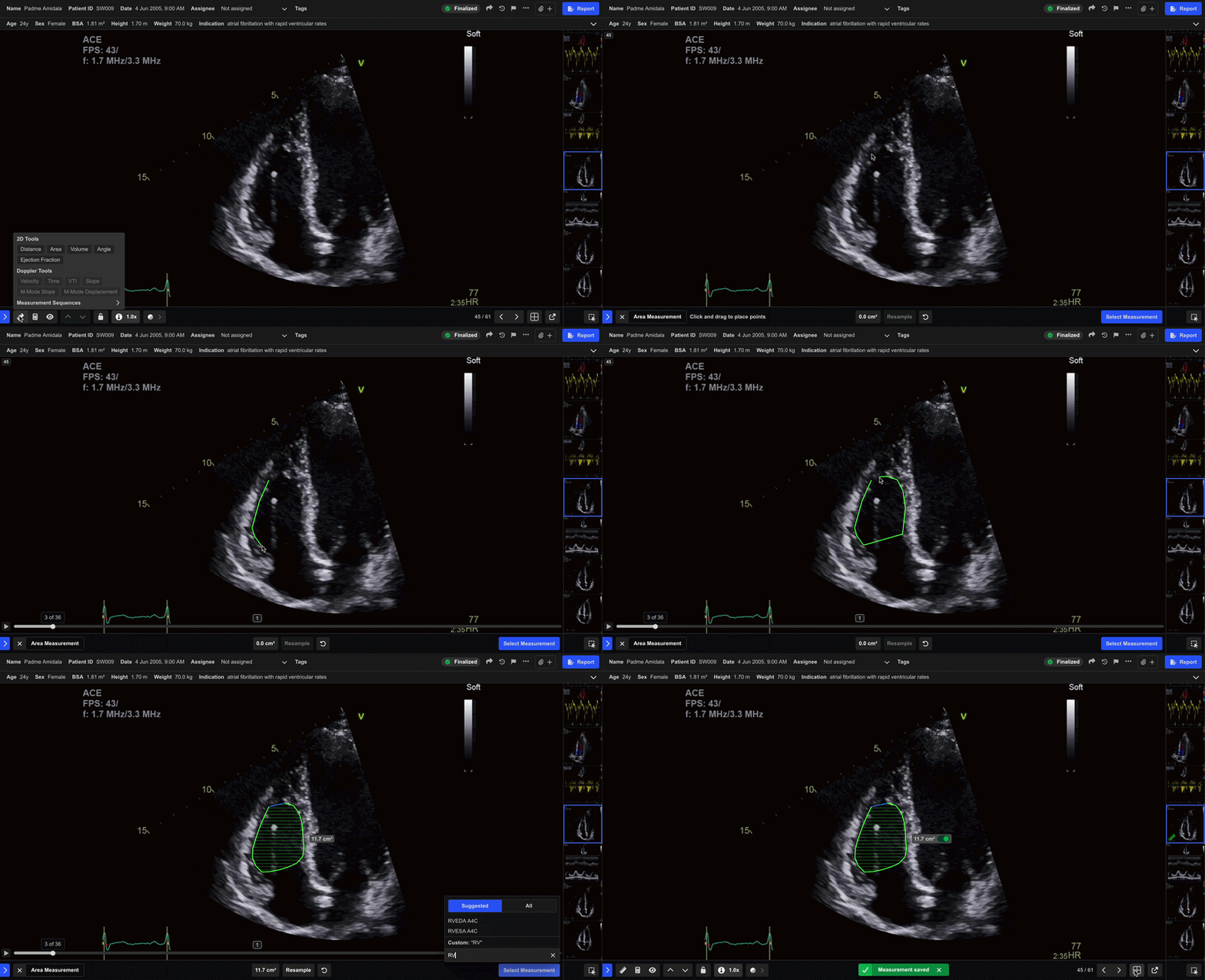
- Click around the edges of the structure to define the contour point by point.
- Double-click to complete the measurement.
Double-clicking before returning to the starting point automatically closes the contour by connecting the final point to the starting point.
Step 3: Review the Measurement
Once the contour is complete, HeartLab displays the calculated area value.
You can then choose to:
- Resample the contour
- Retake the measurement
- Save the measurement
Step 4: Save the Measurement
- Select Select Measurement or press Enter.
- In the pop-up window:
- Search, scroll, or create a measurement label
- Select the appropriate measurement type
- Optionally include related measurements
- Click Save or press Enter.
After Saving
The saved measurement appears:
- Highlighted in green on the playback bar
- Labelled with the measurement type
Hover over the highlighted section to:
- Preview the measurement
- View the measurement value
 MFR
MFR