

Reporting Workflow
Reporting Workflow
HeartLab supports a multi-stage reporting workflow designed to support clinical review, verification, and final sign-off.
In a typical dual sign-off workflow:
- A Technician or Trainee drafts a preliminary report
- The report is reviewed and approved
- The study is assigned to a Physician
- The Physician performs the final clinical review and sign-off
Once finalised, reports may be automatically distributed to connected electronic medical record systems and designated recipients, depending on your organisation’s configuration.
Permissions
The types of reports you can create, approve, and finalise depend on the roles you are assigned in HeartLab. By default, the following roles are provided:
- Trainees — Can draft preliminary reports
- Technicians — Can draft and approve preliminary reports
- Physicians — Can draft, finalise, and amend reports
- Administrators — Can draft and amend reports
Create a Preliminary Report
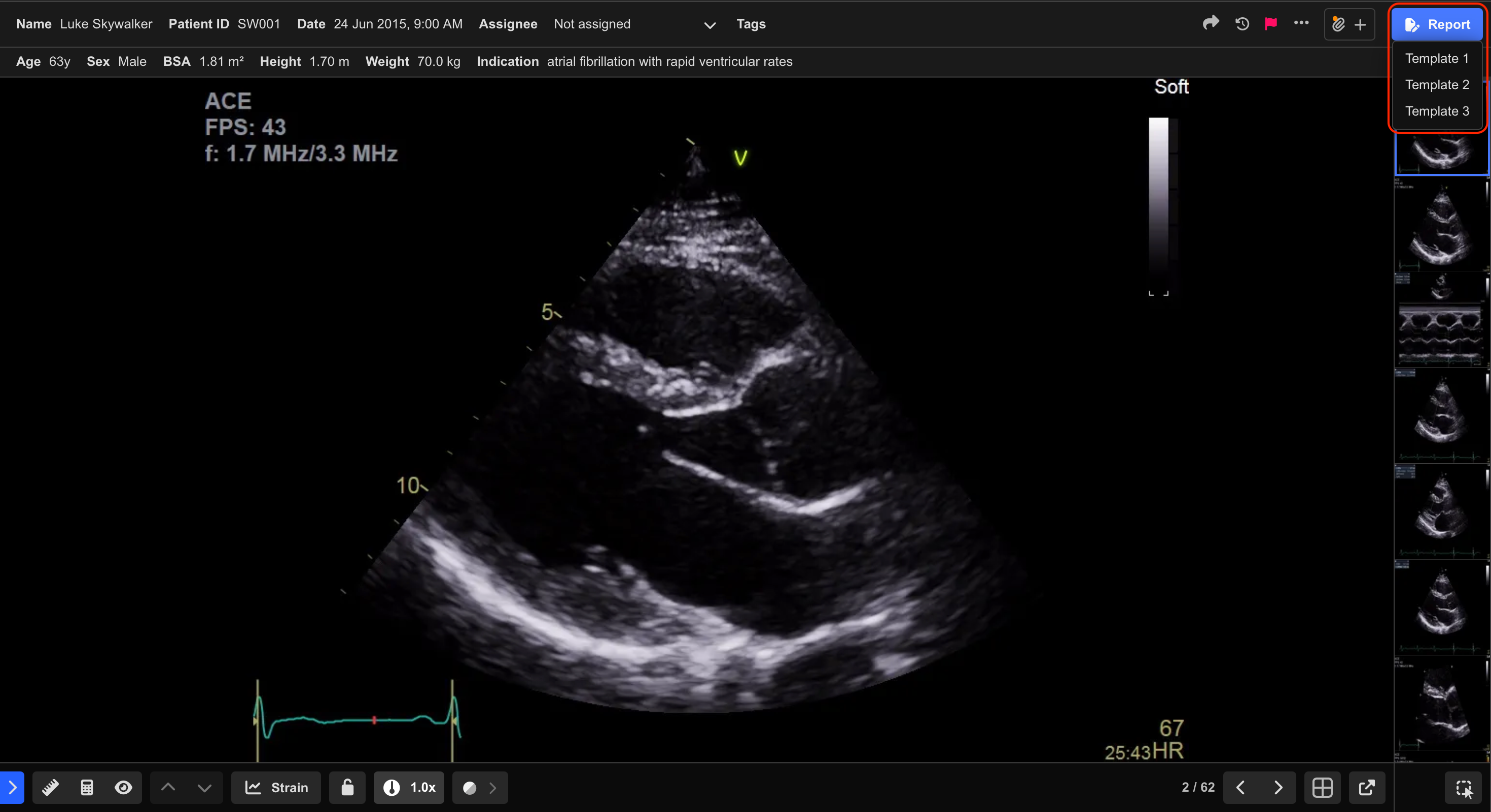
- Open the target study from the Study List.
- Select Report in the top-right corner, or press
R. - Select the required report template.
- Complete the required report sections.
Depending on the configured report template, reports may contain:
- Free-text fields
- Dropdown selections
- Structured observations
- Auto-populated measurements
HeartLab automatically saves report changes as edits are made.
Submit the Preliminary Report for Review
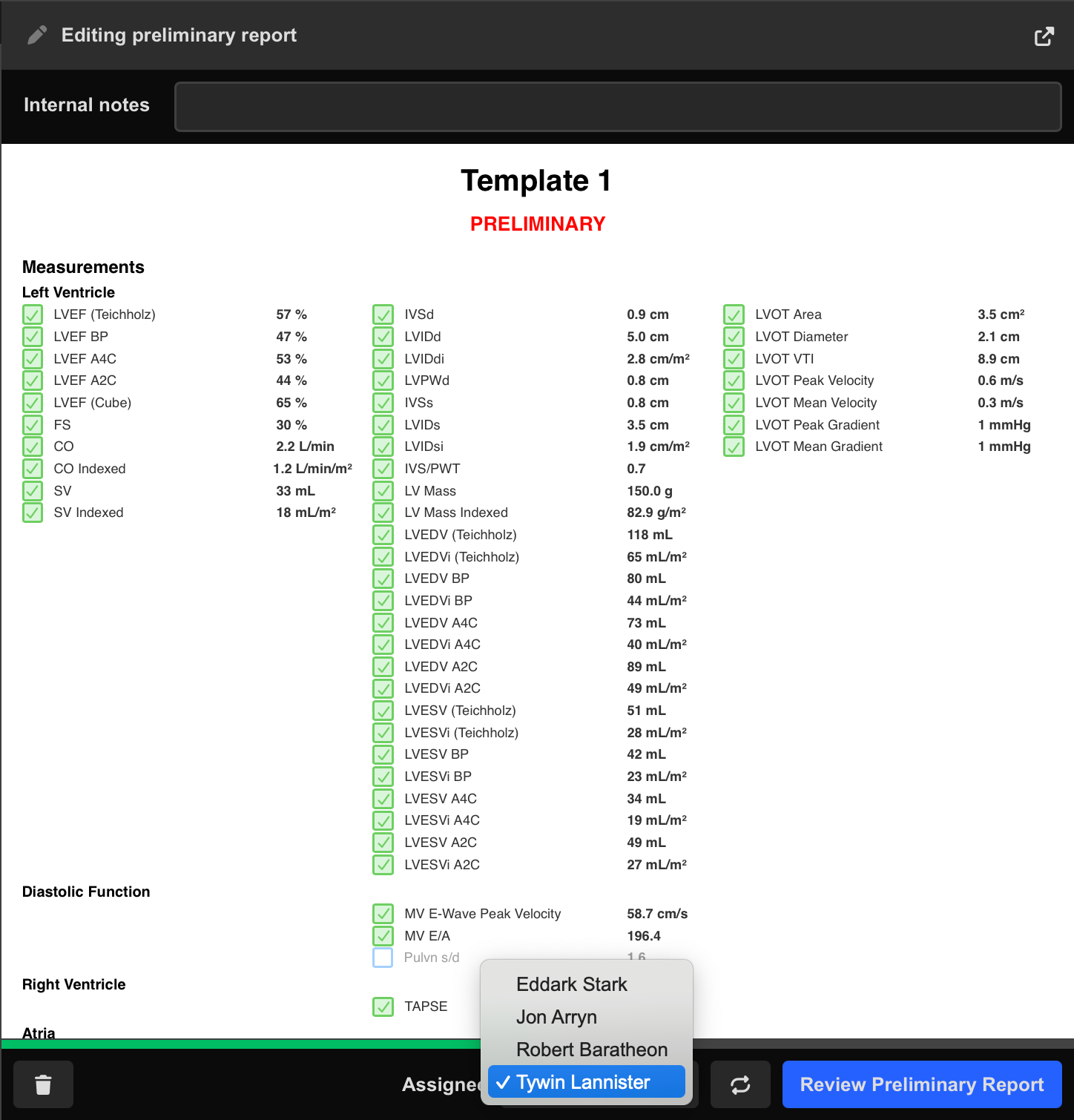
- Assign the study to the reviewing Physician.
- Select Review Preliminary Report.
- Review the report content.
- Select Approve Preliminary Report.
The study is now ready for Physician review and finalisation.
Finalise a Report (Physician Sign-Off)
- Open the target study from the Study List.
- Select Report in the top-right corner, or press
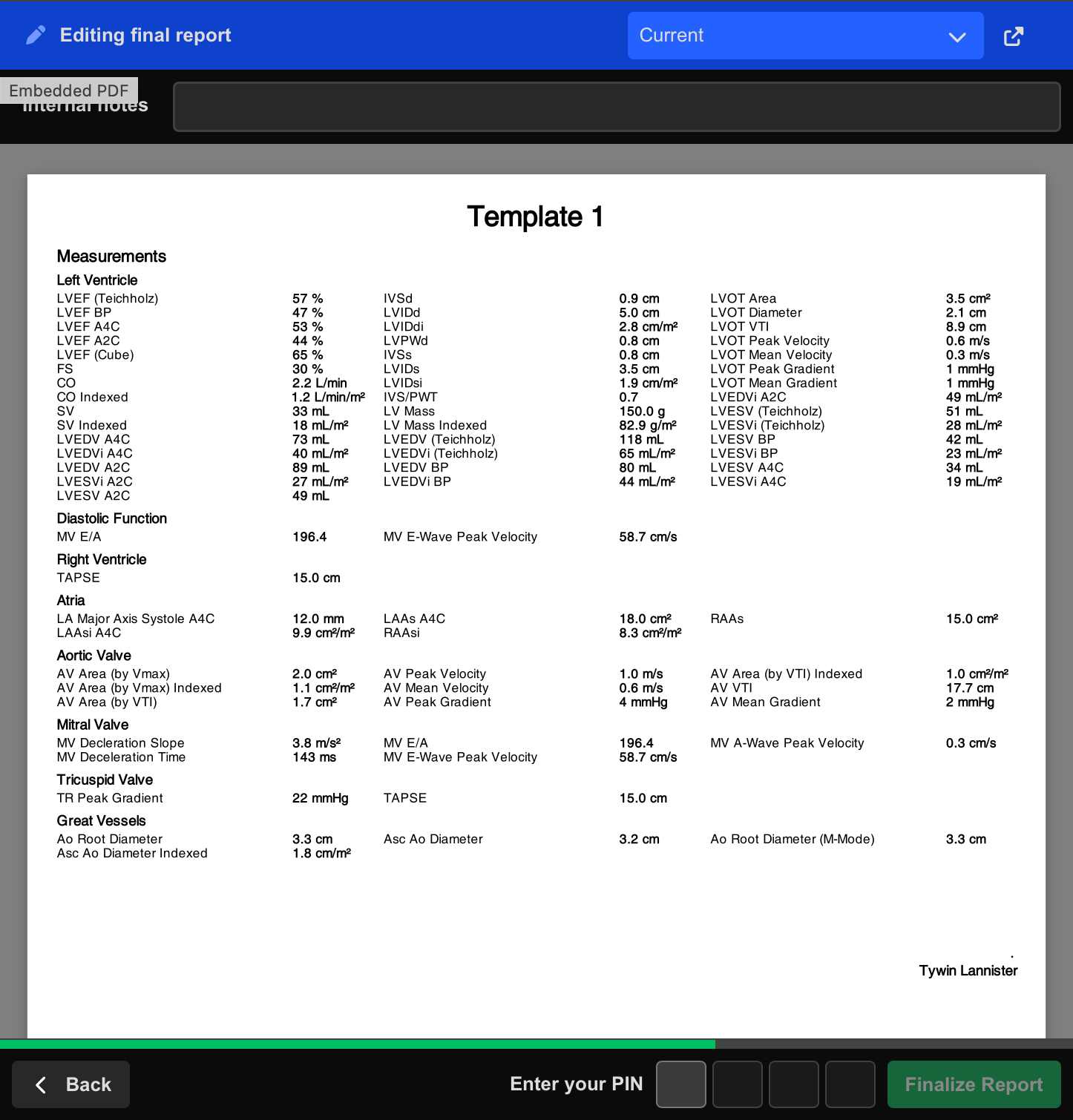
R. - Select Edit and update the report if required.
- Select Review Final Report.
- Verify the report content.
- Enter your PIN.
- Select Finalize Report.
Once finalised:
- The report becomes read-only for standard users
- The Physician signature is applied
- Distribution workflows may begin automatically
Amend a Finalised Report
If changes are required after finalisation, authorised users can create a report amendment.
- Open the target study from the Study List.
- Select Report in the top-right corner, or press
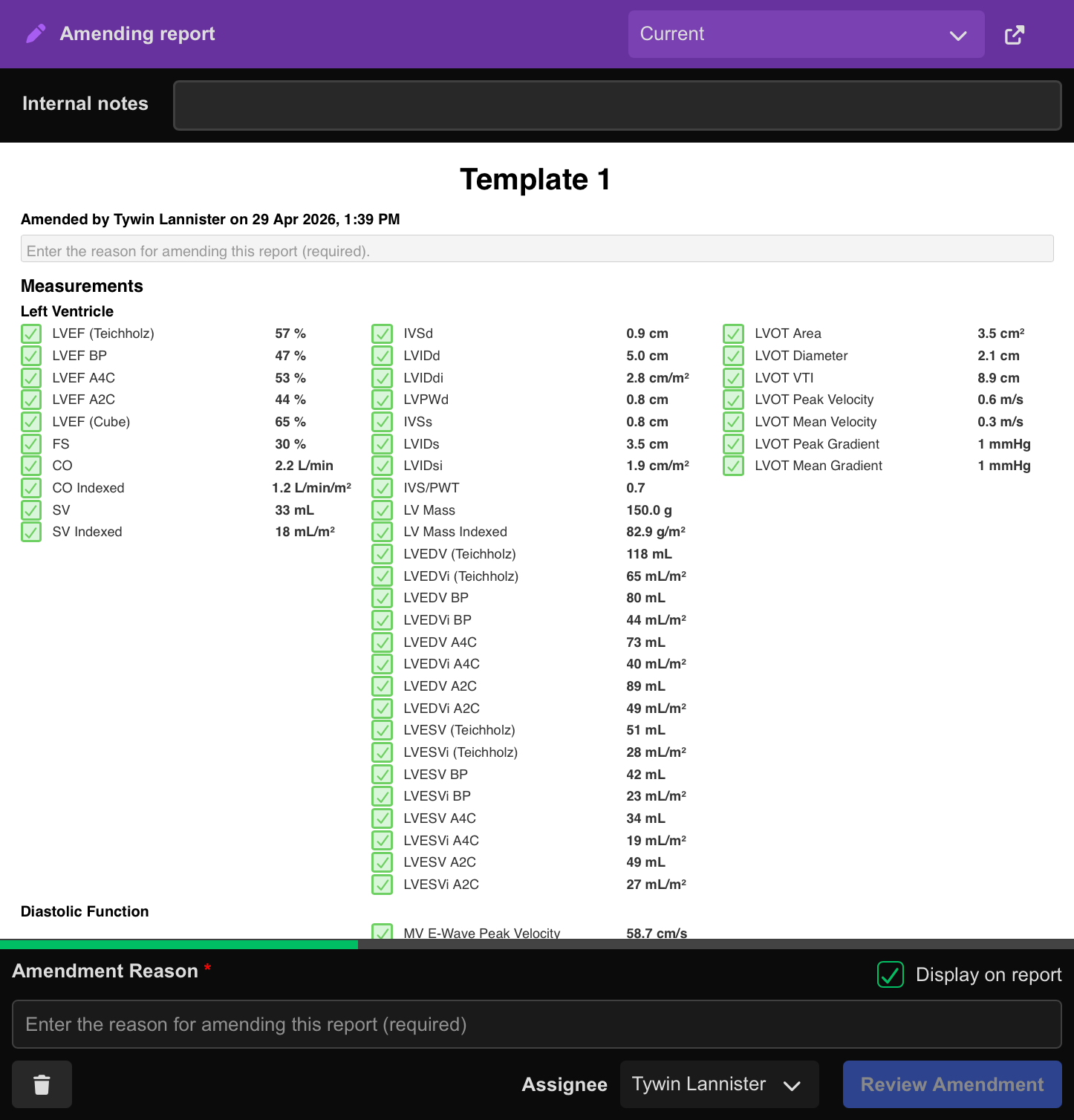
R. - Select Amend Report.
- Edit the required report sections.
- Enter the reason for amendment if prompted.
- Select Review Amendment.
- Verify the amendment content.
- Enter your PIN.
- Select Confirm Amendment.
Amended reports are redistributed automatically if distribution workflows are configured.
To delete the most recent amendment:
- Open the amendment.
- Select Delete Amendment.
Report Status Indicators
The report header colour changes according to the current report status:
| Colour | Status |
|---|---|
| Grey | Preliminary report in progress |
| Blue | Final report in progress |
| Green | Report finalised |
| Purple | Amendment in progress |
 MFR
MFR