

Building Report Templates
Building Report Templates
HeartLab allows organisations to create fully customised report templates to support efficient, standardised clinical reporting workflows.
Templates can be configured to control:
- Report structure
- Measurements
- Dropdown logic
- Sentences and conclusions
- Formatting and styling
- Automation behaviour
By standardising reporting workflows, templates help:
- Reduce manual data entry
- Improve reporting consistency
- Minimise reporting errors
- Accelerate report completion
Open the Report Template Editor
To create or edit report templates:
- Navigate to Settings → Reporting → Templates.
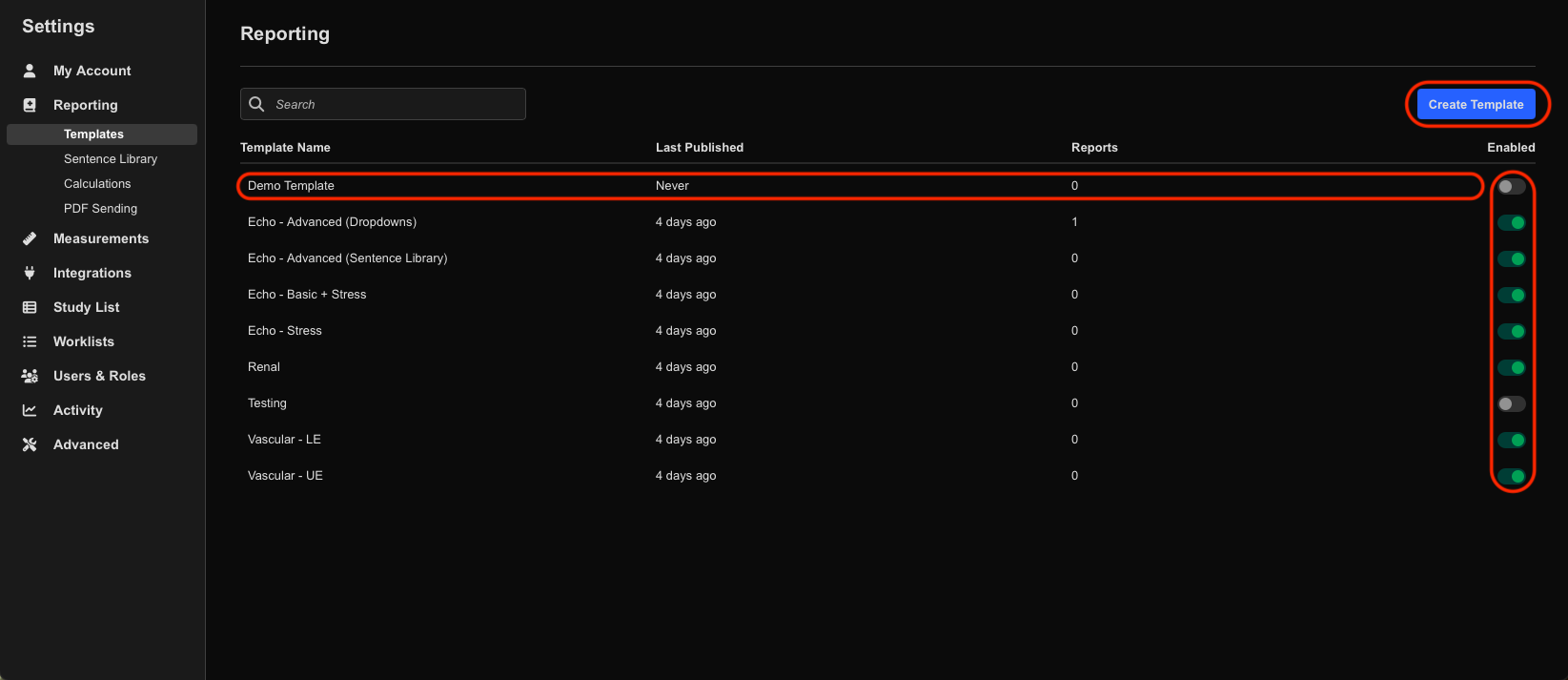
From the Reporting page, you can:
- Create new templates
- Edit existing templates
- Enable or disable templates
Create a New Template
To create a new report template:
- Select Create Template.
- Enter the template name.
- Select Create Template.
A new unpublished draft template opens in the Report Template Editor.
Edit an Existing Template
To edit an existing template:
- Select the desired template from the Reporting page.
The template opens directly in the Report Template Editor.
Using the Report Template Editor
The Report Template Editor allows administrators to configure:
- Report titles
- Logos
- Sections
- Dropdowns
- Sentences
- Measurements
- Tables
- Graphs
Enter Edit Mode
To begin editing:
- Select Edit.
The top toolbar changes to blue, indicating the template is currently in edit mode.
Template Structure
Templates generally follow this hierarchy:
- Sections
- Dropdowns
- Options
- Dropdowns
Each level can be independently configured and rearranged.
Toolbar Functions
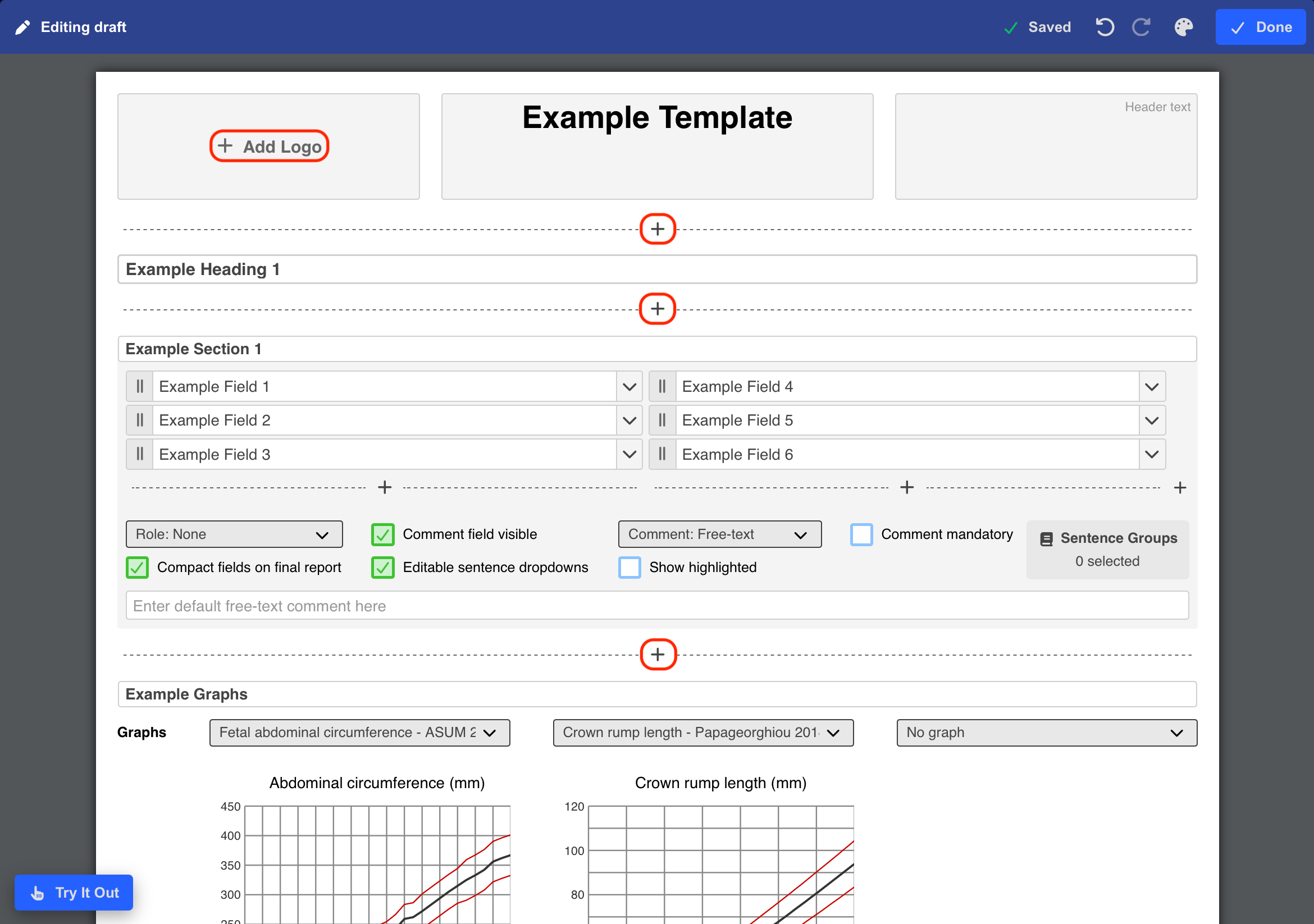
The editor toolbar includes:
- Saved indicator
Displays automatic save status. - Undo / Redo controls
- Report styling controls
Including:- Fonts
- Margins
- Patient information visibility
- Done
Exits editing mode.
Add Report Elements
To add content:
- Hover over a + icon.
- Select the desired element type.
Available elements include:
- Headings
- Fields
- Tables
- Diagrams
- Graphs
- Lists
Configure Report Fields
Within each section, administrators can add different field types to control how information is captured and displayed within the report.
Available field types include:
- Free text
- Dropdown menus
- Sentences
- Calculations
- Measurement fields
- Image sections
- Automated reporting logic
Measurement fields support configuration of:
- Units
- Decimal places
- Multiple measurements with fallback priority
These settings allow report templates to display measurements consistently while providing flexibility when preferred measurements are unavailable for a study.
For detailed information about configuring specialised report fields, see:
Rearrange Template Elements
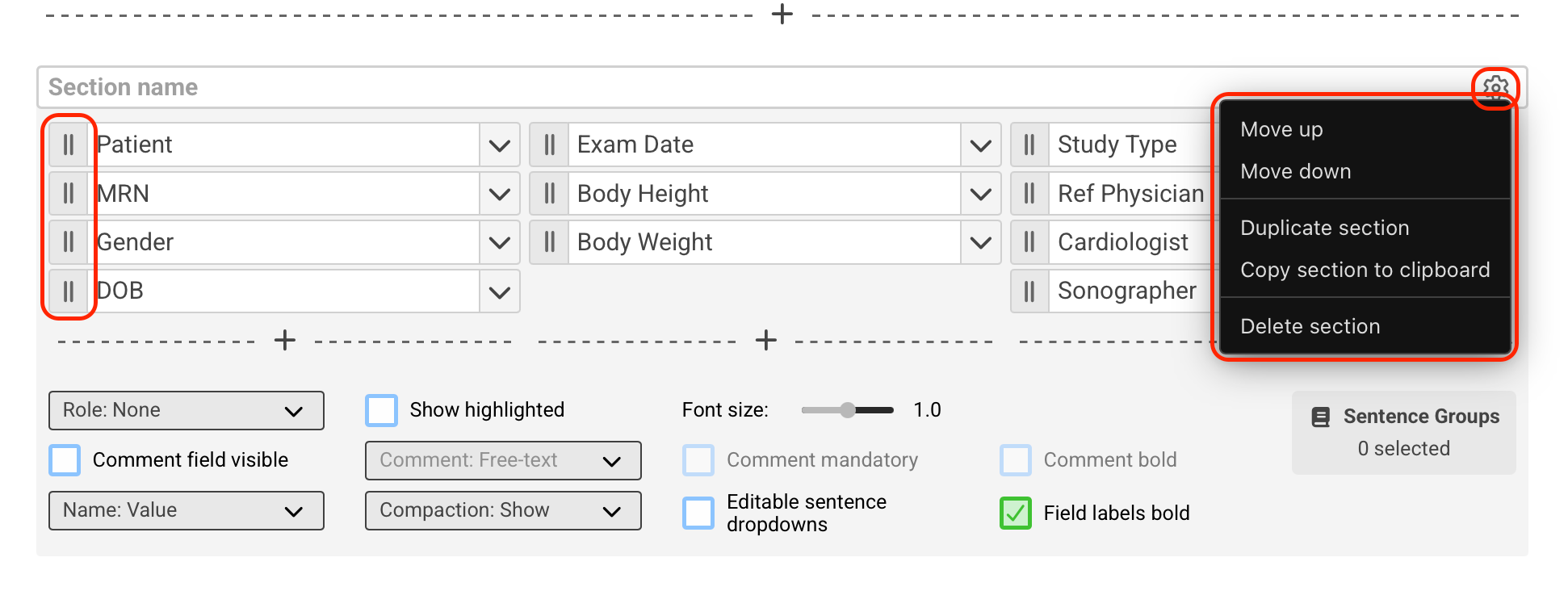
Report template elements can be rearranged, duplicated, copied, pasted, or deleted directly within the Report Template Editor.
Rearrange Dropdowns
To reorder dropdowns within a section:
- Click and drag the dropdown into the desired position.
Rearrange Sections
To move a section:
- Select the Cog icon for the section.
- Select Move Up or Move Down.
Repeat as required until the section is in the desired position.
Duplicate a Section
To create a copy of a section within the current template:
- Select the Cog icon for the section.
- Select Duplicate Section.
The duplicated section can then be edited independently.
Copy and Paste a Section
Sections can be copied to the clipboard and pasted into another supported location in the Report Template Editor. This allows existing sections to be reused within the same or another Report Template without manually recreating their configuration.
To copy a section:
- Select the Cog icon for the section.
- Select Copy Section to Clipboard.
To paste the copied section:
- Open the Report Template where you want to add the section.
- Enter edit mode.
- Hover over the + icon at the desired location.
- Select Paste.
The copied section is added to the Report Template and can then be edited independently.
Delete a Section or Element
To remove a section or element:
- Select the relevant Cog icon.
- Select Delete.
Preview and Test Templates
HeartLab allows templates to be tested before publishing.
To preview a template:
- Select Try it out.
A preview window opens, allowing users to:
- Test dropdowns
- Trigger automation
- Validate calculations
- Review formatting
To exit preview mode:
- Close the preview window.
Publish Templates
Once template changes are complete:
- Select Publish.
- Confirm the publish action.
After publishing:
- The template receives a publication timestamp
- A green indicator confirms published status
View Publication History
HeartLab keeps a history of previously published versions of each report template, allowing administrators to review publication details and restore an earlier version when required.
To view the publication history:
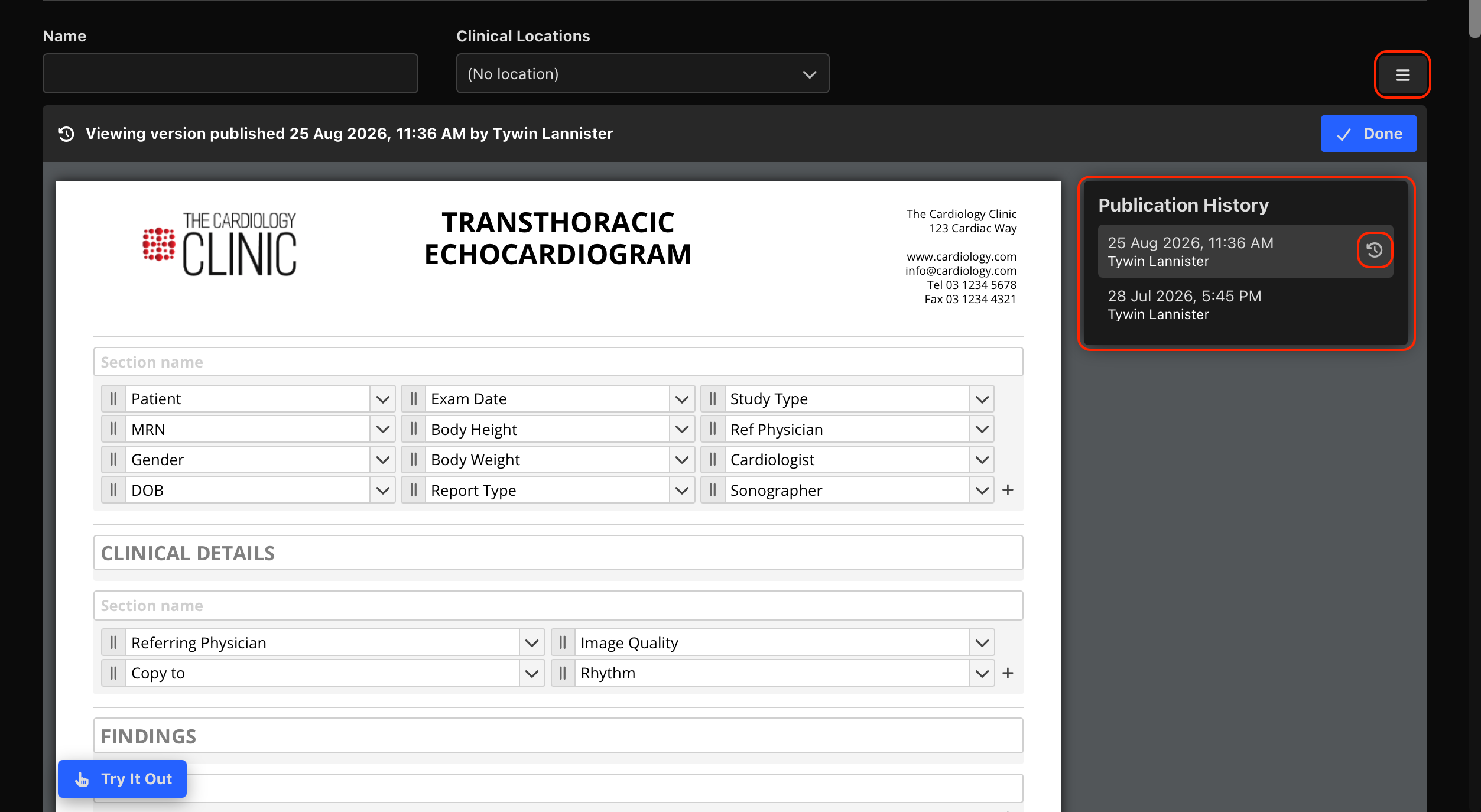
- Open the report template in the Report Template Editor.
- Select the Burger menu in the top-right corner.
- Select View Publication History.
The publication history displays each previously published version of the template, including:
- Date and time published
- Name of the user who published the version
Revert to a Previous Version
To restore a previously published version:
- Open View Publication History.
- Locate the version you want to restore.
- Select the Revert icon for that version.
HeartLab restores the selected version of the report template, allowing administrators to return to an earlier configuration without manually recreating previous template content.
Revert a Template to Draft
To return a published template to draft mode:
- Select Edit.
The template automatically reverts to an unpublished draft state.
Enable or Disable Templates
To make a template available during reporting:
- Enable the template toggle within:
- The Report Template Editor, or
- The Reporting settings page
Disabled templates:
- Remain stored in the system
- Cannot be selected during report creation
Limit Templates to Study Types
By default, a template is offered when reporting studies of every study type, shown as All study types. To offer it only for specific study types, e.g. so echocardiogram templates are not offered for Holter studies:
- Open the template in the Report Template Editor.
- Select the Availability button (eye icon) to the left of the options menu.
- Select the study types in Study Types, then select Save.
Selecting All study types clears the selected study types and offers the template for every study type again.
A report that has already been started from a template can still be revised and amended with it if the study's type changes, or the template's study types change.
Additional Template Options
Additional template actions are available from the Additional Options menu in the top-right corner.
Available actions include:
- View Publication History
- Duplicate template
- Delete template
- Import template
- Export template
Duplicate a Template
Selecting Duplicate creates a copy named:
[Template Name] (Copy)
 MFR
MFR