

Participant Rules
Participant Rules
Studies uploaded from scanning machines contain DICOM metadata that can automatically populate key study information within HeartLab.
Participant Rules allow administrators to use this metadata to automatically assign studies to users such as:
- Trainees
- Technicians
- Physicians
Automated participant assignment helps:
- Reduce manual triaging
- Improve workflow efficiency
- Minimise assignment errors
- Route studies to the correct clinicians faster
- Improve reporting turnaround times
Before You Begin
The desired participant column must first be enabled within the Study List configuration before it can be populated automatically.
Participant columns include:
- Trainee
- Technician
- Physician
- Assignee
For guidance on configuring Study List columns, see:
Create a Participant Rule
To create Participant Rules:
- Navigate to Settings → Studies → Participant Rules.
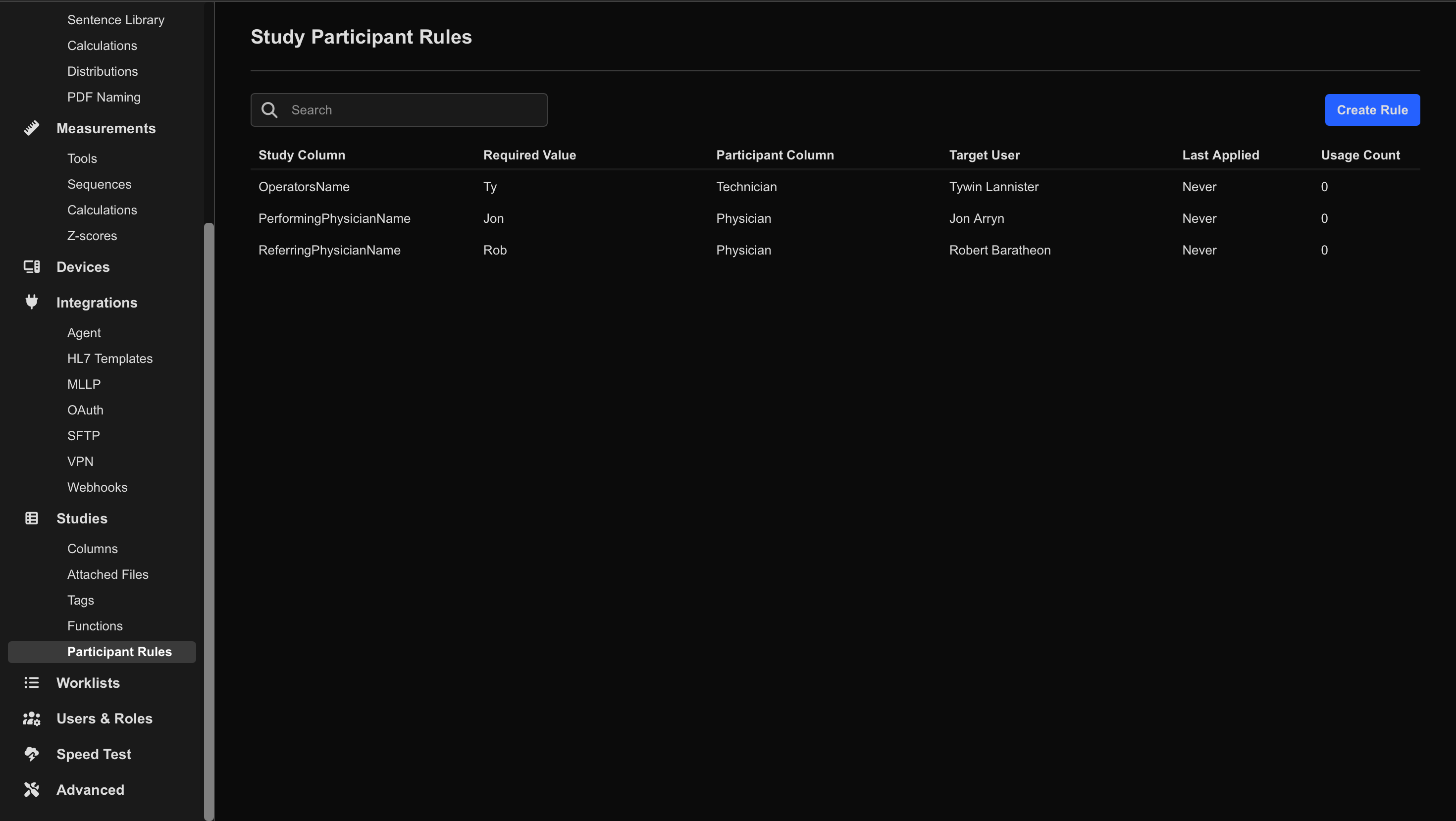
- Select Create Rule.
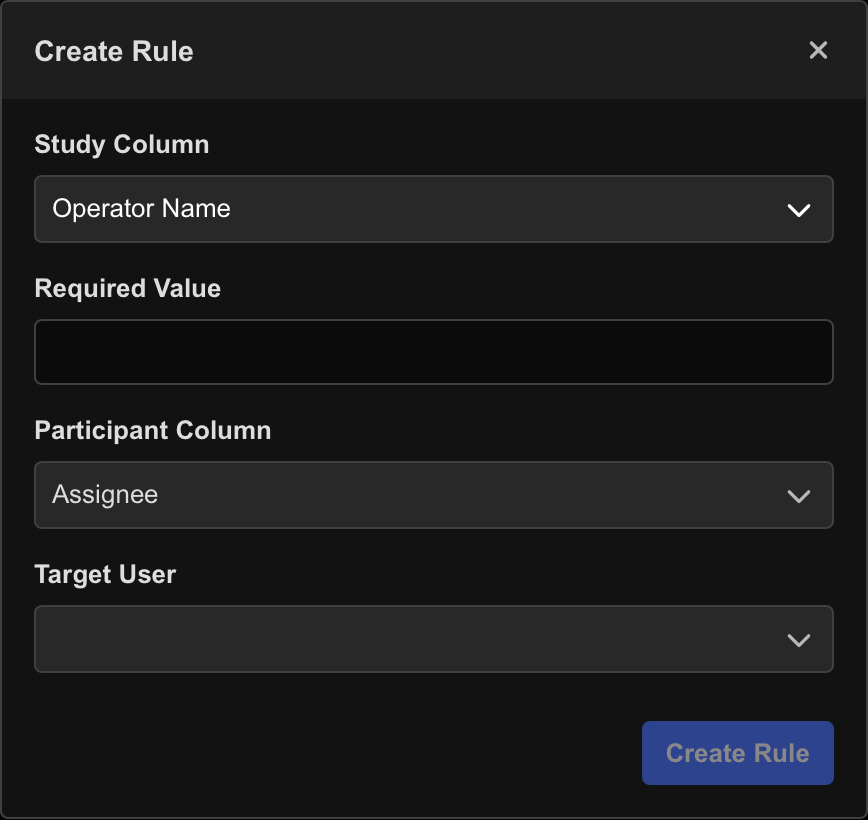
- Configure the rule.
Each rule maps:
- A value detected within a DICOM study field (Study Column)
- To a participant assignment column (Participant Column)
- And assigns the specified Target User
When the configured value is detected during study upload, HeartLab automatically assigns the selected user to the study.
Configure Rule Logic
Participant Rules operate using incoming DICOM metadata.
When a matching value is found:
- The configured participant column is automatically assigned to the target user.
Rule Priority
If conflicting rules exist:
- The most recently created rule takes precedence.
For example:
- Two rules matching the same incoming value but assigning different users
- The newest rule overrides older matching rules
Delete a Participant Rule
To delete a Participant Rule:
- Navigate to Settings → Studies → Participant Rules.
- Select the desired rule.
- Select Delete Rule.
 MFR
MFR