

Reporting
Resending Reports
Manually resend distributed reports and review delivery outcomes for each study.
Resending Reports
HeartLab allows authorised users to manually resend previously distributed reports and review their delivery history.
This is useful when:
- A recipient did not receive a report
- Delivery failed
- A report needs to be resent without amending the study
- Delivery status needs to be reviewed
Distribution Status at a Glance
If a study report has been distributed, the most recent delivery status appears on the right-hand side of the Study List.
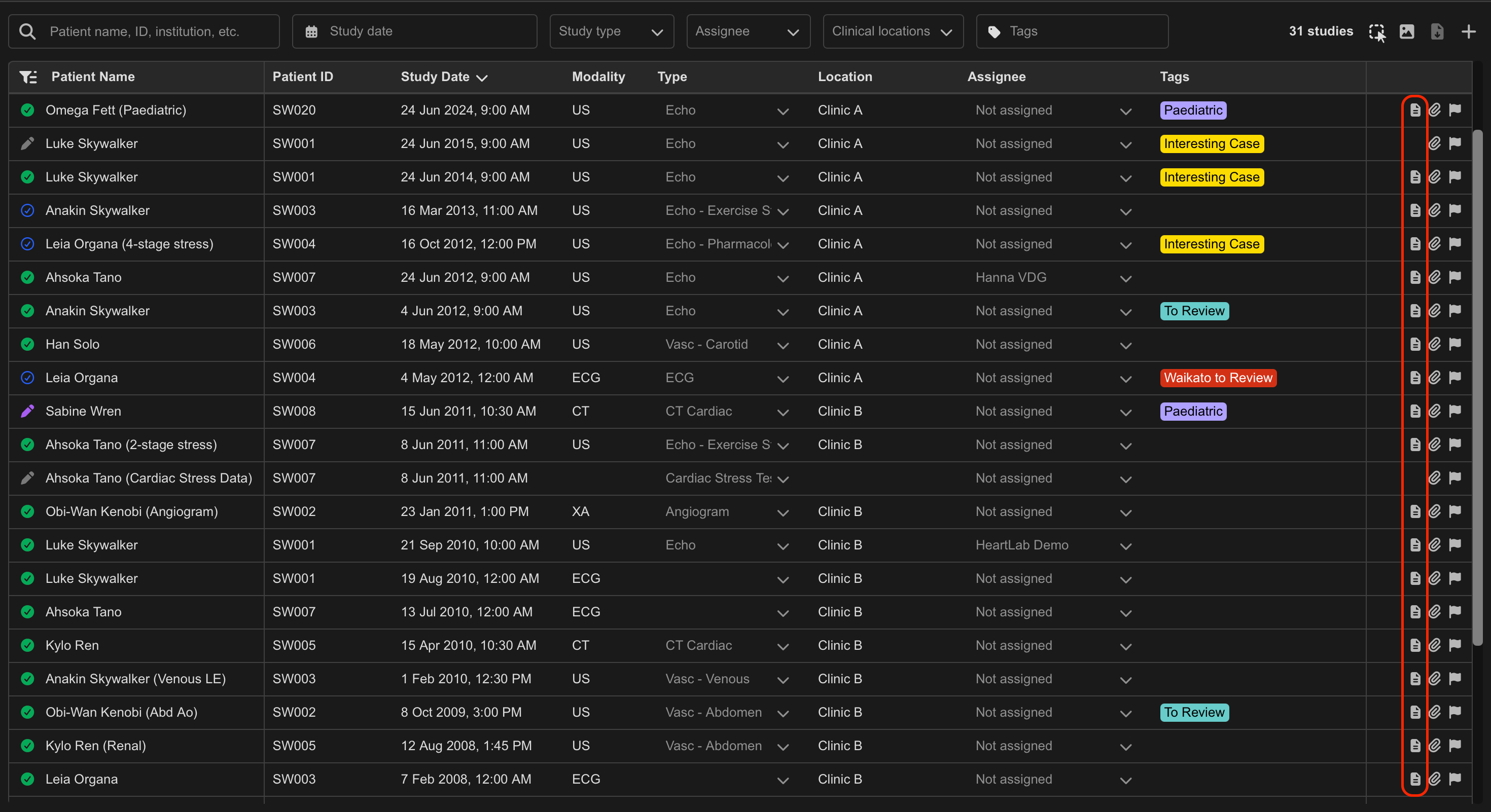
The status icons indicate:
- Successful distribution
- Distribution in progress
- Distribution failed
View Report Distributions
To review detailed distribution history for a study:
- Either:
- Right-click the target study and select View Report Distributions, or
- Select the distribution status icon from the Study List
This opens the Study Report Distributions dialog.

The dialog displays:
- Latest delivery status
- Time the report was generated
- Date and time of the last successful delivery
- Report type
- Delivery destination
- Recipient email address
Resend a Report
To manually resend a report:
- Open the Study Report Distributions dialog.
- Locate the desired distribution record.
- Select the Resend button.
HeartLab attempts to redistribute the report using the original distribution settings.
Refresh Distribution Status
To refresh delivery information:
- Select the Refresh button.
The latest:
- Delivery status
- Delivery timestamps
- Distribution outcomes
will be retrieved from the system.
Additional Notes
Use report redistribution when delivery issues occur without requiring report amendments or re-finalisation.
Resending a report does not modify the report content or create a report amendment.
Available delivery statuses may vary depending on configured distribution integrations and delivery methods.
 MFR
MFR