HeartLab Agent
Report Delivery
Automatically deliver finalised reports to local folders using the HeartLab Agent.
Report Delivery
The HeartLab Agent can automatically deliver finalised reports to to a local directory. This is useful for automatic distribution of reports to shared network folders, integration with third-party software, and creating local archives of completed reports.
Configure the HeartLab Agent
- Open the HeartLab Agent.
- Open the Report Delivery tab.
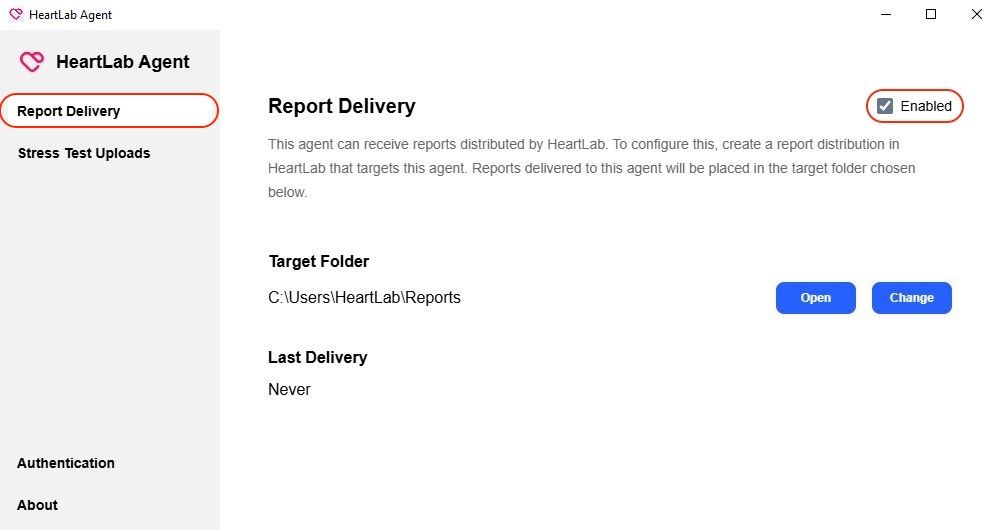
- Enable Report Delivery.
- Select the destination folder where reports should be saved.
Create a Report Distribution
- Navigate to Settings → Reporting → Distributions.
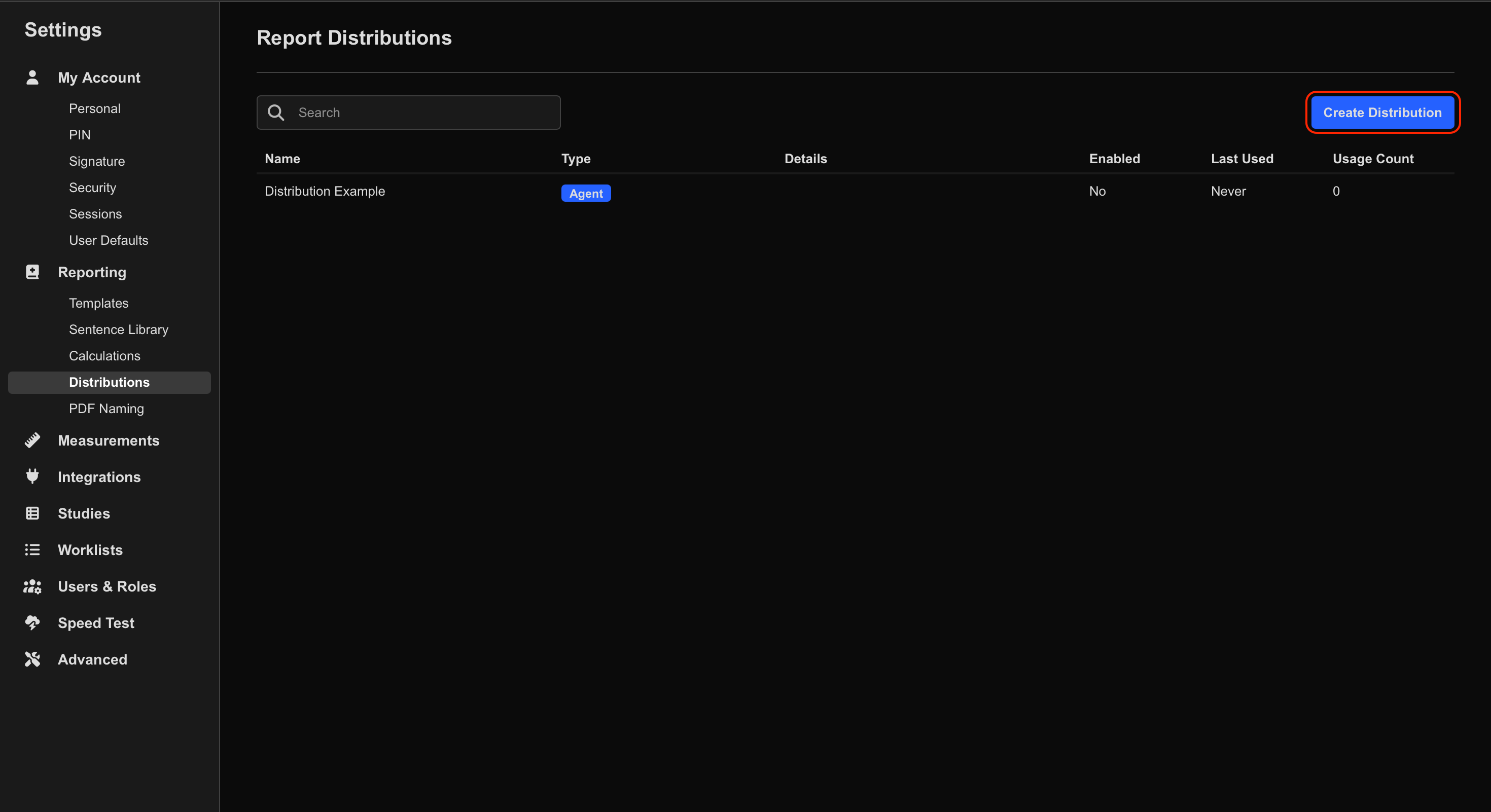
- Select Create Distribution.
- Select Agent as the distribution type.
If Agent is unavailable, contact HeartLab Support to enable the feature.
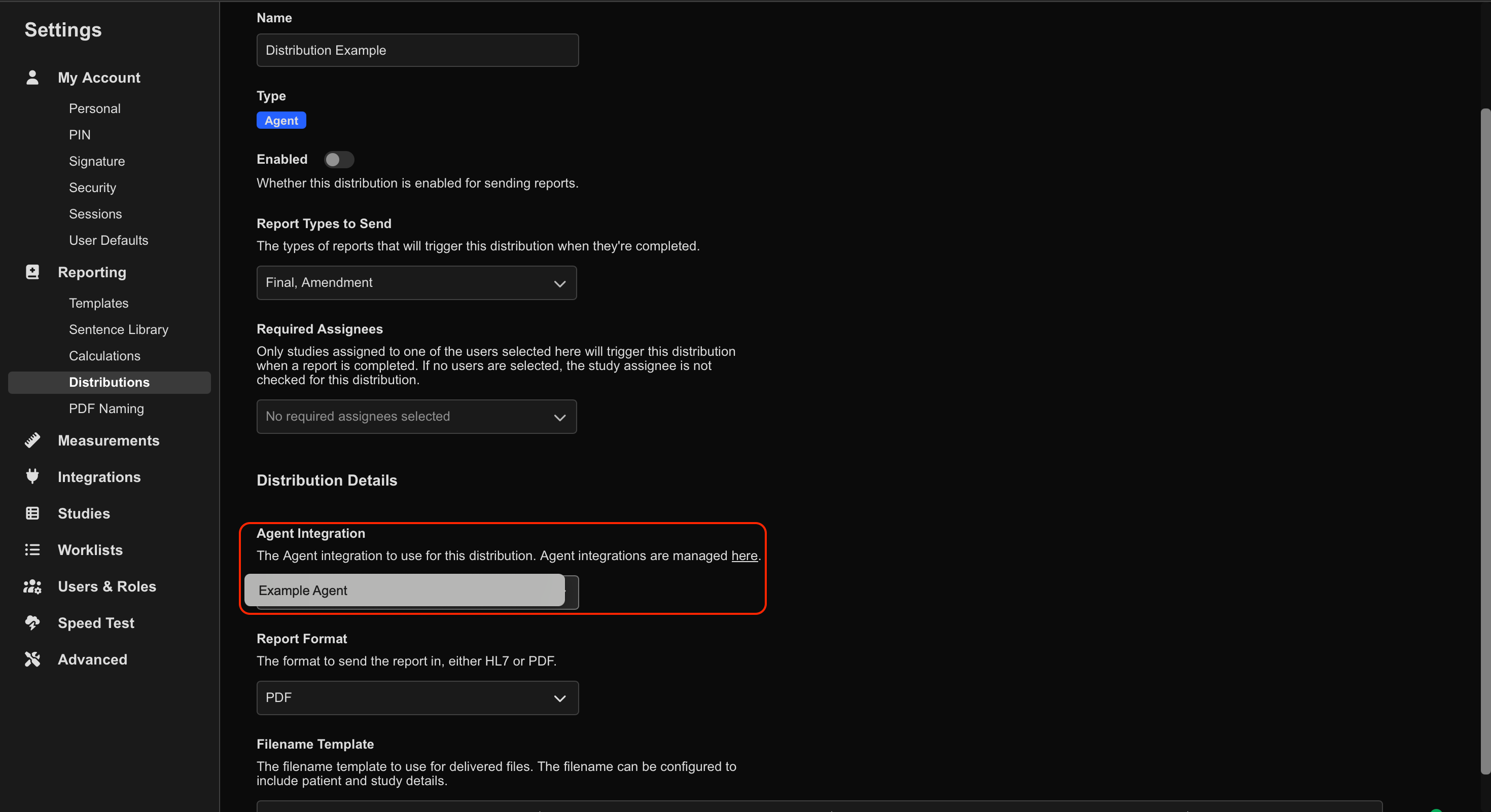
- Select the Agent to deliver reports to.
- Configure the file format (PDF or HL7), and a file naming convention if required.
- Save the distribution.
Verify Report Delivery
- Finalize a report.
- Confirm the distribution completes successfully.
Report delivery may take up to a minute following report finalization.
If successful:
- The report is saved to the configured directory.
- The filename matches the configured naming convention.
- The selected file format is used.
Troubleshooting
If reports are not being delivered:
- Verify the HeartLab Agent is online.
- Confirm Report Delivery is enabled.
- Verify the destination folder still exists.
- Confirm the Agent has permission to write to the destination folder.
- Check the distribution status within HeartLab.
If problems persist, contact HeartLab Support.
 MFR
MFR