

Connectivity
SFTP Reports
Configure secure SFTP delivery for finalized HeartLab reports.
SFTP Reports
HeartLab supports secure delivery of finalized reports to third-party systems such as:
- Patient Management Systems (PMS)
- Electronic Medical Records (EMR)
- Other downstream document workflows
This integration uses Secure File Transfer Protocol (SFTP) to automatically transfer finalized report PDFs from HeartLab to your receiving system.
Before You Begin
You will require an SFTP server that supports:
- Secure File Transfer Protocol over SSH (SFTP)
Gather the following details from your SFTP administrator:
| Setting | Description |
|---|---|
| Public IP address or DNS name | Destination server |
| Port number | Usually 22 |
| Username | SFTP username |
| Remote target prefix | Optional destination folder/path |
HeartLab onboarding staff can assist with SFTP integration setup if required.
Whitelist HeartLab Traffic
Depending on your HeartLab hosting region, allow inbound traffic from the following HeartLab IP addresses.
Asia Pacific (Australia & New Zealand)
13.239.48.10813.55.172.1273.24.94.42
North America (United States)
35.85.135.9652.41.164.21154.149.133.245
If your firewall restricts inbound traffic, ensure these IP addresses are whitelisted before testing the integration.
Configure the SFTP Integration
If you do not see these settings, your role may not include Integrations permissions.
Contact your HeartLab administrator if required.
- In HeartLab, navigate to Settings > Integrations > SFTP
- Select Create SFTP Integration
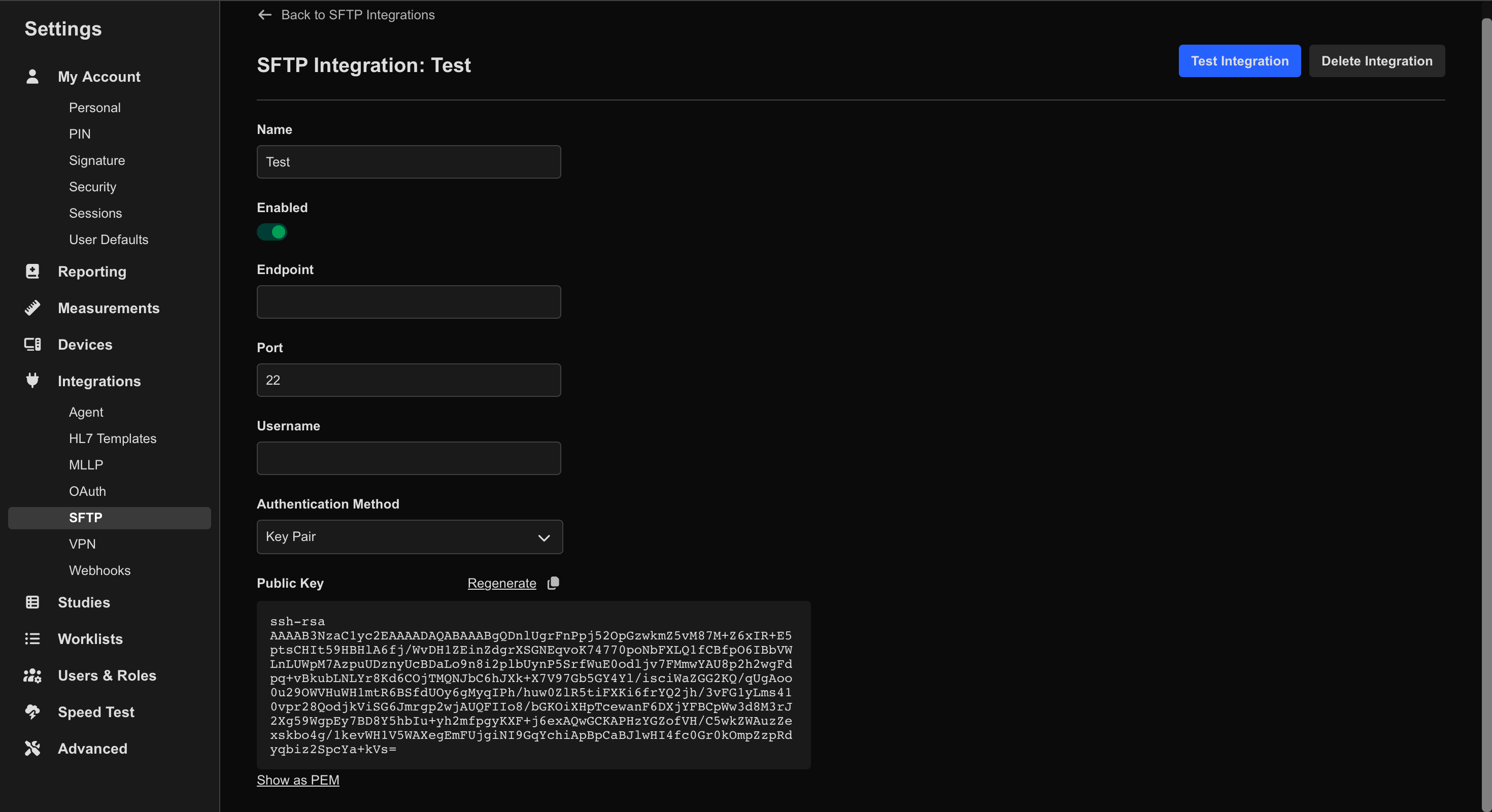
- Enter the SFTP server details:
- Hostname or IP address
- Port number
- Username
- Select the authentication method:
- Password authentication, or
- SSH key authentication
- If using SSH key authentication:
- Generate the SSH private key in HeartLab
- Add the corresponding public key to the receiving SFTP server's authorized keys configuration
- Supported key formats include:
- PEM
- OpenSSH
The selected authentication method must match the configuration on your SFTP server.
- Ensure the integration is Enabled
Validate the Connection
- Select Test Integration
- Confirm the test file is successfully received on the SFTP server.
- Verify:
- Filename formatting
- Folder/path placement
- Downstream workflow compatibility
Troubleshooting
Common causes of failed delivery include:
- Firewall rules blocking HeartLab IPs
- Incorrect hostname or port
- Invalid SSH key format
- Incorrect authentication credentials
- Incorrect user permissions on the SFTP server
- Incorrect remote target path
If the test delivery fails:
- Confirm the SFTP server is externally reachable
- Verify uploaded SSH keys are valid PEM or OpenSSH format
- Confirm the destination directory exists
- Review firewall and whitelist configuration
- Verify the selected authentication method
- Re-run the integration test
 MFR
MFR