

Study List
Study List
The Study List is the central workspace for viewing, organising, and managing studies within HeartLab.
It provides real-time visibility into study status, assignments, and reporting progress, helping clinical teams prioritise work and coordinate reporting workflows efficiently.
From the Study List, users can:
- Open studies for review
- Search and organise studies
- Track report status
- Upload studies and attachments
- Access reports and distributions
- Perform bulk actions on multiple studies
Open a Study
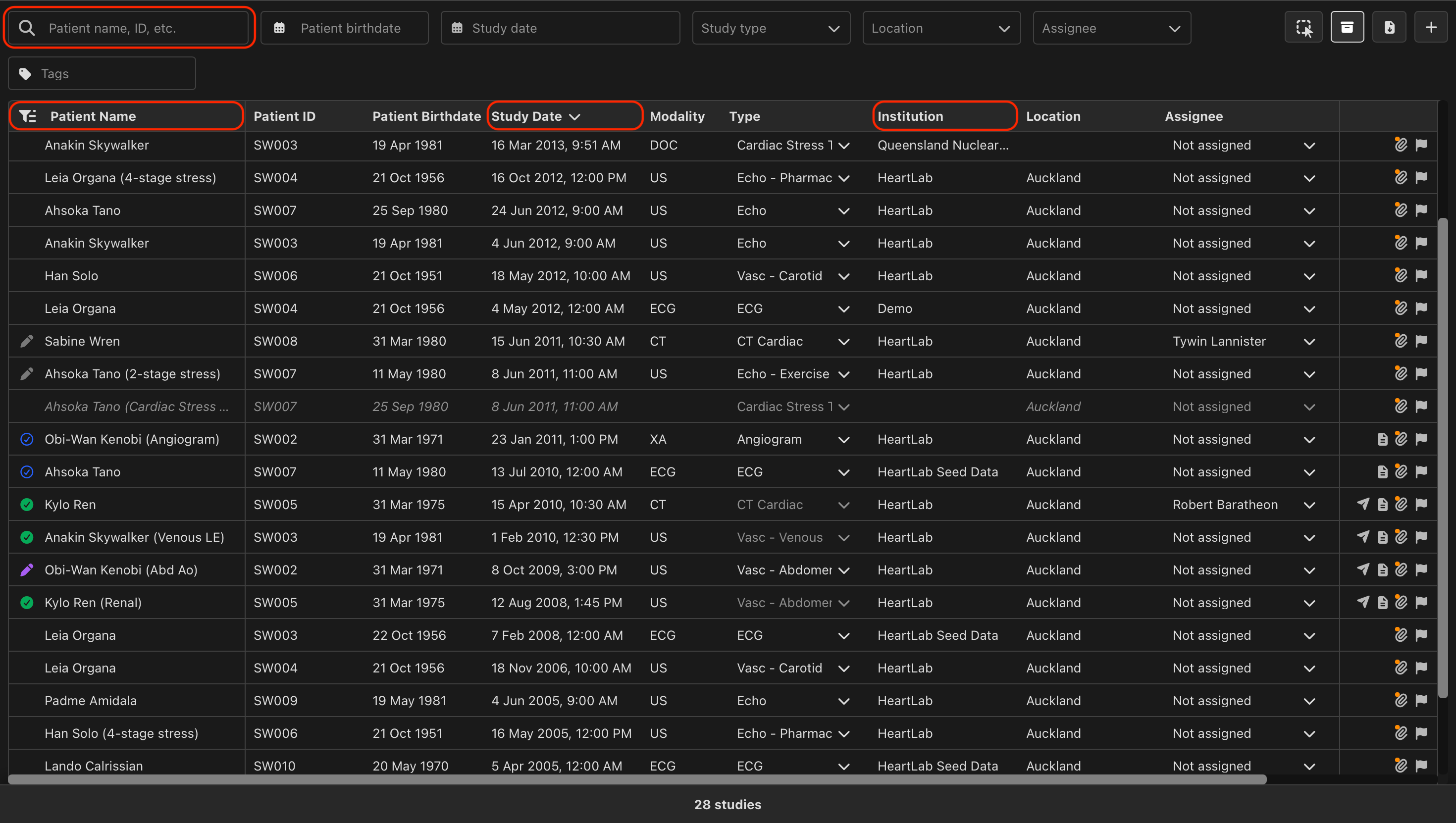
To open a study:
- Locate the desired study in the Study List.
- Hover over the study row to highlight it.
- Click anywhere on the study row.
The study opens in the Study Viewer.
Organise the Study List
Studies can be sorted by columns such as:
- Patient Name
- Study Date
- Institution
To sort the Study List:
- Select a column header.
- Select the same header again to toggle between ascending and descending order.
An arrow beside the selected column indicates the active sorting direction.
By default, studies are sorted by Study Date from newest to oldest.
Search for Studies
The search field can be used to filter studies by:
- Patient name
- Patient ID
- Institution
To search:
- Select the search field.
- Enter the desired search term.
The Study List updates automatically as you type.
Use Multi-Select
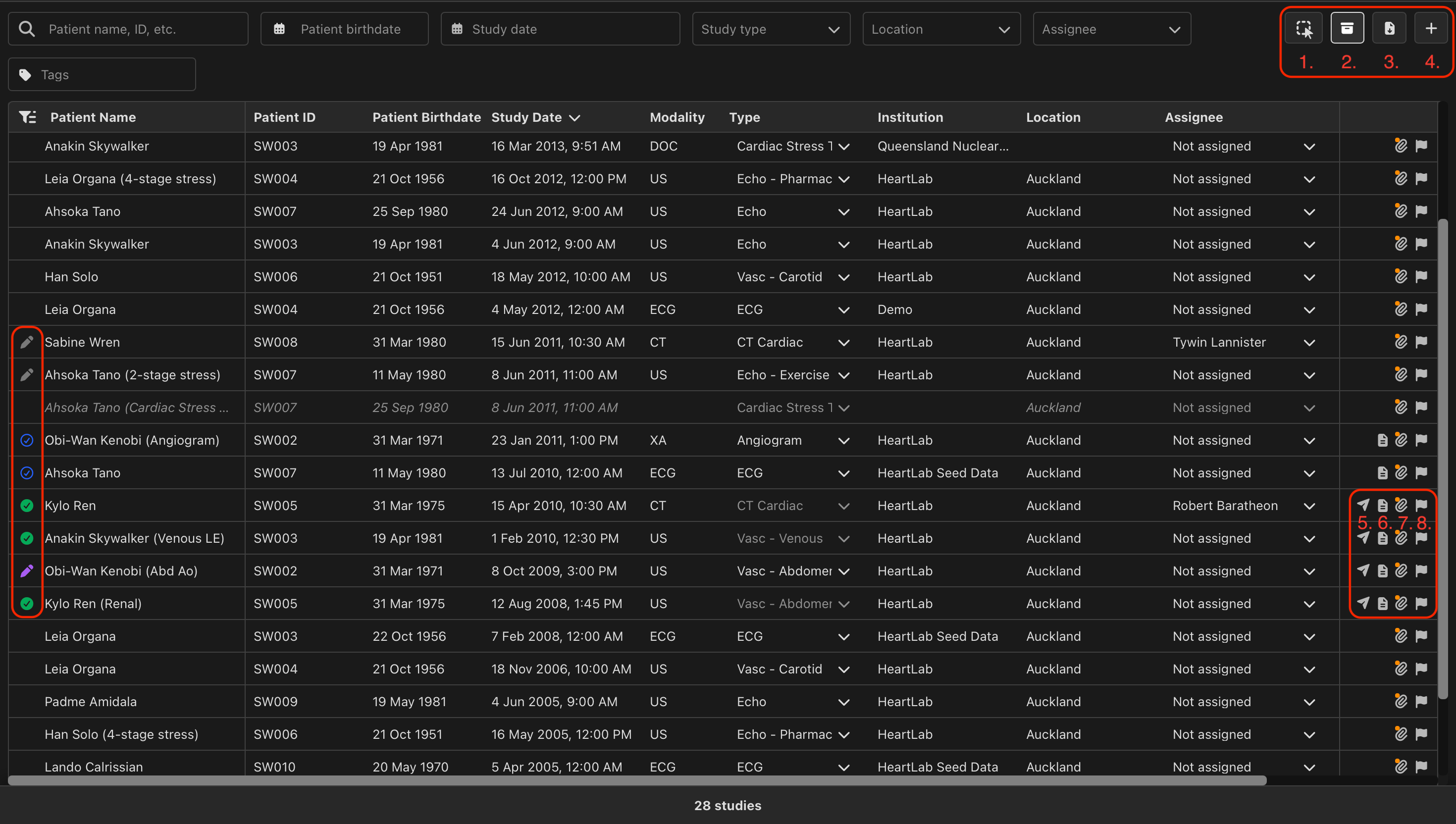
The Multi-Select tool (1) allows actions to be applied to multiple studies simultaneously.
To use Multi-Select:
- Enable Multi-Select mode.
- Select the required studies.
- Right-click one of the selected studies.
- Choose the desired action.
Supported bulk actions may include:
- Downloading studies
- Downloading reports
- Editing study locations
- Editing modalities
Additional Study List Features
Toggle Archived Studies (2)
Shows or hides archived studies within the Study List.
Archived studies are displayed using grey, italicised text to distinguish them from active studies.
Export CSV (3)
Export study list data in CSV format.
Upload Study (4)
Allows manual upload of:
- DICOM studies
- Cardiac stress test files
Report Distributions (5)
Displays the distribution status of generated reports.
View Report PDF (6)
View a study's report.
Attached Files (7)
Displays files attached to the study.
Flag as Urgent (8)
Marks a study as urgent to help prioritise review workflows.
Report Status Indicators
If a report exists for the study, a status icon appears in the Study List.
| Icon | Meaning |
|---|---|
| Grey pencil | Draft report in progress |
| Blue tick | Preliminary report approved |
| Green tick | Final report signed off |
| Purple pencil | Amendment in progress |
 MFR
MFR