

Report Templates
Importing and Exporting Templates
Export template JSON files for backup, migration, and reuse across environments.
Importing and Exporting Templates
HeartLab allows report templates to be exported for backup or sharing, and imported for reuse across environments or organisations.
This helps:
- Standardise reporting workflows
- Reduce template setup time
- Maintain consistency across sites
- Back up important reporting configurations
Export a Template
To export a report template:
- Navigate to Settings → Reporting → Templates.
- Open the desired template in the Report Template Editor.
- Select the Burger Menu to reveal additional options.
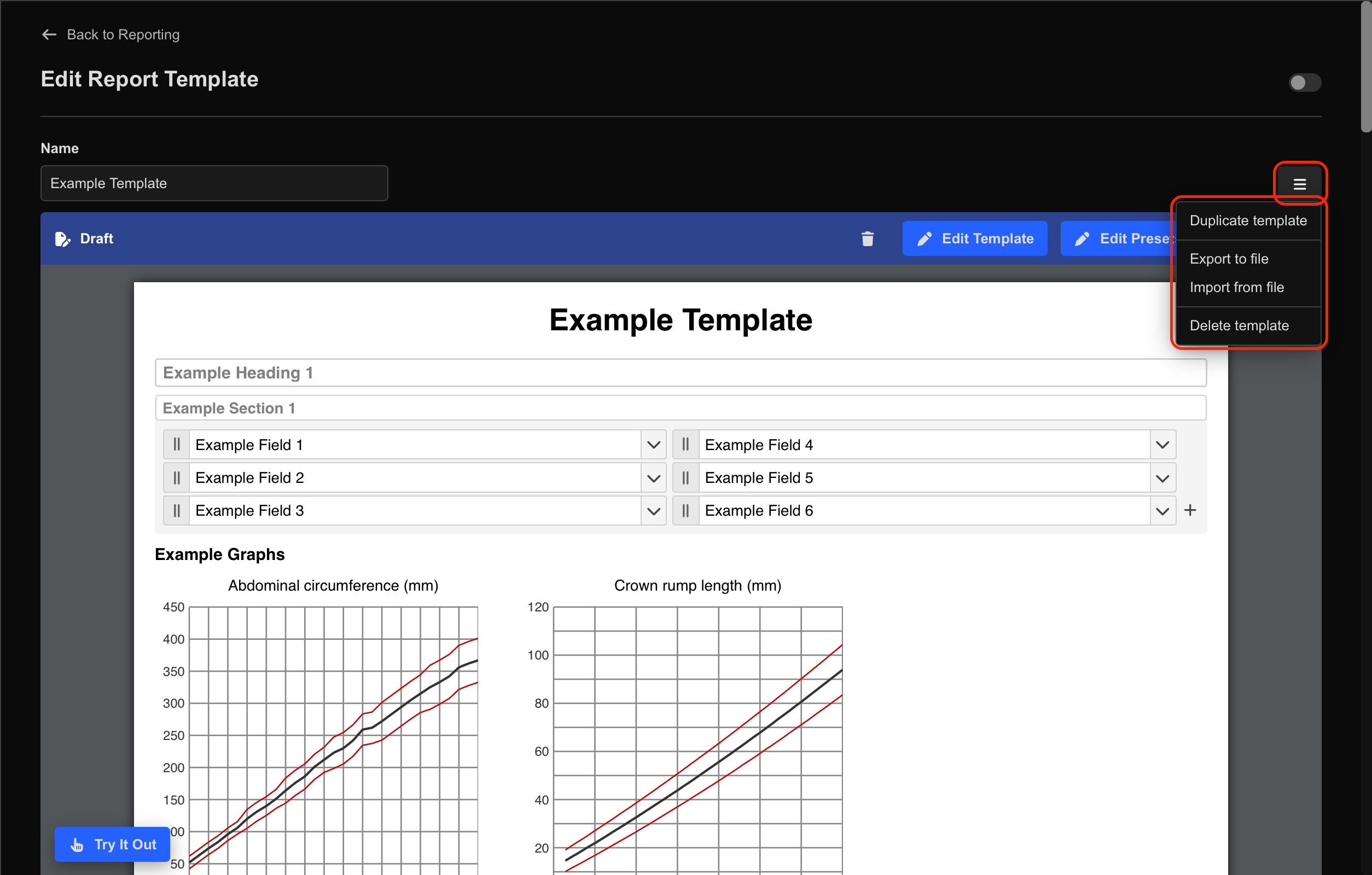
- Select Export to file.
- Save the exported file securely.
HeartLab report templates are exported as
.json files.Import a Template
To import a report template:
- Navigate to Settings → Reporting → Templates.
- Either:
- Open an existing template, or
- Select Create Template to create a new template.
- Select the Burger Menu.
- Select Import from file.
- Upload the desired
.jsontemplate file. - Review the imported template structure and configuration.
- Select Publish once validation is complete.
Validate Imported Templates
After importing a template, review:
- Measurements
- Dropdown logic
- Automation rules
- Calculations
- Formatting
- Template sections
before enabling the template for clinical use.
Use Try it out to preview imported templates before publishing.
Additional Notes
Imported templates may reference measurements, functions, or automation rules that are not configured in the current tenant.
Maintain backup copies of published templates before making significant structural changes.
 MFR
MFR