

Study Viewer
Study Viewer
The Study Viewer is the primary workspace for reviewing studies, performing measurements, and authoring reports within HeartLab.
The viewer combines image review, measurements, patient information, and reporting tools into a single interface designed to support efficient clinical workflows.
Main Areas of the Study Viewer
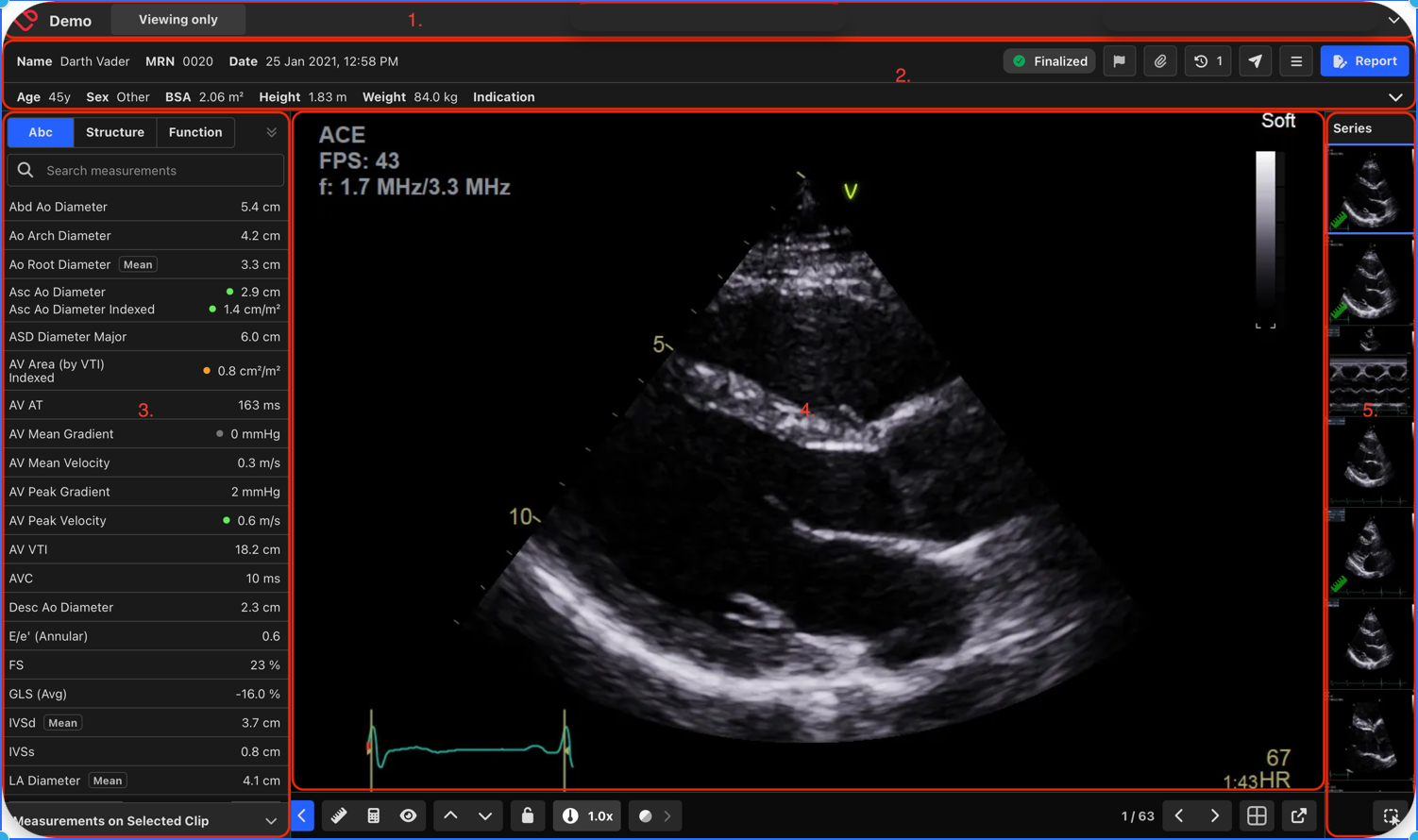
1. Header
The Header displays the currently selected tenant and provides access to:
- User settings
- Notifications
- Profile options
- Additional platform menus
2. Patient Information Panel
The Patient Information Panel displays key patient and study details, including:
- Patient name and ID
- Age and sex
- Body surface area (BSA)
- Study indication
Additional patient and study information can be expanded when required.
The panel also provides quick-access actions for:
- Marking studies as urgent
- Viewing other studies for the patient
- Creating, viewing, or editing reports
3. Measurement Pane
The Measurement Pane displays all measurements associated with the study, including:
- Manual measurements
- Imported measurements
- Calculated measurements
- AI-generated measurements
If multiple measurements exist for the same metric, HeartLab displays the calculated mean value.
Users can review, edit, and manage measurements directly from the pane.
M to quickly show or hide the Measurement Pane.4. Cine View
The Cine View is the primary image viewing area used to review clips and images.
HeartLab supports multiple viewing layouts, allowing users to display up to nine clips simultaneously.
Within Cine View, users can:
- Play and pause clips
- Scroll frame-by-frame
- Adjust brightness and contrast
- Review measurements and annotations
- Perform post-processing measurements
Spacebar to play or pause the active clip.5. Clip List
The Clip List displays all clips and images associated with the study in acquisition order.
Additional study content such as:
- PDFs
- DICOM Structured Reports (SR)
appear as thumbnails at the bottom of the clip list.
Users can:
- Preview clips by hovering over thumbnails
- Resize the clip list
- Group clips by series or view
- Select and organise clips for review
Viewer Controls and Navigation
HeartLab includes several tools to support image review and workflow navigation, including:
- Measurement tools
- Calculation tools
- Clip layout controls
- Playback speed adjustment
- Synchronised playback
- Multi-clip selection
- Secondary viewing windows
 MFR
MFR