

Measurement Fields
Measurement Fields
Measurement fields allow report templates to automatically display measurements recorded during a study.
Administrators can configure how measurements appear in reports by selecting:
- Measurements
- Units
- Decimal places
- Fallback measurements
This helps ensure reports remain consistent while allowing flexibility between different study types and measurement conventions.
Add a Measurement Field
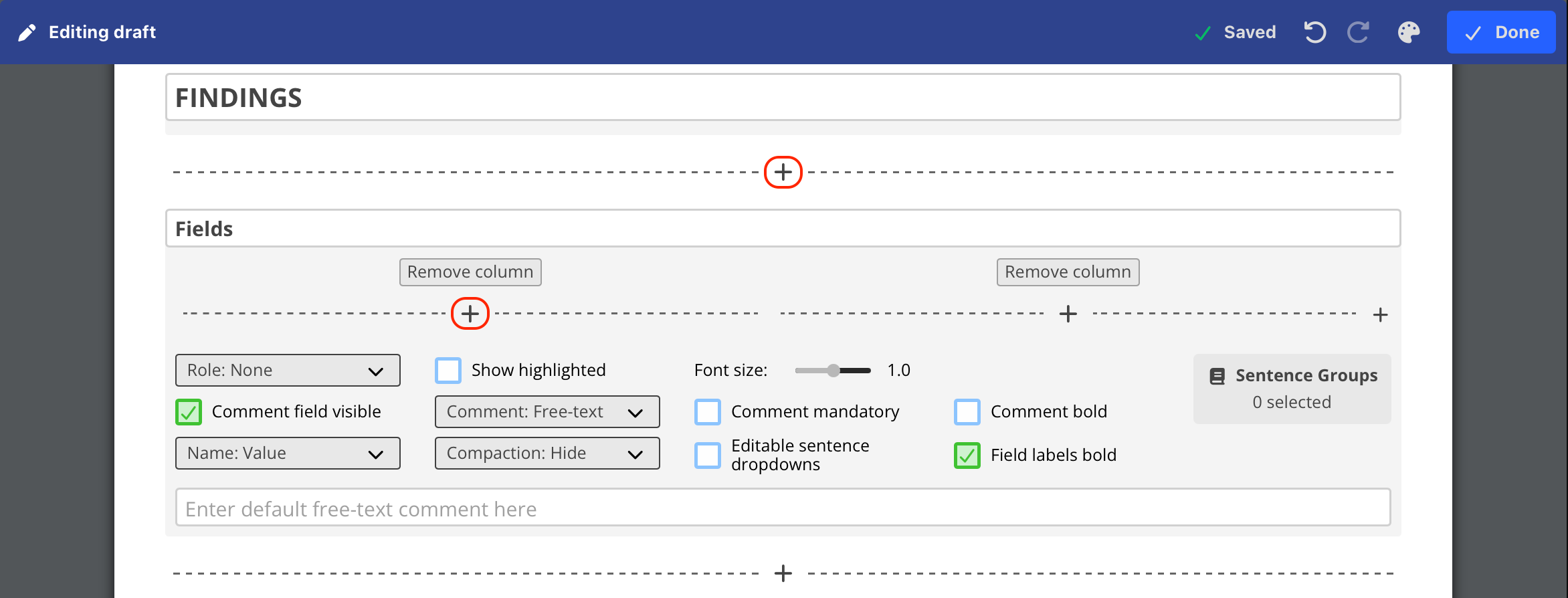
To add a measurement field:
- Navigate to Settings → Reporting → Templates.
- Open the desired report template.
- Select Edit.
- Select the + button to add a field.
- Under the newly added field, select the + button to add a dropdown.
- Select the dropdown's downward arrow, then change the field type to Measurement.
The measurement field configuration panel opens.
Configure the Measurement Field
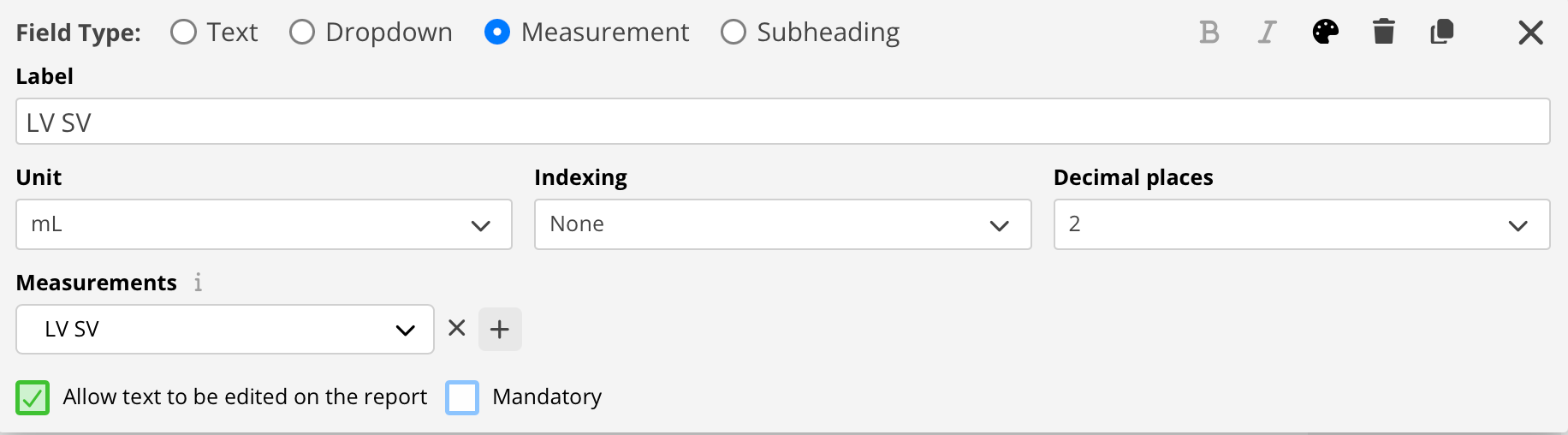
Configure the following options:
- Enter the label that will appear within the report.
- Select the unit to display in the report.
- Select the number of decimal places to display.
- Select one or more measurements to populate the field.
The measurement selector includes a searchable dropdown, making it easier to locate measurements in large measurement libraries.
Configure Fallback Measurements
A measurement field can specify up to 10 measurements.
When multiple measurements are configured:
- HeartLab evaluates them in order.
- The first measurement containing a value is chosen for display on the report.
- Remaining measurements act as fallback options if earlier measurements aren't present.
This allows report templates to accommodate variation in measurement workflows without requiring extra report fields.
Example priority:
- LV Mass
- LV Mass M-Mode
If LV Mass has no value, HeartLab will then look for LV Mass M-Mode and use it if it has a value.
Preview Measurement Fields
Before publishing the template:
- Select Try it out.
- Confirm that:
- The correct measurement is displayed.
- Units are correct.
- Decimal places are correct.
Publish the Template
After confirming the measurement field behaves correctly:
- Select Publish.
The updated measurement field becomes available when using the report template.
 MFR
MFR