

Connectivity
HeartLab Agent: PDF Import
Automatically import PDF reports into HeartLab using the HeartLab Agent.
PDF Import
The HeartLab Agent can automatically import PDF files from a local directory and create studies containing those PDFs in HeartLab. The details used to create studies are extracted from the PDF filename using a configurable filename template.
Configure Filename Template
Before PDF files can be imported, HeartLab must know how to interpret the PDF filename.
- Navigate to Settings → Integrations → Agent.
- Select the desired Agent integration.
- Open PDF Import.
- Select Edit Filename Template.
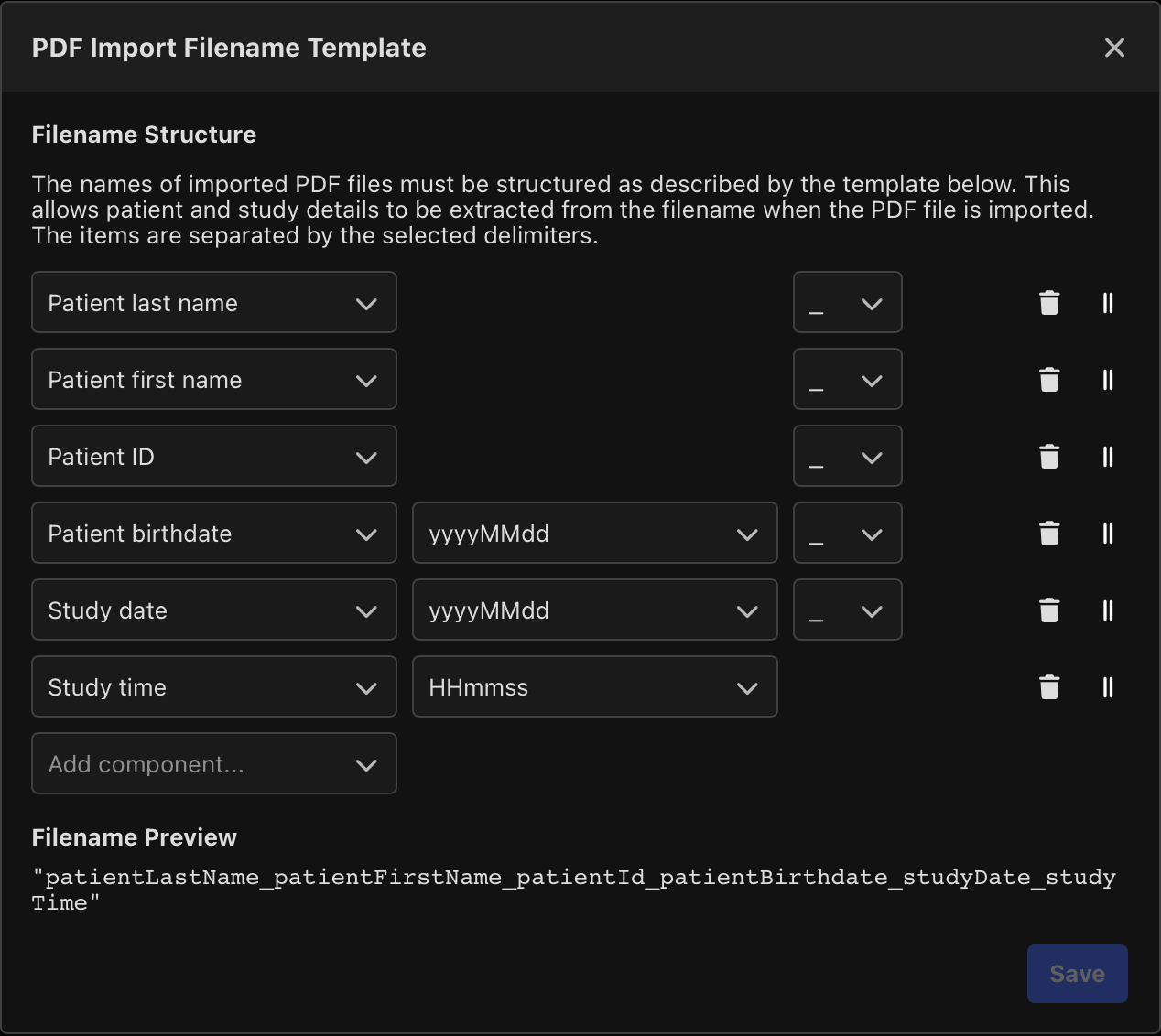
The filename template defines how values are extracted from PDF filenames. To configure the filename template:
- Drag and drop components into the required order.
- Select the delimiter used between components.
- Save the template.
Only fields included in the filename template are used when creating the study in HeartLab.
Configure PDF Import
Within the HeartLab Agent:
- Navigate to the PDF Import tab.
- Enable PDF Import.
- Select the folder to monitor.
- Save the configuration.
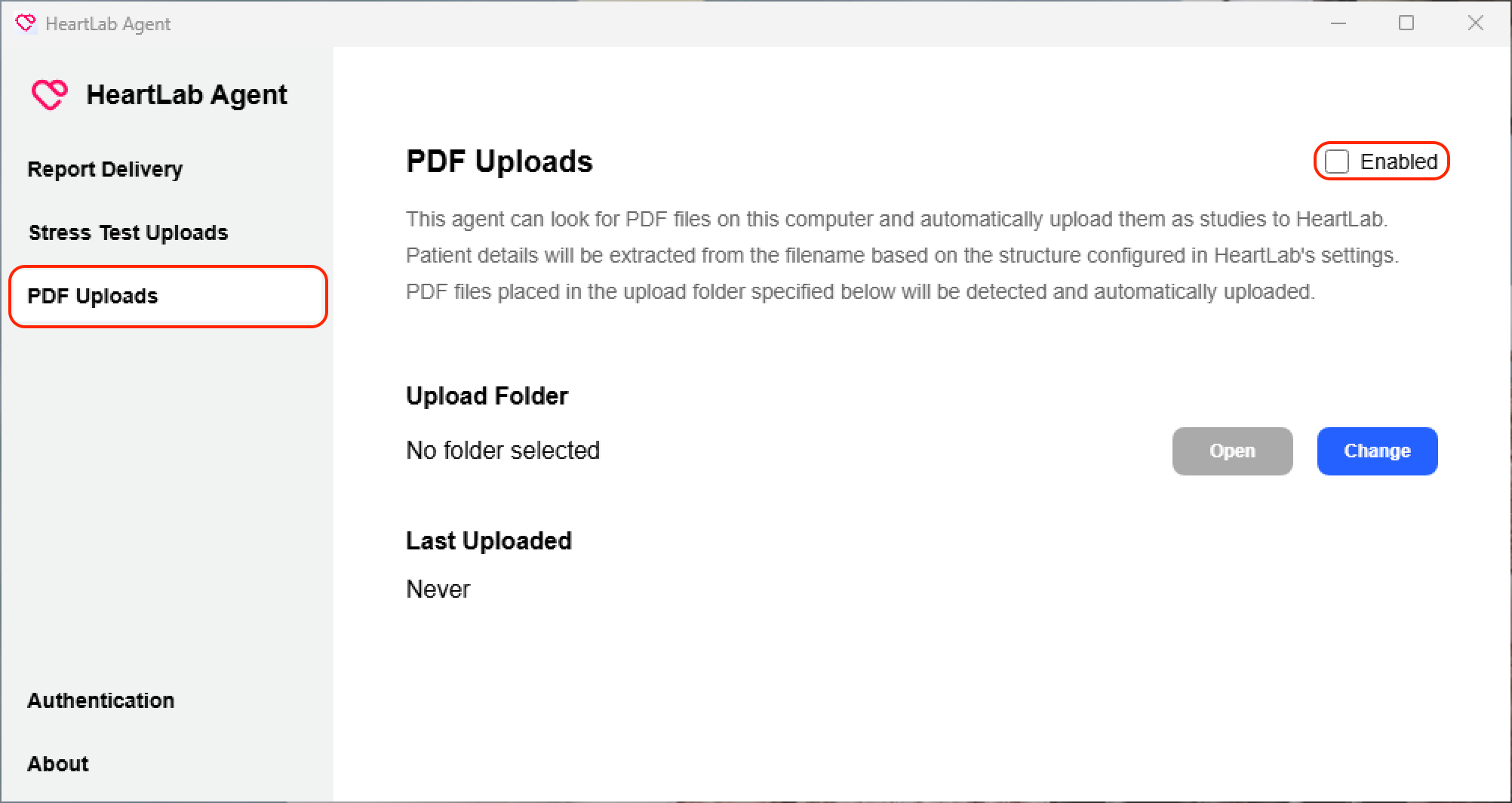
The HeartLab Agent will scan the configured folder every five seconds looking for PDF files.
Importing PDFs
Place PDF files into the configured import folder.
If a PDF filename matches the configured filename template:
- The PDF is uploaded to HeartLab.
- Configured patient and study details are extracted from the filename.
- A corresponding study is created in HeartLab containing the PDF.
Troubleshooting
If PDF files are not being imported:
- Check that the Agent version is 2.2.0 or later.
- Confirm PDF Import is enabled.
- Check that the monitored folder path is correct.
- Confirm PDF filenames match the configured filename template.
- Review Agent logs for additional details.