

Connectivity
Handheld VPN
Set up a secure VPN connection so handheld devices can send DICOM studies to HeartLab.
Handheld VPN Setup
This guide explains how to configure a secure VPN connection for handheld ultrasound devices before configuring DICOM sending to HeartLab.
Many handheld devices do not support TLS-based DICOM connections directly and therefore require a secure VPN tunnel to communicate with HeartLab.
These instructions apply to self-managed handheld devices such as tablets and iPads.
If you are using a dedicated appliance workflow (for example, a Kosmos Bridge), please follow the device-specific setup guide instead.
Before You Begin
You will require:
- A valid
.ovpnconfiguration profile provided by HeartLab - Internet access on the handheld device
- A supported VPN client application (for example, OpenVPN Connect)
If you do not yet have a VPN profile, please contact your HeartLab representative.
Configure VPN
- Connect the handheld device to the internet.
- Install a supported VPN client from the device app store.
Recommended:
- OpenVPN Connect
Install OpenVPN Connect
- Open the:
- Google Play Store, or
- Apple App Store
- Search for:
OpenVPN Connect
- Install the application.
Connect to the VPN
- Open the VPN application.
- Import the provided
.ovpnconfiguration file. - Enter a recognizable VPN connection name.
- For example,
HeartLab VPN
- For example,
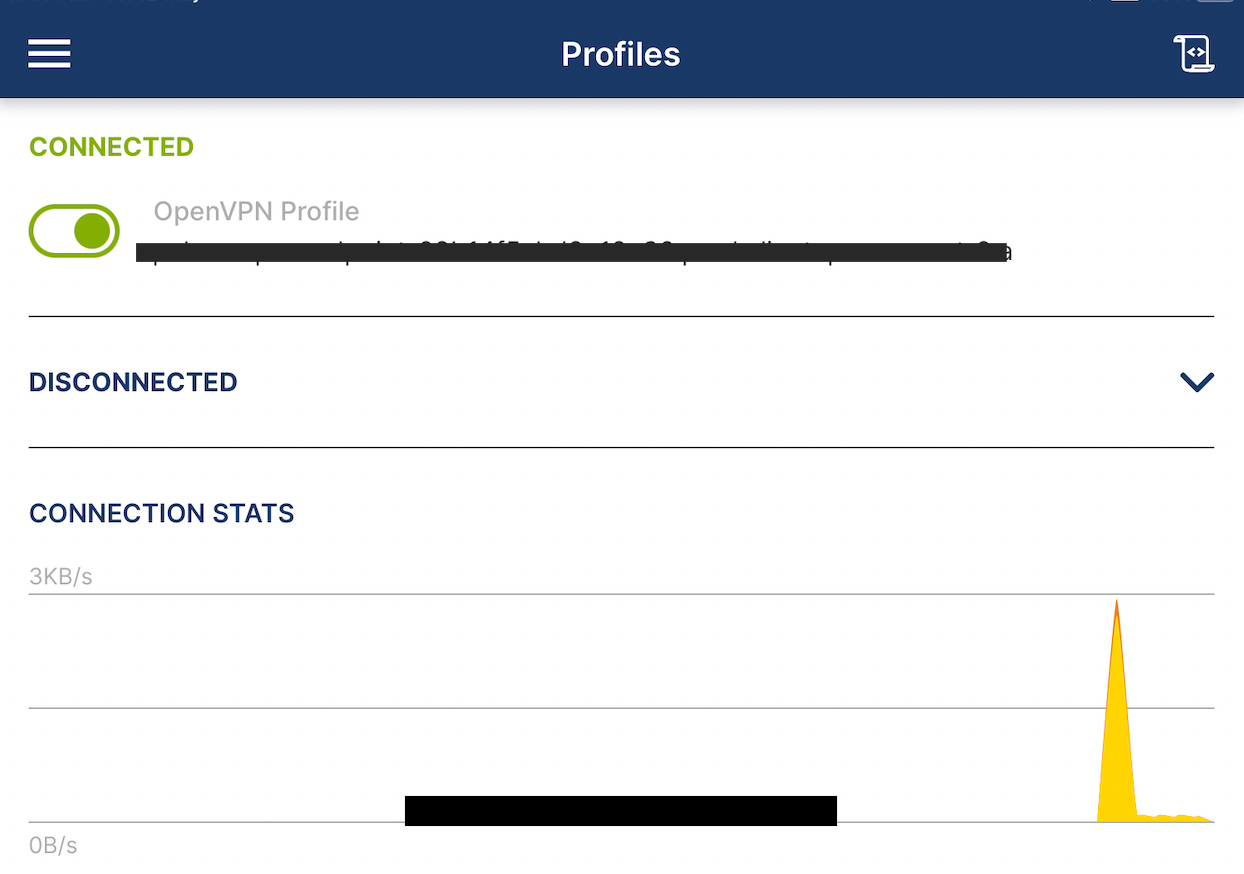
- Connect to the VPN server.
- Confirm the VPN status displays as connected.
Connect Your Device
Once the VPN connection is active:
- Follow the device-specific setup instructions to configure DICOM sending to HeartLab.
Supported handheld device guides:
Troubleshooting
Common VPN connection issues include:
- Incorrect VPN credentials
- Expired or invalid
.ovpnprofile - Firewall or network restrictions
- Internet connectivity problems
If the VPN tunnel cannot be established, DICOM studies will not successfully send to HeartLab.
If issues persist:
- Re-import the VPN profile
- Confirm internet connectivity
- Restart the VPN client
- Contact your HeartLab representative or local IT team
Notes
- Keep VPN profiles secure and avoid sharing them outside authorised staff.
- Some organisations may use alternative VPN clients depending on internal IT policies.